
Sponsored Disclosure: This article is sponsored by Bluehost. I received compensation for creating this content. This article also contains affiliate links. I earn a commission when readers make qualifying purchases through these links, at no additional cost to them.
Creating a professional business website used to require technical knowledge, website development experience, and considerable time. You needed to choose a hosting provider, install a website platform, select a theme, design pages, add content, configure forms, and finally publish everything.
But AI-powered website builders are changing this process.
With Bluehost AI Builder, you can describe the website you want to create and use AI to generate an initial website design. You can then customize the website, manage its content, and publish it.
To understand how this works in practice, I decided to create a complete demonstration website using Bluehost AI Builder.
Instead of simply testing the homepage generator, I wanted to explore the entire website-building process, including the administration dashboard and its business management features.
For this experiment, I created a fictional home cleaning company called CleanPro.
Throughout this guide, I’ll show you how I created the website, configured pricing packages, managed customer testimonials, added FAQs, reviewed customer quote requests, updated request statuses, and published the final website.
You can visit the actual website created during this experiment:
Live website: https://app-f4b03.4320d.app.bluehost.ai
Let’s go through the complete process.
What Is Bluehost AI Builder?
Bluehost AI Builder is an AI-assisted website creation solution that helps users build websites by describing their requirements.
Rather than starting with an empty website and designing everything manually, you can provide a description of your business and the type of website you want.
The AI then uses your instructions to generate an initial website experience.
You can review the generated design and make changes to your website before publishing it.
It is particularly worth exploring if you are:
- Starting a new small business.
- Creating a website for a local service business.
- Building an online presence for your company.
- A freelancer creating websites for clients.
- A beginner who wants to explore AI-assisted website creation.
For my experiment, I selected a home cleaning business because it requires several important website elements, including service listings, pricing packages, customer reviews, FAQs, and a contact or quote request system.
Step 1: Describe the Website You Want to Create
The first step was to visit Bluehost AI Builder and provide a detailed description of the website I wanted to create.
I opened the AI website creation experience and entered a prompt explaining the business, design preferences, website sections, and functionality.
Here is the prompt I used: Create a modern, professional, mobile-responsive business website for a home cleaning company named CleanPro. The website should have a beautiful homepage with a large hero section, an attractive headline, a short business introduction, and a prominent Get a Free Quote button. Include separate sections for About Us, Our Cleaning Services, Pricing Packages, Why Choose Us, Customer Testimonials, Frequently Asked Questions, and Contact Us. Add attractive service cards for regular home cleaning, deep cleaning, office cleaning, and move-in/move-out cleaning. Use a premium blue and white color scheme, modern typography, professional cleaning-related images, and clean layouts. Include a contact and quote request form. Make the website visually appealing, trustworthy, easy to navigate, and optimized for desktop, tablet, and mobile devices.
Website name: CleanPro
Business type: Home cleaning company.
I instructed Bluehost AI to create a modern, professional, mobile-responsive business website for a home cleaning company named CleanPro.
I also provided specific instructions about the website structure.
The requirements included:
- A beautiful homepage with a large hero section.
- An attractive headline.
- A short business introduction.
- A prominent Get a Free Quote button.
- An About Us section.
- An Our Cleaning Services section.
- Pricing Packages.
- A Why Choose Us section.
- Customer Testimonials.
- Frequently Asked Questions.
- Contact Us.
- A contact and quote request form.
I also requested attractive service cards for regular home cleaning, deep cleaning, office cleaning, and move-in/move-out cleaning.
For the design, I requested a premium blue-and-white color scheme, modern typography, professional cleaning-related images, and clean layouts.
Finally, I instructed the AI to make the website visually appealing, trustworthy, easy to navigate, and optimized for desktop, tablet, and mobile devices.
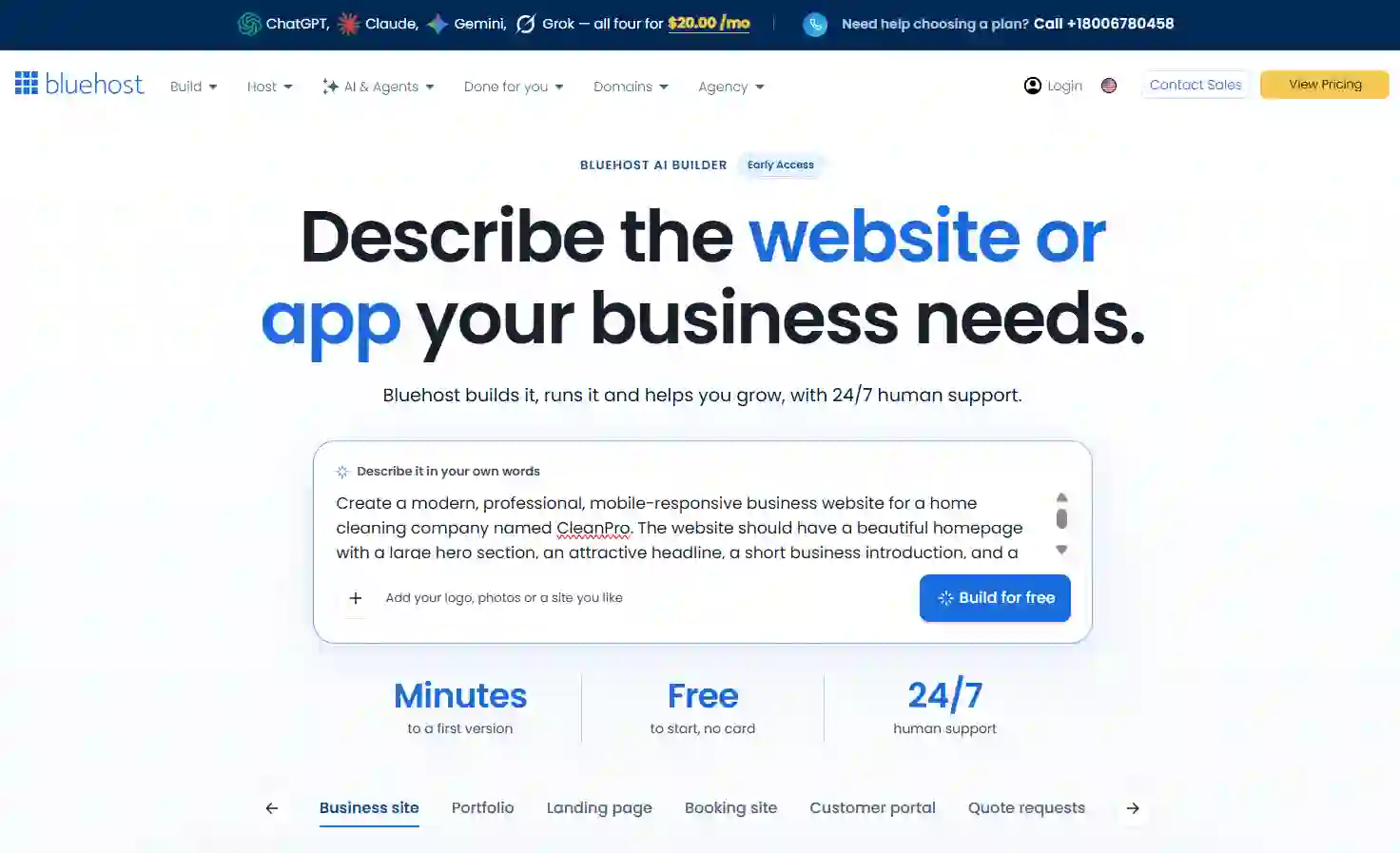
Providing a detailed prompt is important because it gives the AI a clearer understanding of the website you want to build.
Instead of simply writing “Create a cleaning website,” describe the business, its target customers, required sections, design preferences, and important functionality.
Step 2: Create a Bluehost AI Builder Account
After entering the website description and clicking the Build for free button, Bluehost AI Builder displays an account registration screen.
Users can register using their Google, Apple, or GitHub accounts, or create an account with their email address. The email registration form requests basic information, including a full name, email address, and password. A phone number is also available as an optional field.
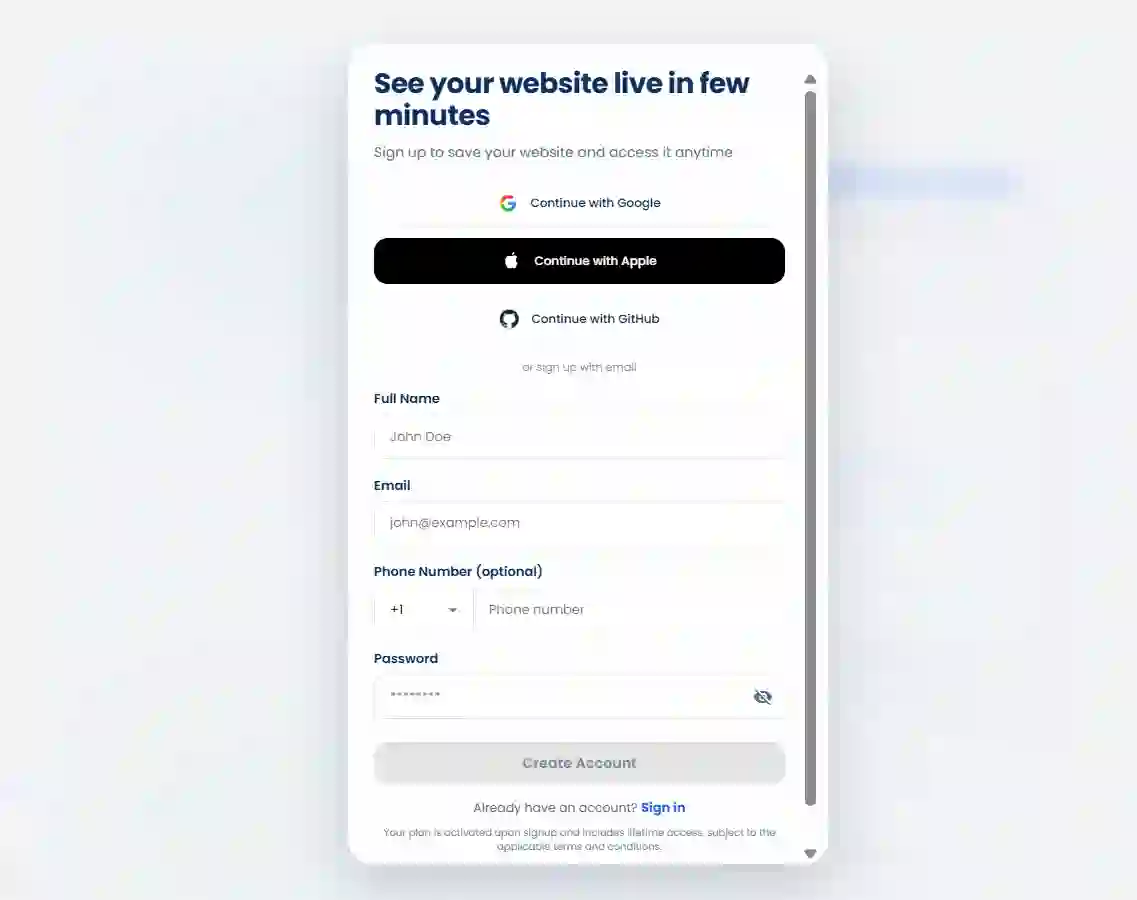
This registration step allows users to save their website and access it later. The signup interface is straightforward and provides multiple registration options.
Step 3: Access the Bluehost AI Builder Dashboard
After completing the registration process, I was taken to the Bluehost AI Builder dashboard. The workspace displays the original website description in a side panel, making it easy to review the submitted requirements.
Bluehost AI Builder also confirmed that my request had been saved and that the website build would start next. The main workspace displayed an “Understanding your business” message while the AI processed my instructions.
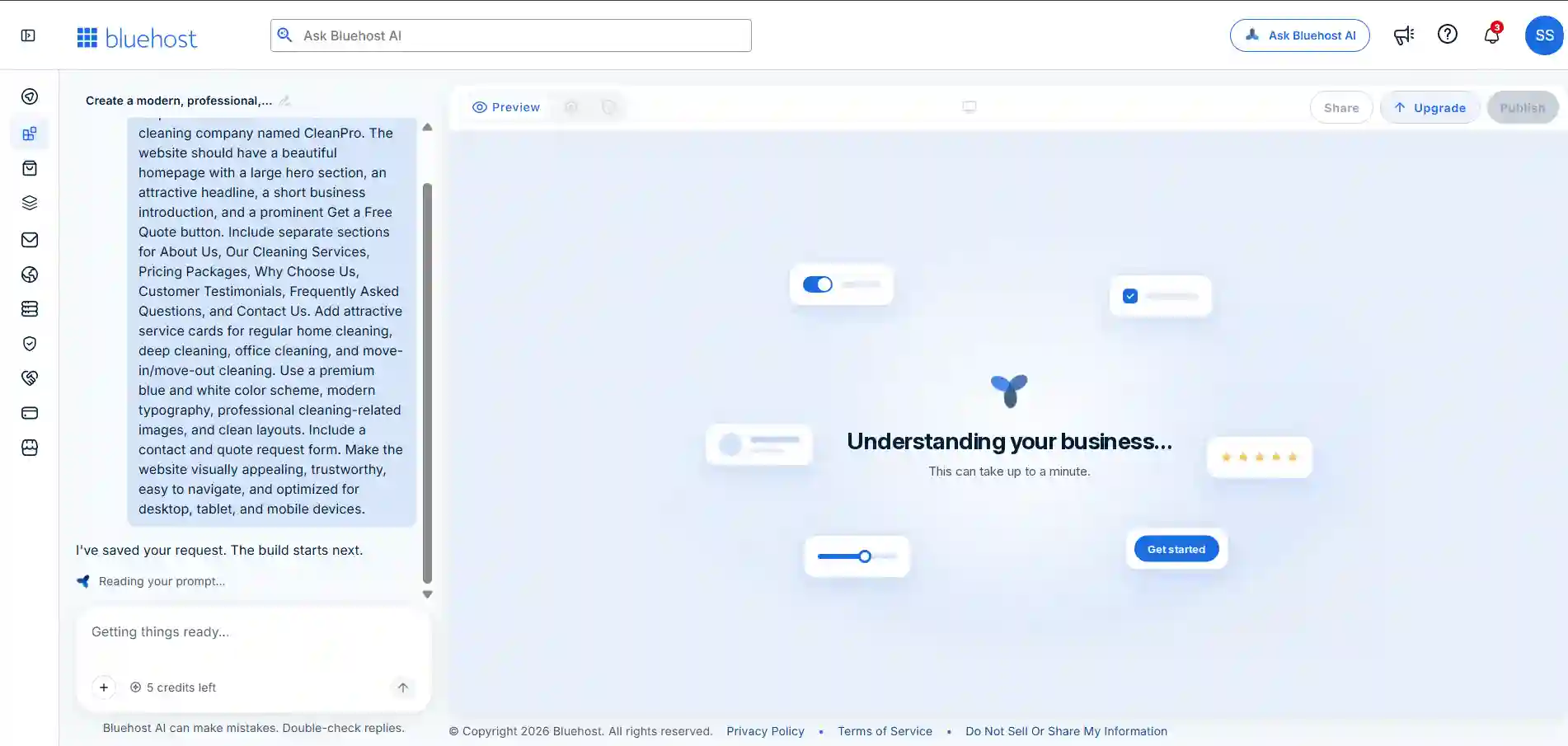
Another useful detail is the credit indicator in the chat interface, which showed five credits remaining during my session. The dashboard also provides an AI chat area for entering additional instructions and refining the website.
Step 4: AI Website Generation and Business Questions
After processing my initial instructions, Bluehost AI Builder started building the website. The dashboard displayed a progress indicator and listed individual tasks, including setting up the website’s appearance, adding services and pricing, creating quote requests, building the dashboard, and generating website pages.
An interesting feature is that Bluehost AI Builder also presents a few onboarding questions while the website is being generated. These questions are designed to understand the user’s background and tailor the experience.
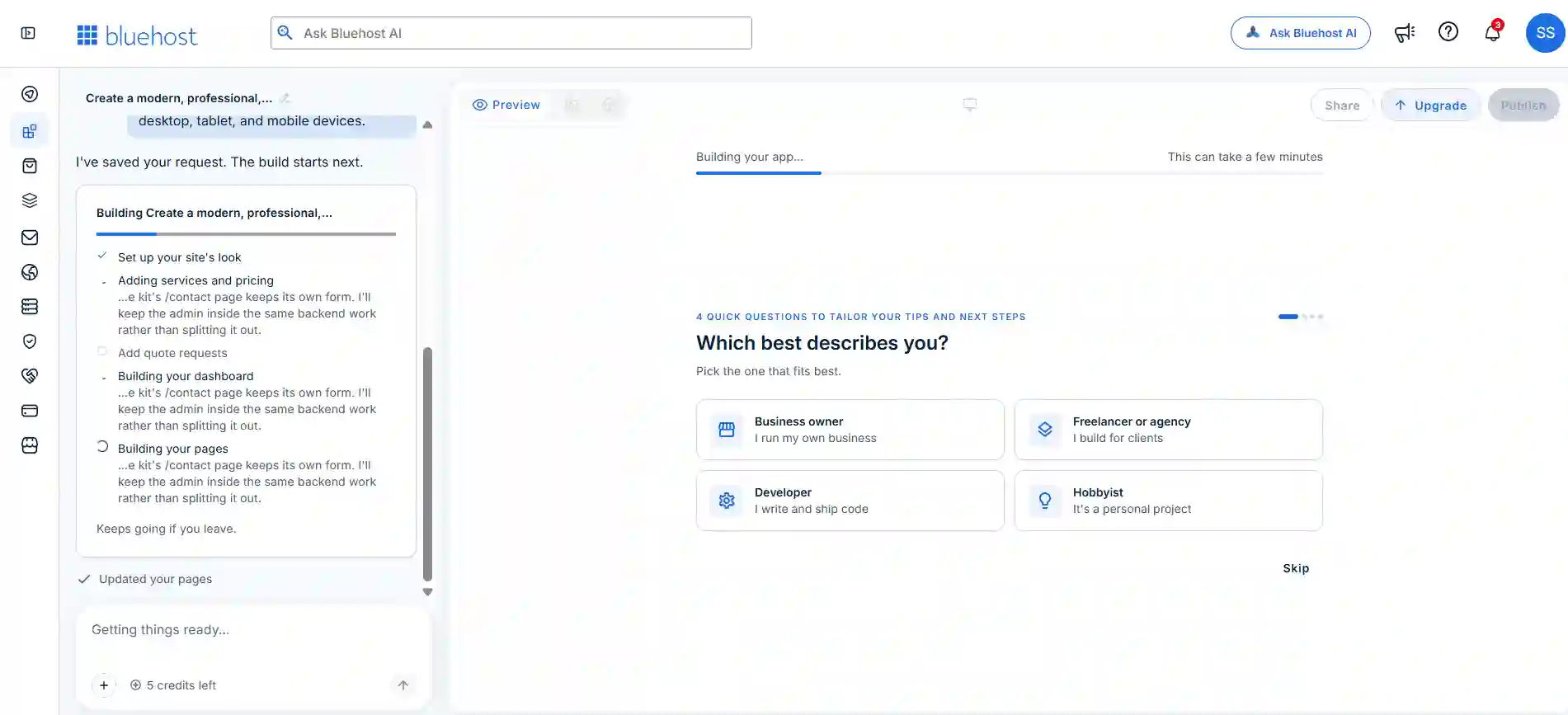
The first question asks whether the user is a business owner, freelancer or agency, developer, or hobbyist. The interface also indicates that website generation can take a few minutes and continues even if the user leaves the page.
Step 5: My First Website Generated with Bluehost AI Builder
After completing the initial setup, Bluehost AI Builder successfully generated my CleanPro website. The first version featured a clean, modern design with a premium blue and white color scheme.
The homepage included the headline “A cleaner home, without lifting a finger,” along with a short introduction explaining the cleaning services. It also featured two prominent call-to-action buttons: “Get a Free Quote” and “See pricing.”
The navigation menu included Services, Pricing, About, FAQ, and Contact. According to the AI-generated summary, the website also contained seven sections, a separate contact page, and a quote request form.
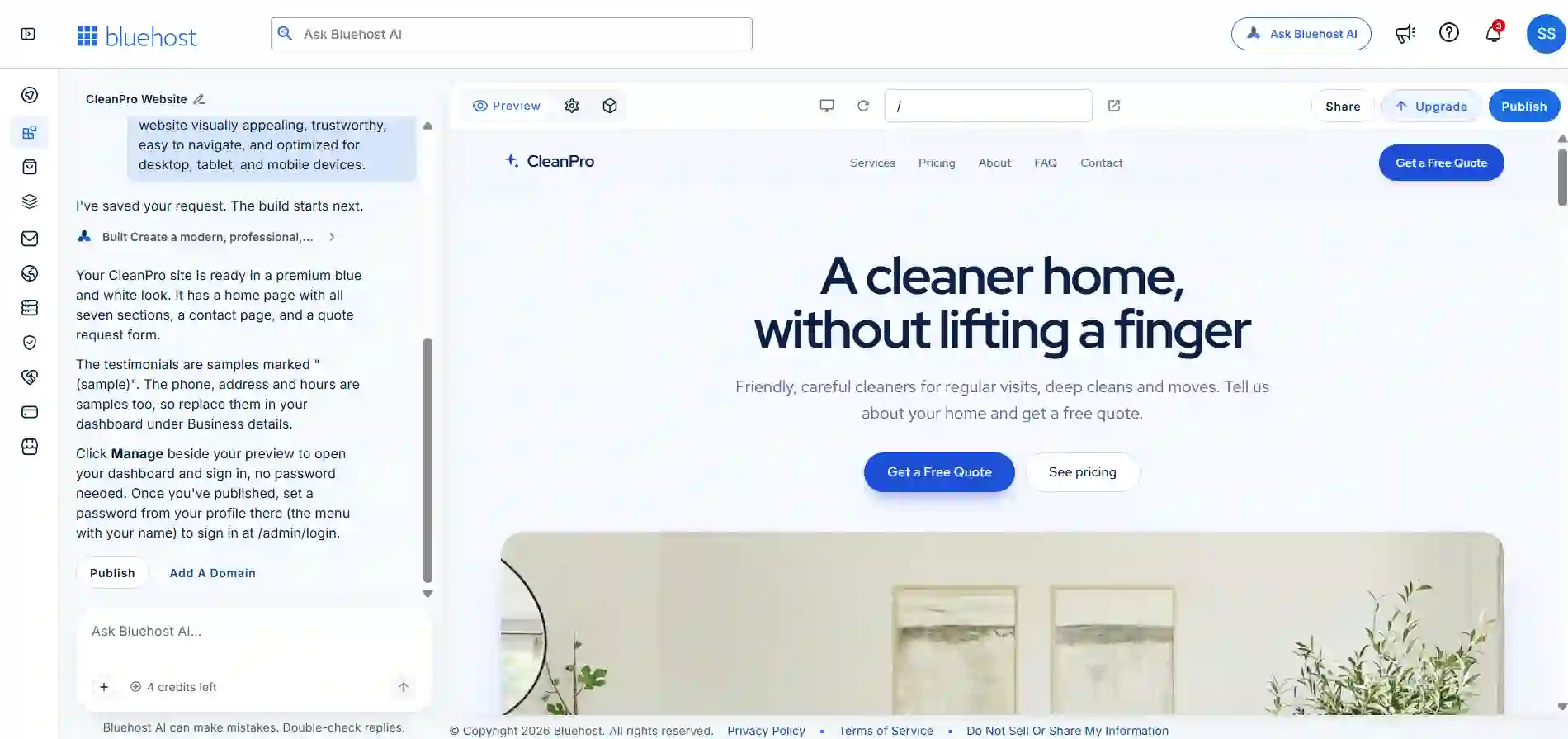
One useful detail was that Bluehost AI Builder clearly identified its sample testimonials and sample business contact information. It advised replacing these details through the business settings before using the website publicly.
Overall, the initial generation provided a useful starting point for a small-business website, although the content and functionality still needed to be reviewed and tested.
Step 6: Exploring the Bluehost AI Builder Management Dashboard
One interesting part of my hands-on experience was discovering the management dashboard generated alongside the CleanPro website.
The dashboard provides a central location for managing different aspects of the business website. Its navigation menu includes options for Messages, Business Details, Secrets, Quote Requests, Services, Packages, Testimonials, and FAQs.
The main dashboard also displays an overview of business activity, including quote requests, bookings, open messages, and a weekly quote request chart.
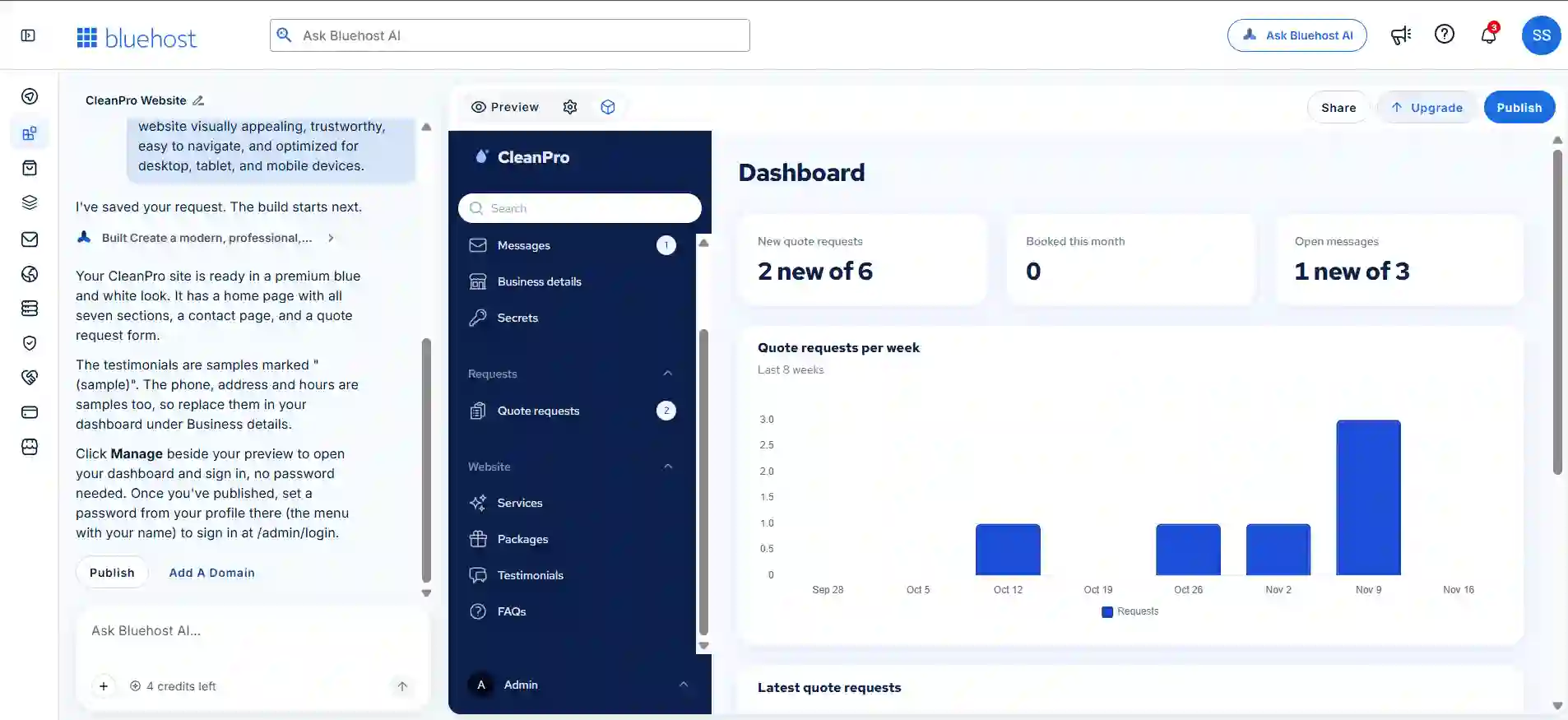
This is useful for demonstrating how Bluehost AI Builder can generate administrative features alongside a website. Rather than focusing only on the public-facing design, users can also explore the tools available for managing website content and customer inquiries.
Step 7: Managing Business Details
Bluehost AI Builder also provides a dedicated Business Details section where users can manage important business information.
In my CleanPro project, this section included fields for a phone number and email address, which are displayed in the website footer and contact page. It also provided fields for external links, including an online ordering page, booking page, Instagram, and Facebook.
Another available setting allows users to indicate whether customers can visit their business in person.
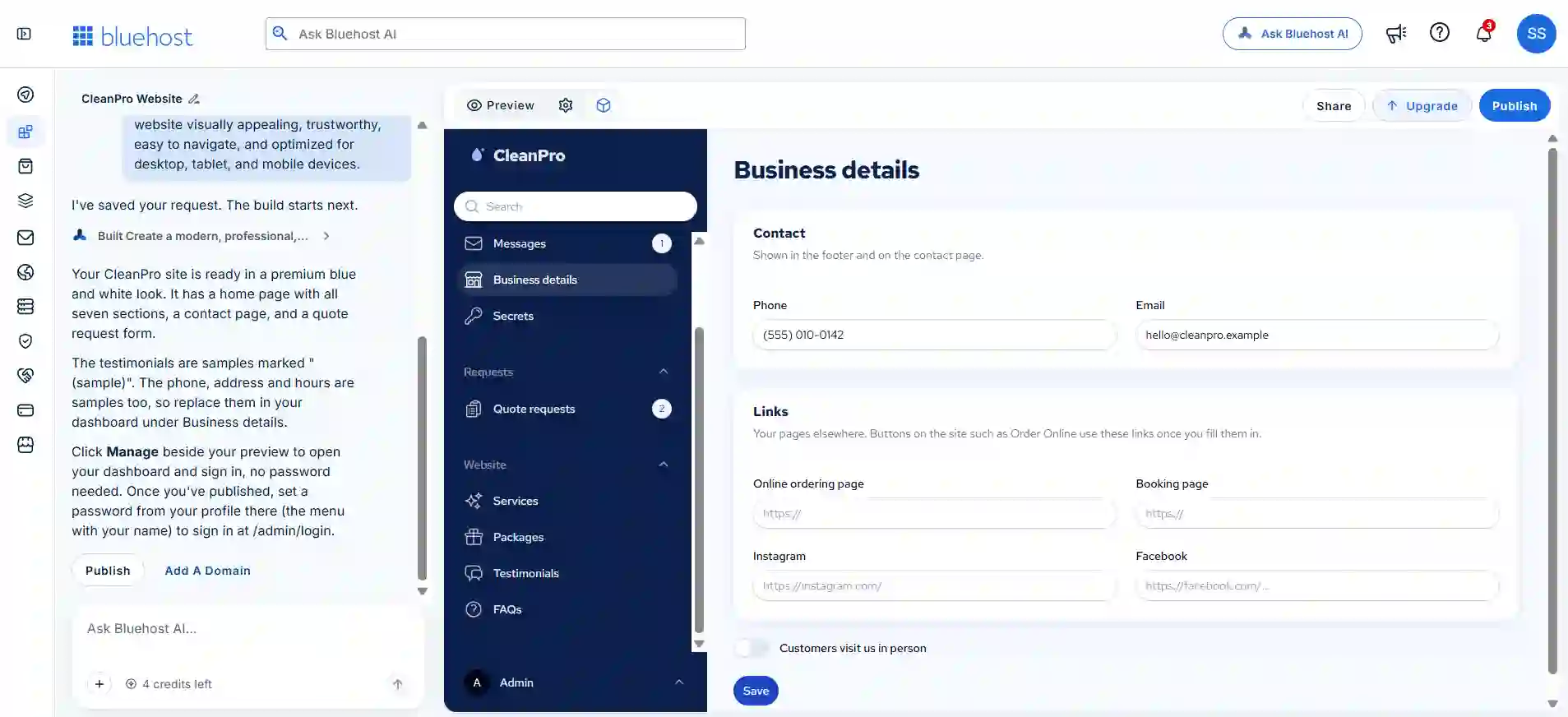
This centralized management approach makes it easier to update business information without manually editing individual website pages. Bluehost AI Builder also generated sample contact details, which should be replaced with accurate information before publishing.
Step 8: Managing Services with Bluehost AI Builder
Another useful feature I explored was the Services Management section. Bluehost AI Builder automatically created four cleaning service listings for my CleanPro website: Regular Home Cleaning, Deep Cleaning, Office Cleaning, and Move-In / Move-Out Cleaning.
Each listing included a service name, a short description, an image, and a starting price. The generated dashboard also provided individual controls to activate or deactivate services, edit existing listings, and delete services.
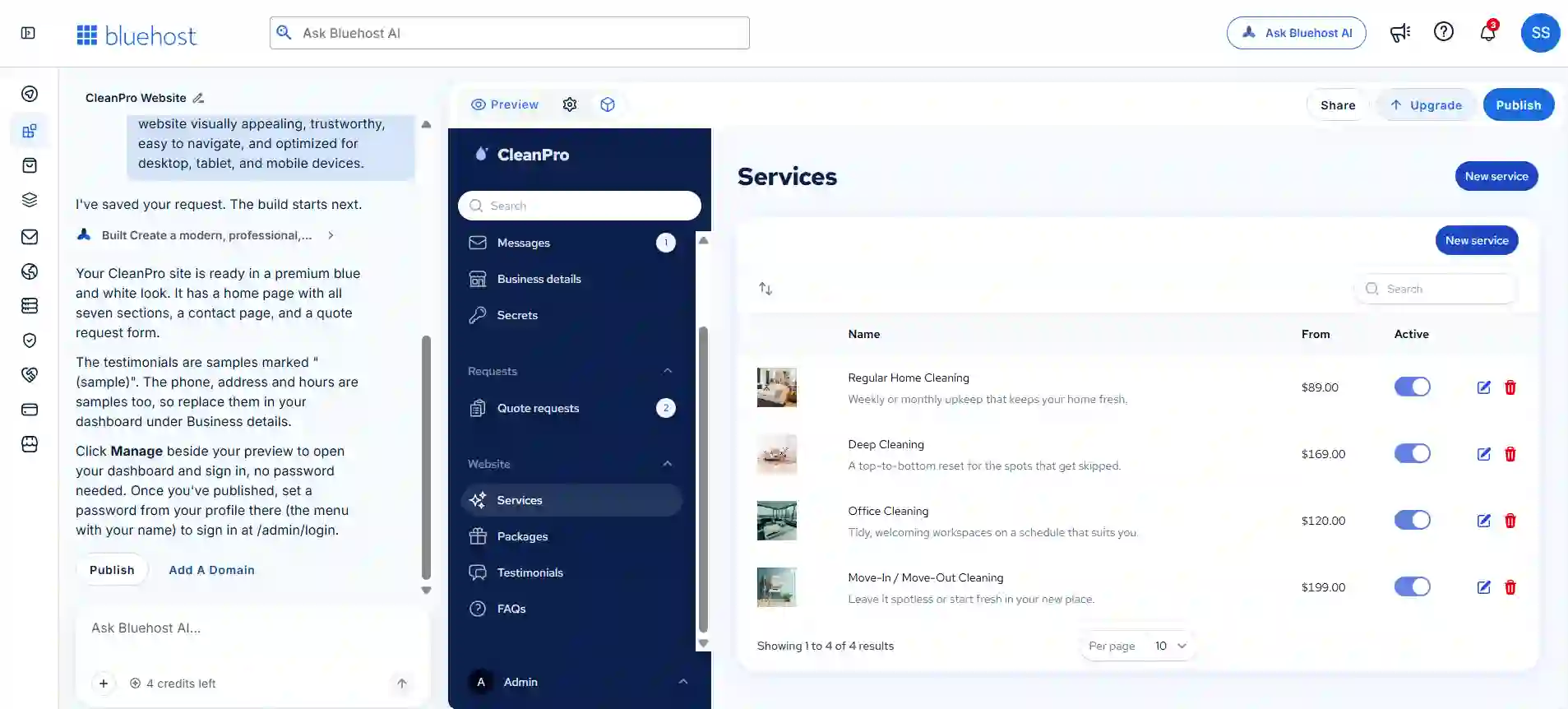
There was also a New Service button for adding additional offerings.
This makes the service management process relatively straightforward for a small business. Instead of manually editing the website whenever a service changes, users can manage their listings through the administrative dashboard. The generated prices are demonstration content and should be replaced with accurate business pricing before publishing.
Step 9: Editing and Customizing Individual Services
Bluehost AI Builder provides an editing interface for managing individual service listings. When I opened the Regular Home Cleaning service, I found several editable fields.
Users can change the service name, URL slug, short summary, detailed description, and starting price. There is also an option to control the display order and manage individual service features using tags.
The editing interface additionally allows users to upload a replacement image and control whether a particular service is displayed on the website.
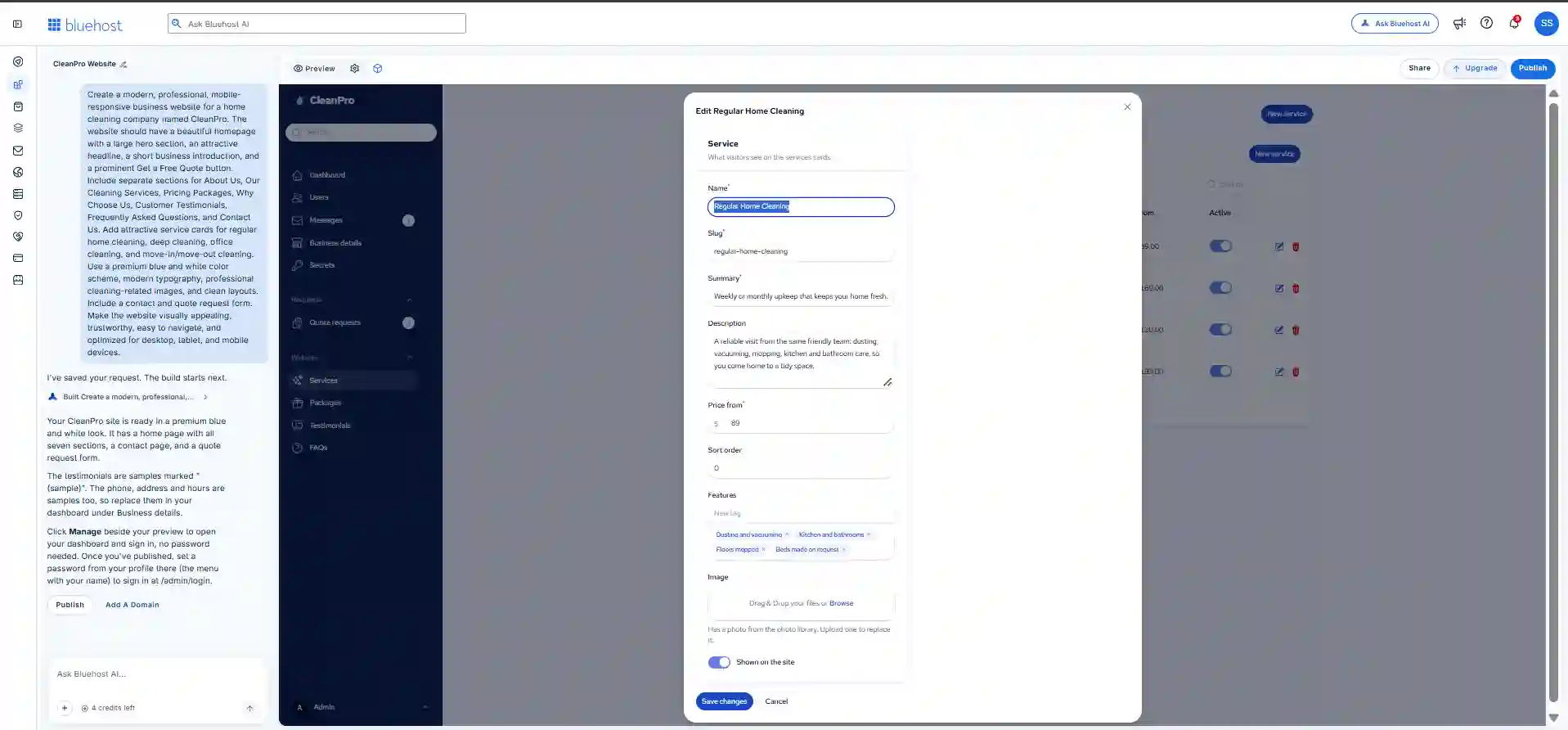
This level of customization is useful for businesses that want to keep their service listings updated without manually editing website code. The interface also provides Save Changes and Cancel buttons, making the editing process straightforward.
Testing Service Editing and Saving Changes
To test the service management functionality, I edited the Regular Home Cleaning listing in my CleanPro project. I changed its original short description to a more detailed summary explaining the cleaning service.
After clicking Save Changes, the updated description appeared in the Services Management dashboard. The existing service name, $89 starting price, and active status remained unchanged.
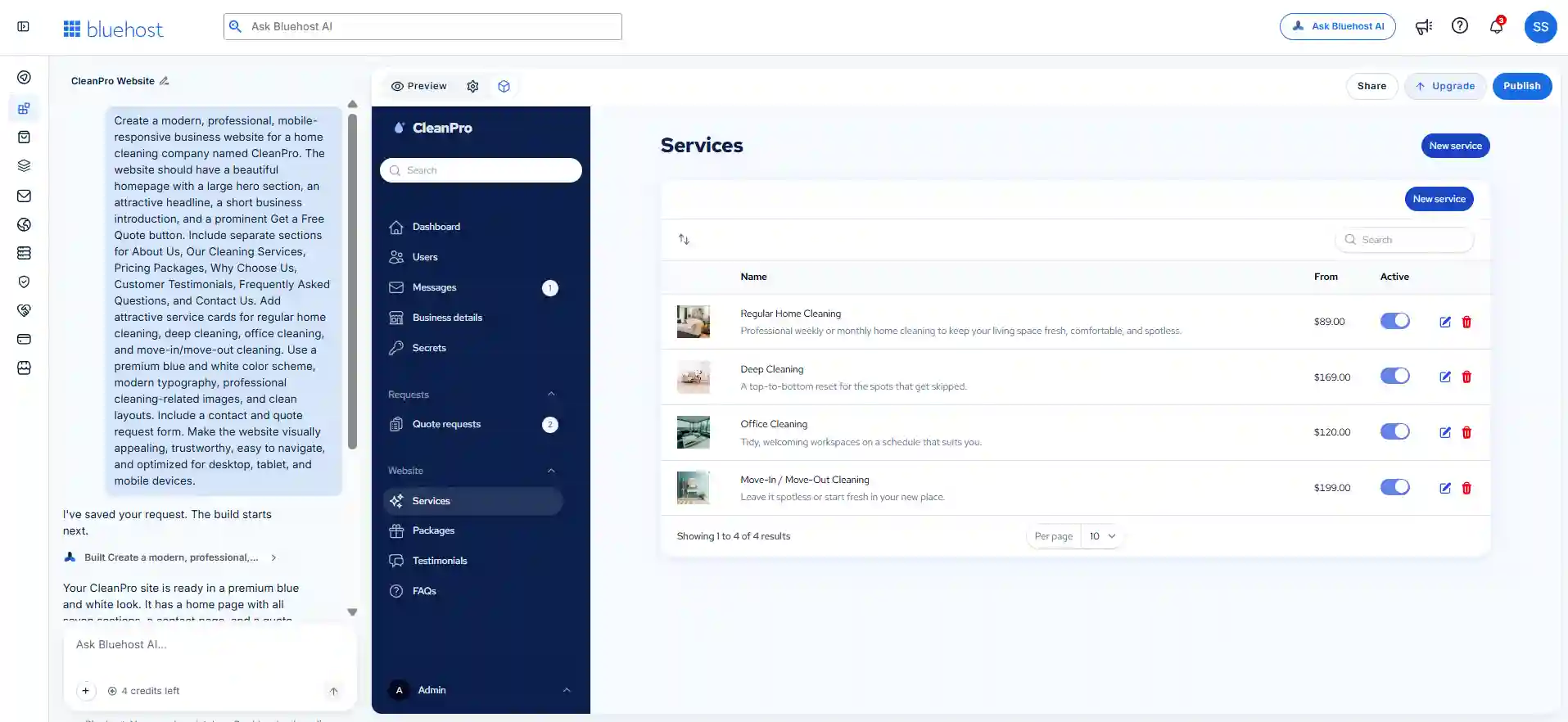
This small test demonstrated that Bluehost AI Builder allows users to update individual service details through its administrative interface. The changes were saved without needing to edit the website manually.
Step 10: Adding New Services with Bluehost AI Builder
In addition to editing existing services, Bluehost AI Builder provides an option to create new service listings from the management dashboard.
The Create Service form includes fields for the service name, URL slug, summary, detailed description, starting price, and display order. Users can also add individual features, upload an image, and choose whether the service should appear on the website.
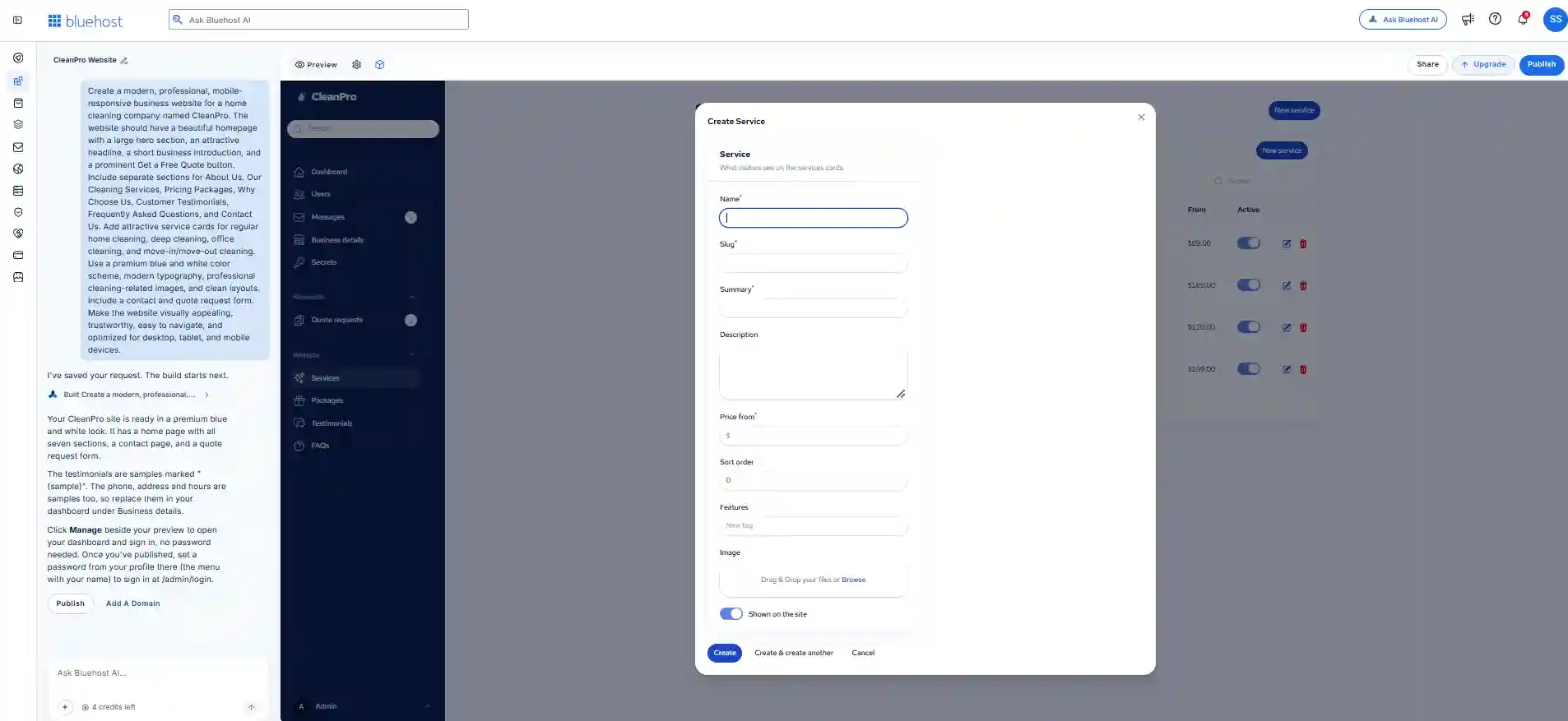
The interface provides options to create a single service or save one and immediately start creating another. This gives business owners a convenient way to expand their service listings as their offerings change.
Step 11: Successfully Adding a New Service
To further test the service management functionality, I created an additional listing called Eco-Friendly Cleaning.
I entered a service description and set the starting price to $99. After clicking the Create button, the new listing appeared in the Services Management dashboard alongside the four services originally generated by AI.
The dashboard displayed the new service name, description, price, and active status. This confirmed that I could expand the website’s service offerings through the administrative interface.
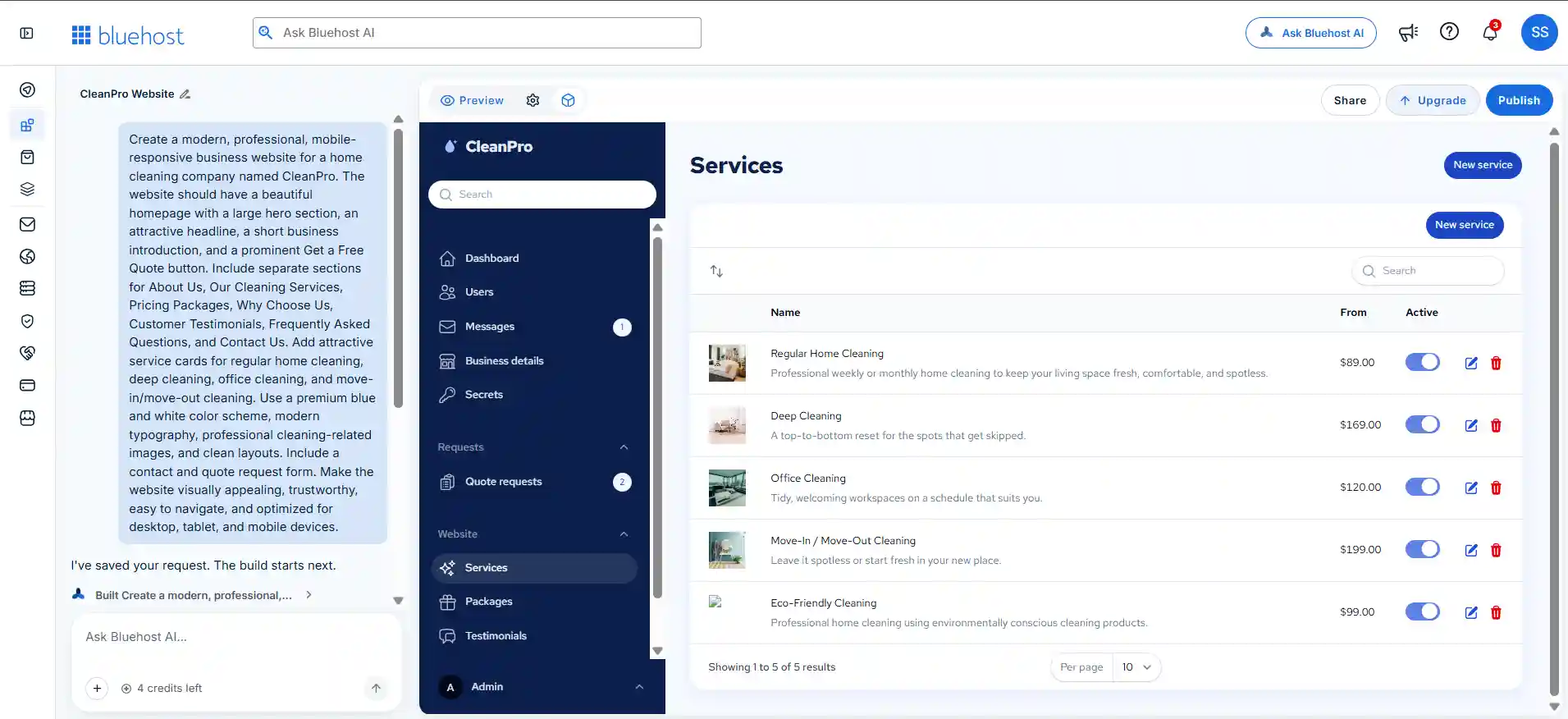
The image had not yet been uploaded, so it would need to be added before the service was ready for public presentation.
Step 12: Managing Pricing Packages
Bluehost AI Builder also generated a dedicated Packages Management section for the CleanPro website. During my test, it automatically created three pricing packages: Essential, Complete, and Premium Deep.
Each package included a name, short description, and price. The generated prices were $99, $169, and $279, respectively. The Complete package was also marked as featured.
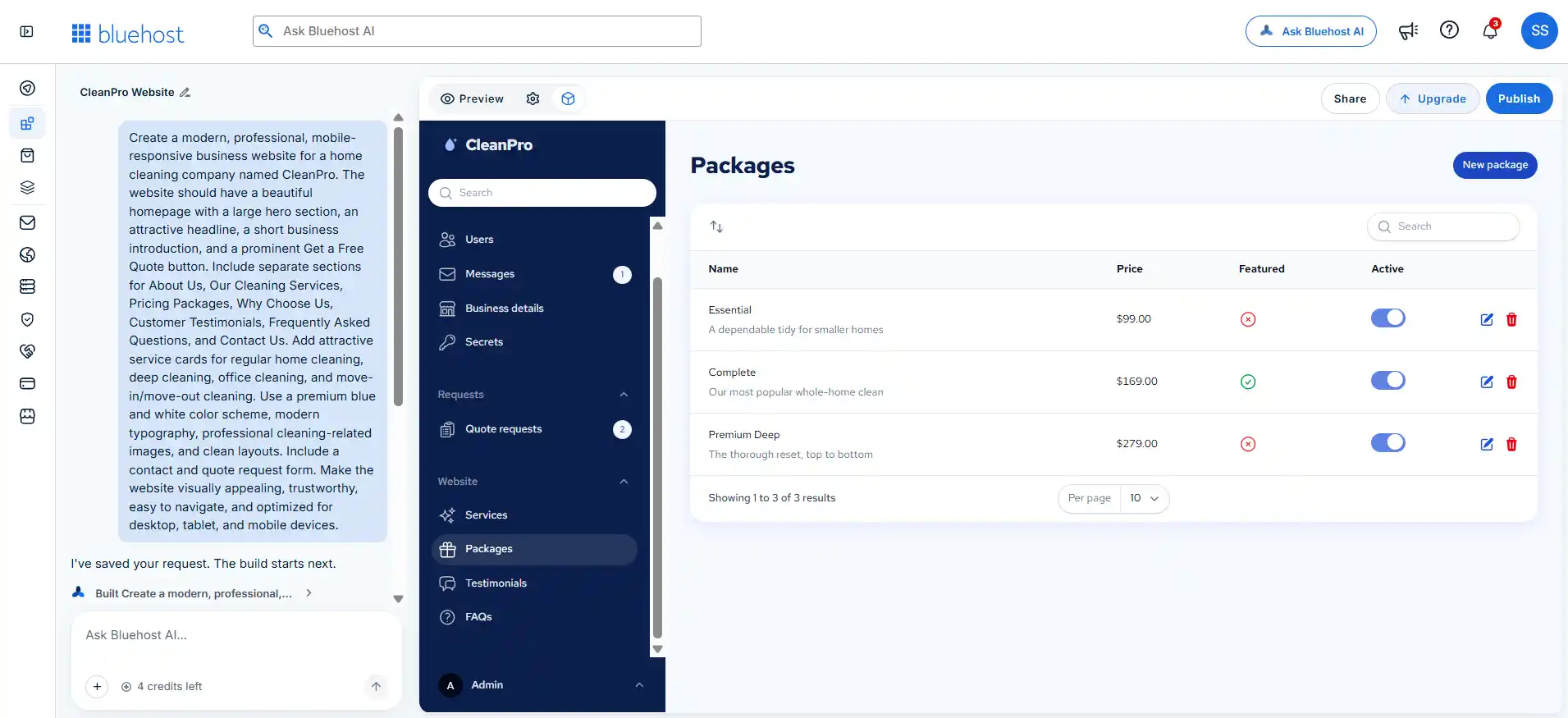
The management interface provides controls for editing and deleting packages, changing their active status, and managing which package is featured. There is also a New Package option for adding additional pricing options.
This feature can be useful for service-based businesses that offer different levels of service. Instead of manually building pricing tables, users can manage their packages through the administrative dashboard.
Step 13: Customizing Pricing Packages
I also tested the package editing functionality by opening the Essential package. Bluehost AI Builder provides several customization options through a dedicated editing form.
Users can change the package name, tagline, price, and price note. The interface also allows users to manage package features using individual tags and control the display order.
Another useful option is the Featured setting, which allows a business to highlight a particular pricing package. Users can also control whether the package appears on the website.
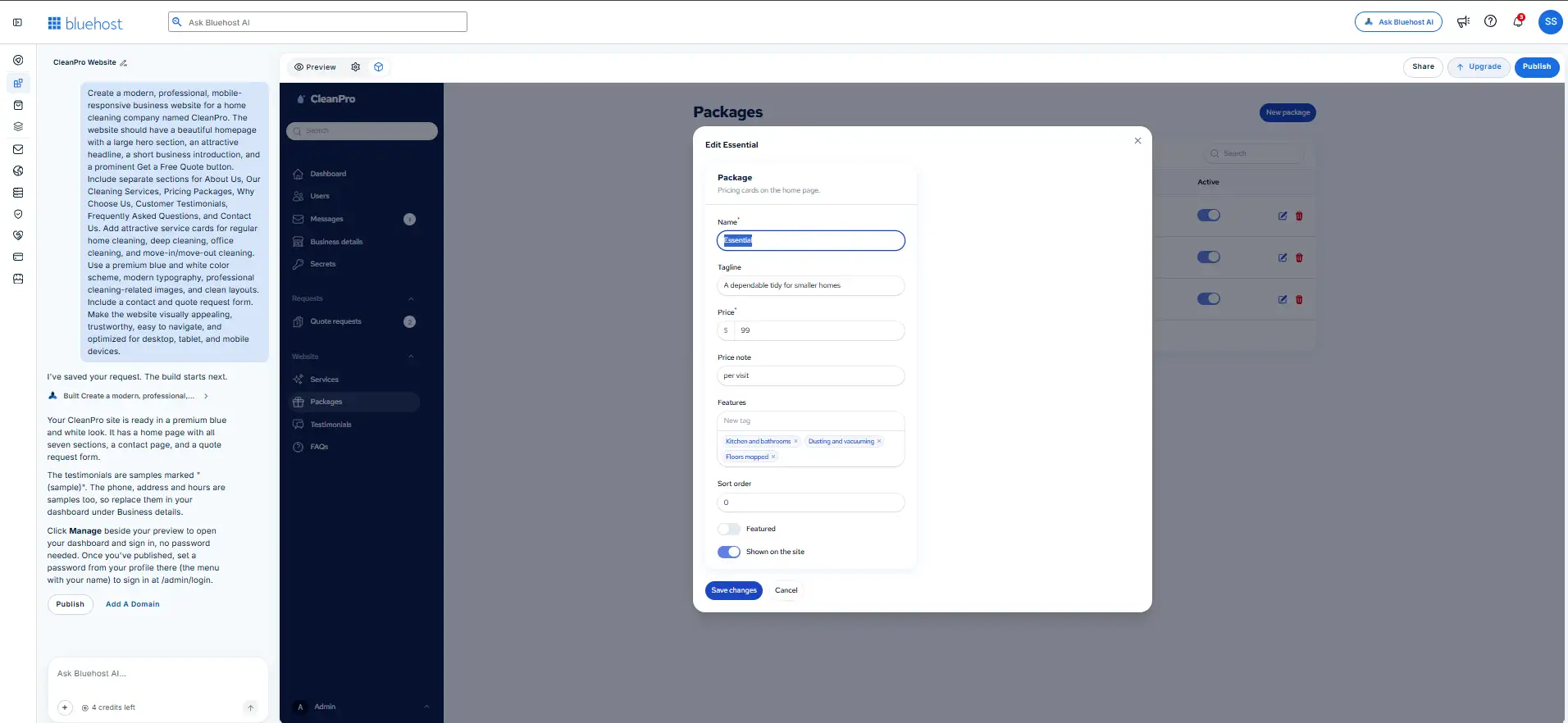
For example, the Essential package included features such as kitchen and bathroom cleaning, dusting and vacuuming, and floor mopping. These details can be customized according to the services offered by the business.
Overall, the package editor provides a convenient way to maintain pricing information and customize service offerings without manually editing website pages.
Step 14: Creating Custom Pricing Packages
Bluehost AI Builder also allows users to create additional pricing packages through its administrative dashboard.
The Create Package form includes fields for the package name, tagline, price, and price note. Users can also add individual features, set the display order, mark a package as featured, and control whether it appears on the website.
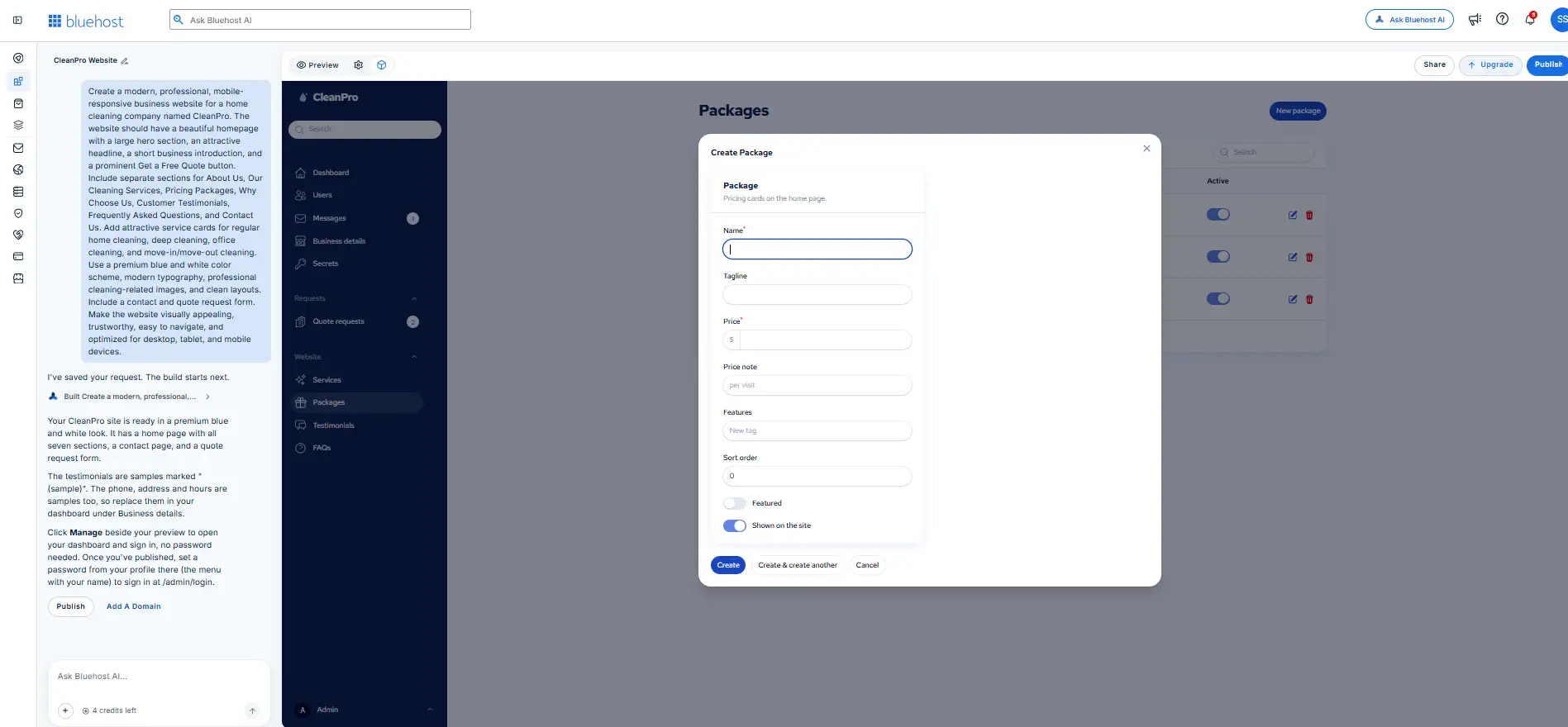
The interface provides two creation options: Create and Create & Create Another. This makes it convenient for businesses that want to introduce multiple pricing options.
I found this feature useful because it allows business owners to expand their pricing structure without manually designing new pricing cards or editing website code.
Step 15: Successfully Creating a Custom Pricing Package
To test the package creation functionality, I added a new pricing option called Family Refresh.
I entered a custom tagline, set the price to $229 per visit, and enabled the Featured option. After clicking Create, the new package appeared in the Packages Management dashboard alongside the three AI-generated packages.
The dashboard displayed the new package name, description, price, featured status, and active status.
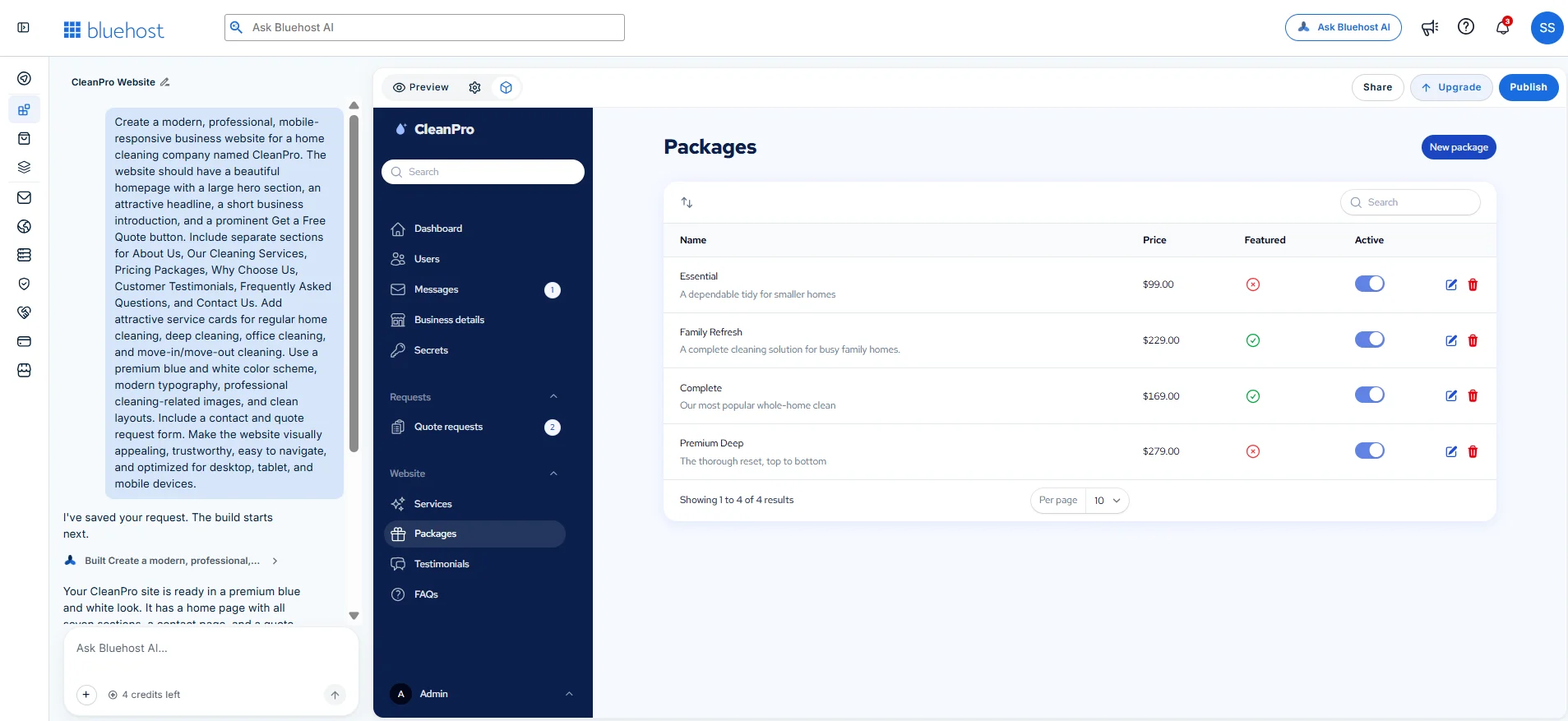
This test demonstrated that Bluehost AI Builder allows users to create and manage their own pricing packages in addition to the options generated automatically during website creation.
Step 16: Managing Customer Testimonials
Bluehost AI Builder also includes a dedicated Testimonials Management section. During my test, the AI-generated CleanPro website included four sample customer testimonials.
Each testimonial contained a customer name, location, review text, and star rating. The dashboard also provided individual controls to edit or delete testimonials and enable or disable their visibility on the website.
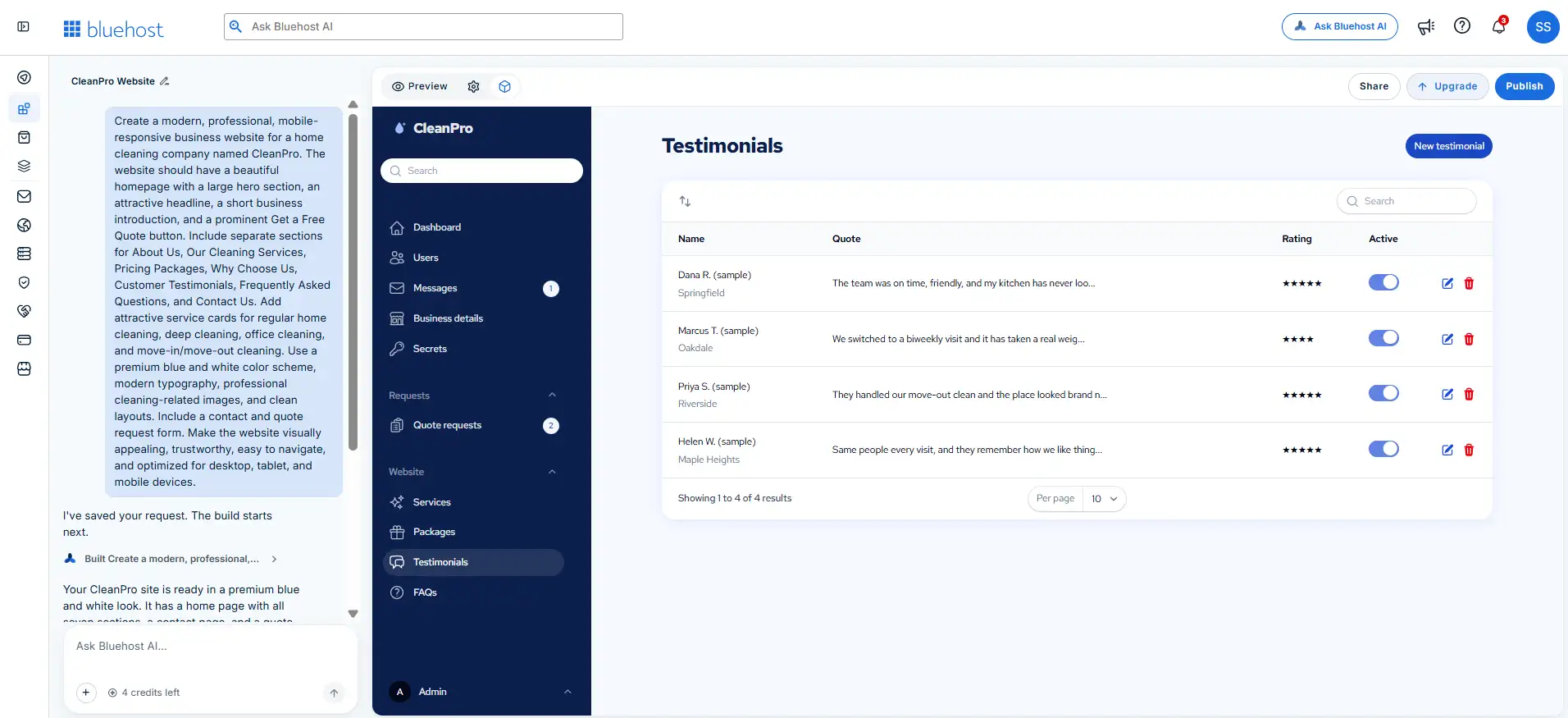
There was also a New Testimonial option for adding additional customer feedback.
This feature can be useful for service-based businesses that want to display customer feedback on their websites. However, the testimonials generated during my test were clearly marked as samples. Business owners should replace them with genuine customer feedback before publishing their websites.
Step 17: Editing Customer Testimonials
I also tested the testimonial editing functionality by opening the Dana R. sample review.
The editing form provides fields for the customer’s name, location, and testimonial quote. Users can also change the star rating through a dropdown menu, adjust the display order, and control whether the testimonial appears on the website.
This makes it easier for business owners to maintain their customer feedback section through the administrative dashboard.
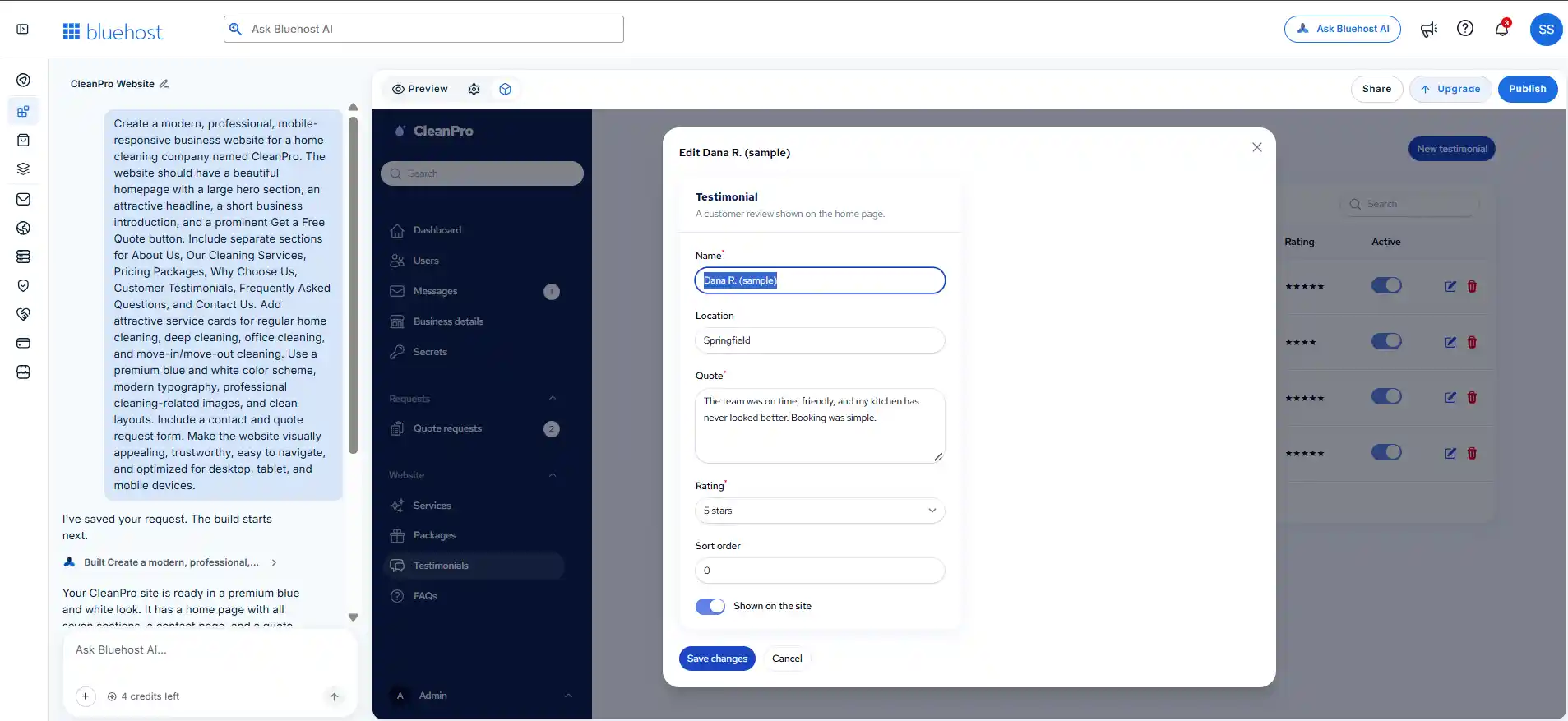
For my demonstration, Bluehost AI Builder had generated sample customer reviews. These should be replaced with genuine customer testimonials before a business publishes its website.
Step 18: Adding New Customer Testimonials
Bluehost AI Builder also allows users to add new customer testimonials manually.
The Create Testimonial form includes fields for the customer’s name, location, review text, and star rating. Users can also specify the display order and decide whether a testimonial should appear on the website.
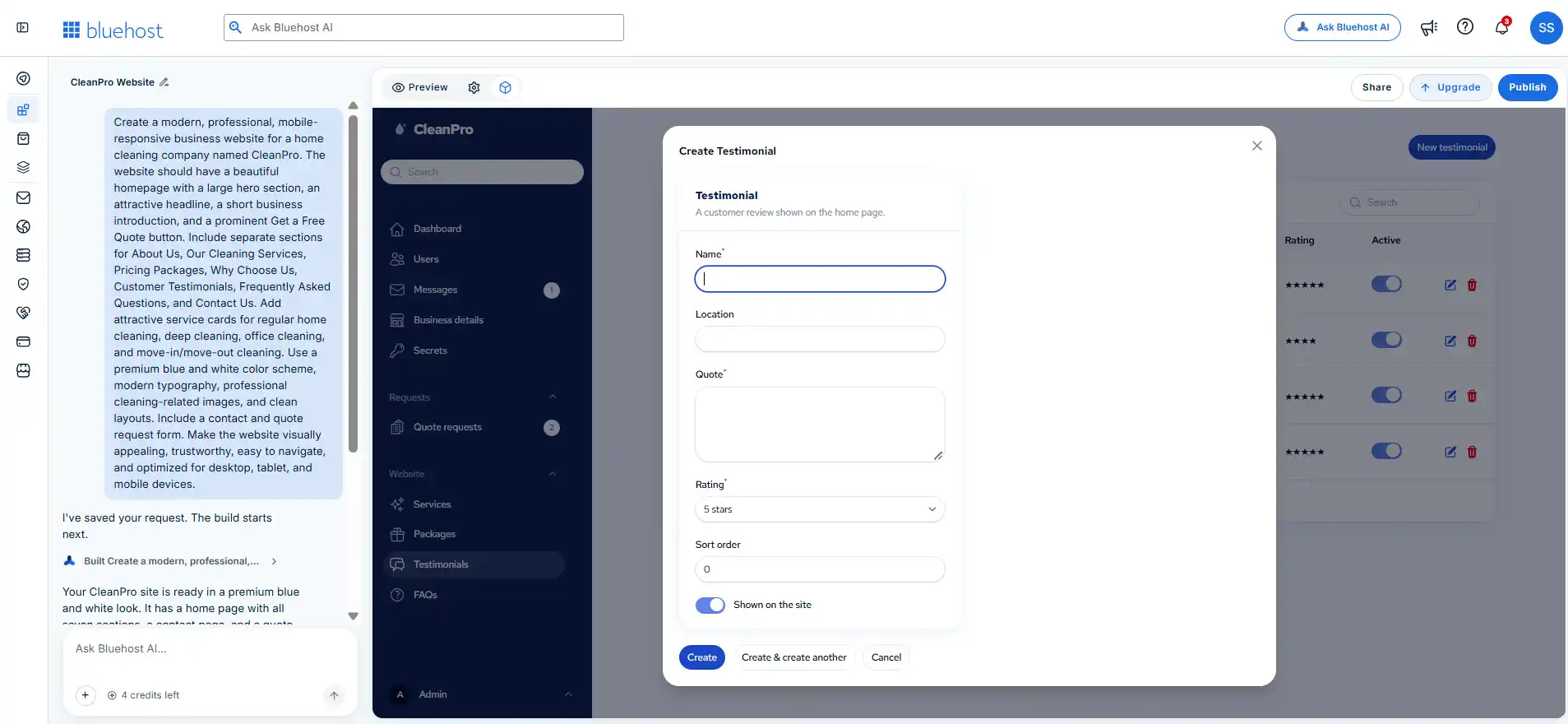
The interface provides two creation options: Create and Create & Create Another. This is useful for businesses that want to add multiple customer reviews without repeatedly navigating through different sections of the dashboard.
Combined with the editing and visibility controls, this provides a convenient way to manage customer testimonials from one place.
Businesses should only publish genuine customer feedback with appropriate permission rather than using fictional reviews as real endorsements.
Step 19: Managing Frequently Asked Questions
Bluehost AI Builder also creates a dedicated FAQ management section. In my CleanPro website, it automatically generated seven frequently asked questions covering common customer concerns.
These included questions about cleaning supplies, pets, scheduling, cancellation policies, insurance, service areas, and payment methods.
Each question had an accompanying answer, and the administrative dashboard provided controls to edit or delete individual FAQs. Users could also enable or disable questions depending on whether they wanted them displayed on the website.
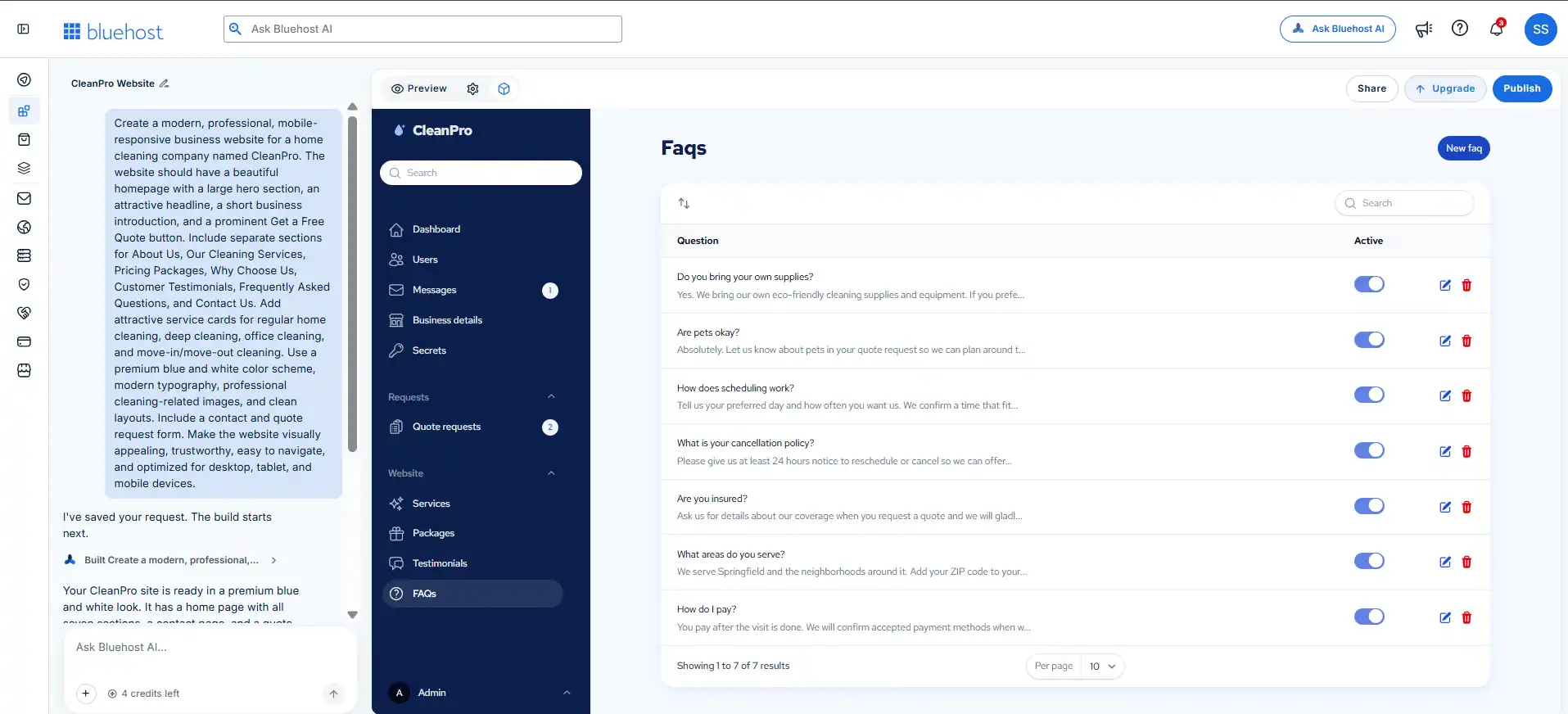
A New FAQ option was available for adding additional questions and answers. There was also a search feature for finding existing entries.
This feature can help businesses provide answers to common customer questions directly on their websites, potentially reducing repetitive enquiries.
Step 20: Editing Existing FAQs
I also tested the FAQ editing functionality in Bluehost AI Builder.
When clicking the edit icon beside an existing FAQ, a popup form appeared with several editable fields.
The first field allows users to change the FAQ question, while the second field allows them to modify its answer. There is also a sort order field for controlling the order in which FAQs appear.
Another useful option is the Shown on the site toggle. This allows business owners to control whether a particular FAQ is displayed on their public website without deleting it.
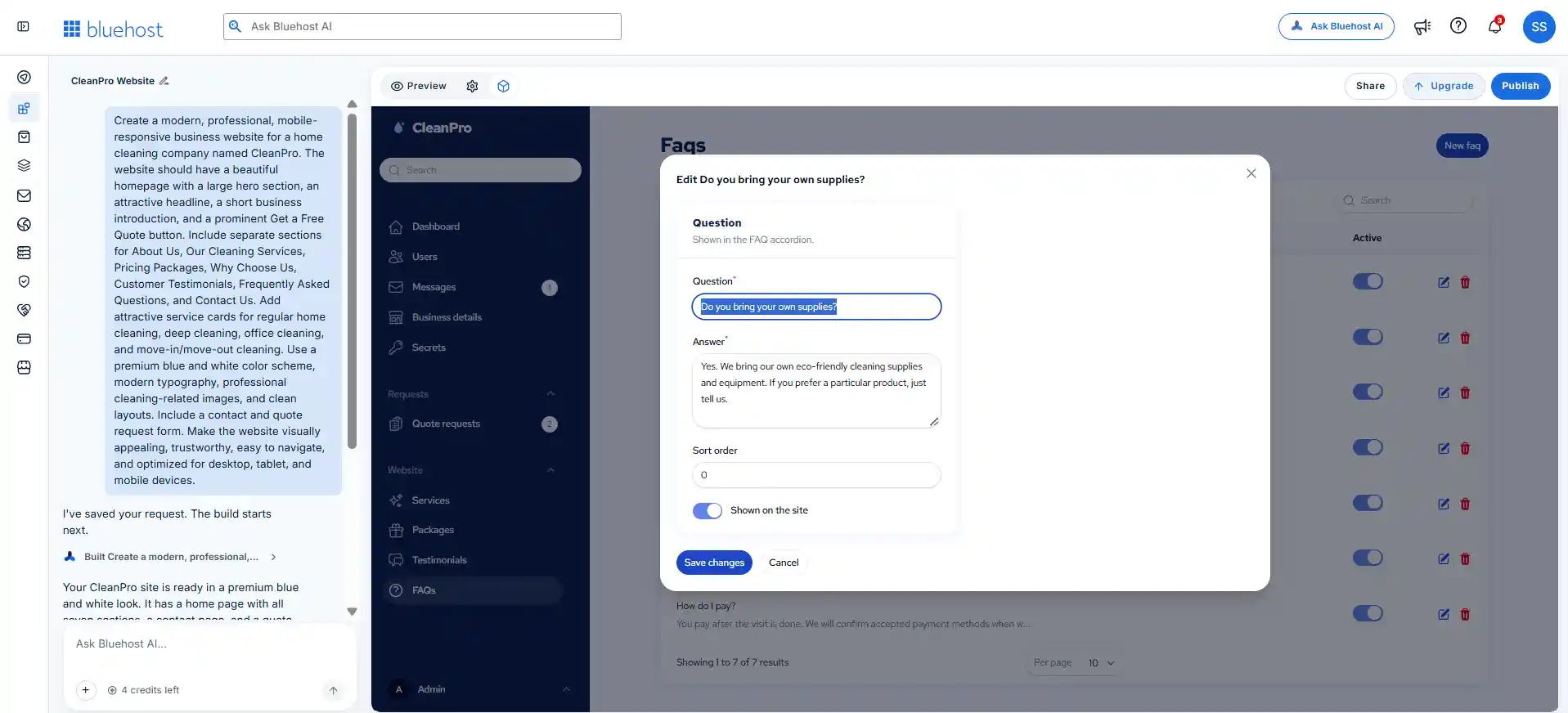
After making changes, users can click Save Changes or Cancel.
Overall, the FAQ management functionality is straightforward and provides sufficient basic controls for maintaining customer information on a business website.
Step 21: Creating New FAQs
Bluehost AI Builder also provides an option to create new FAQ entries.
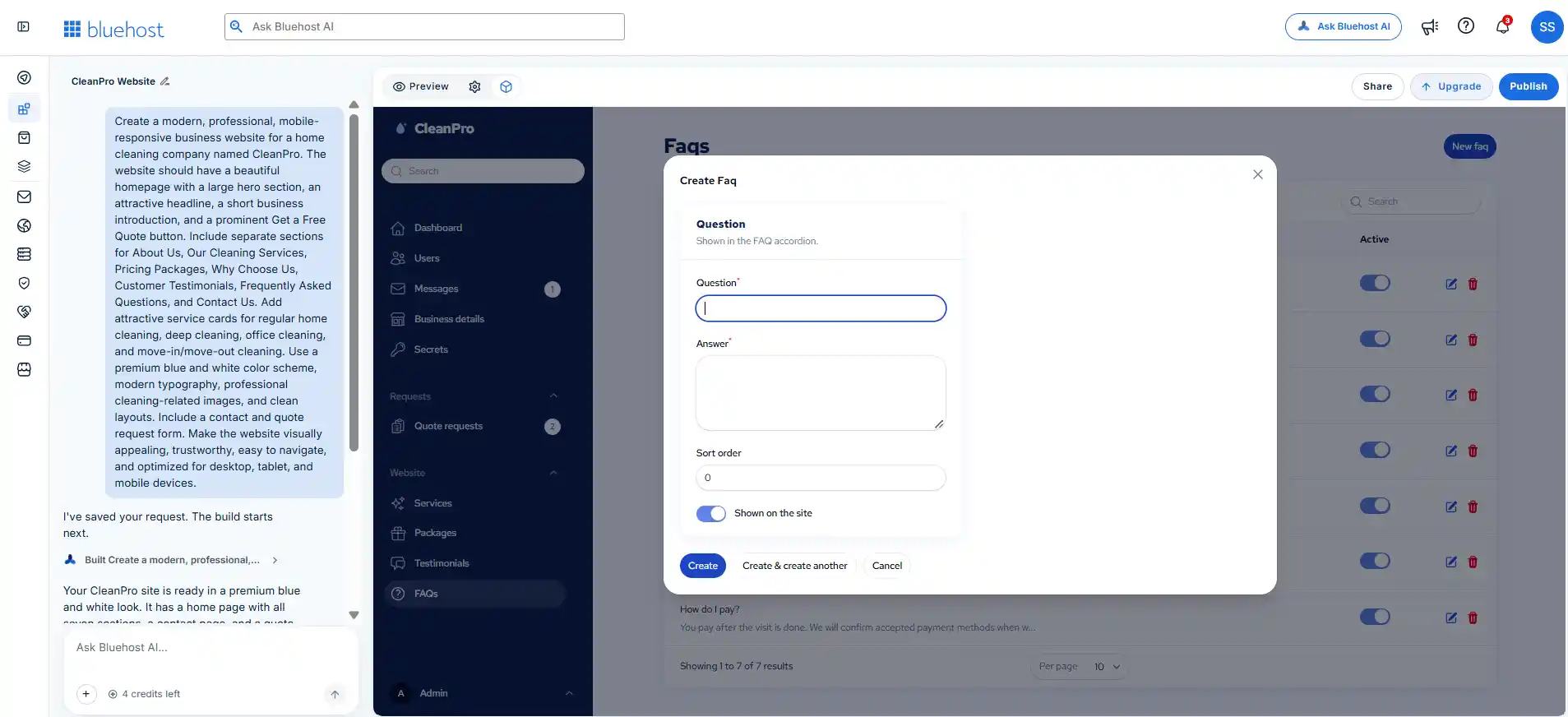
Clicking the New FAQ button opens a popup containing the following fields:
- Question: Enter the question customers are likely to ask.
- Answer: Provide a detailed response.
- Sort Order: Choose the position in which the FAQ should appear.
- Shown on the Site: Enable or disable the FAQ’s visibility on the public website.
There are three available actions:
- Create
- Create & create another
- Cancel
The Create & create another option is particularly convenient when adding several frequently asked questions at once.
This feature makes it easier for business owners to maintain their website’s FAQ section without editing individual website pages manually.
Step 22: Saving and Managing Newly Created FAQs
After entering the question and answer, I clicked the Create button.
The new FAQ was successfully saved and appeared in the FAQ management dashboard.
Before creating the entry, the dashboard contained seven FAQs. After saving, the total increased to eight, confirming that the new entry was added successfully.
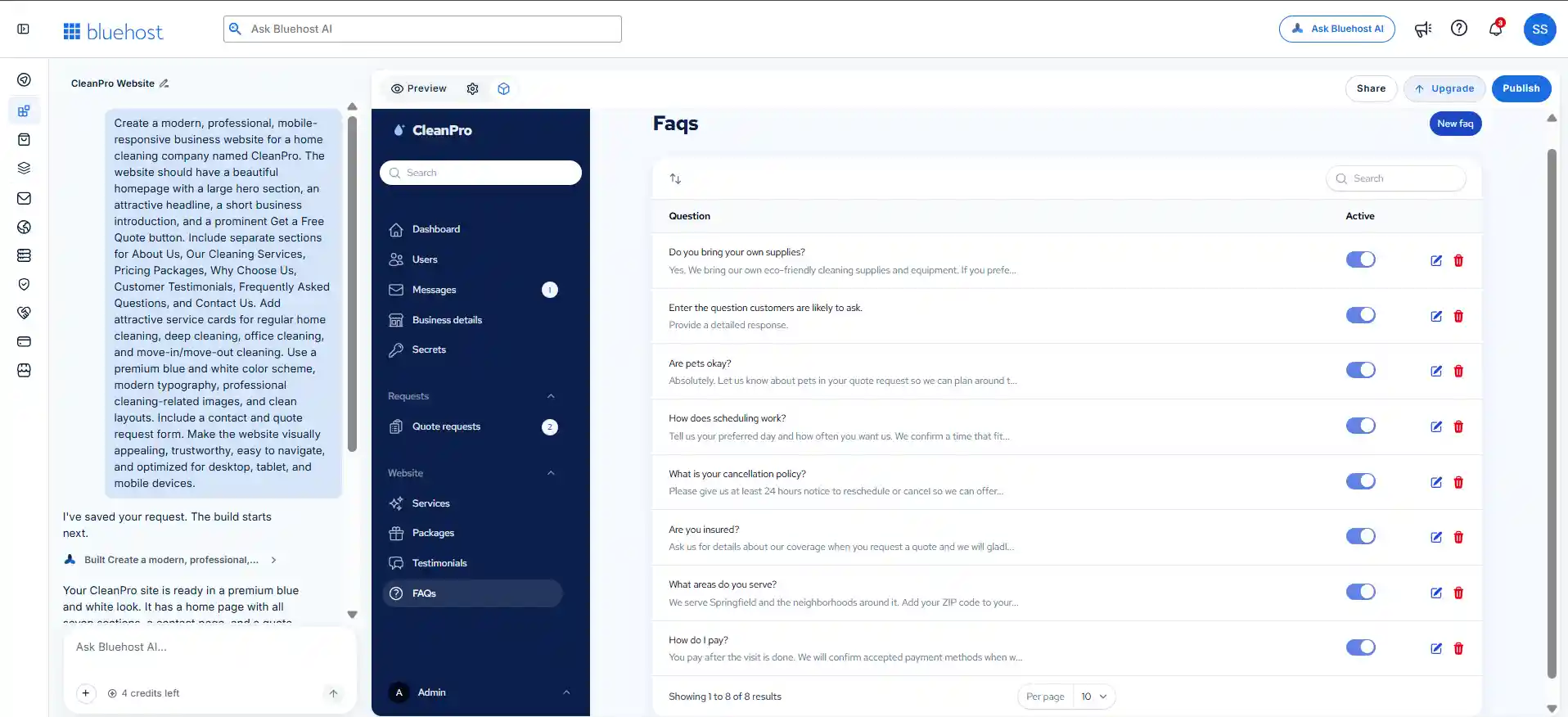
The newly created FAQ appears alongside the existing entries. It also includes the same management options:
- Enable or disable its visibility.
- Edit the question and answer.
- Delete the FAQ.
- Search for specific FAQ entries.
This confirms that Bluehost AI Builder supports creating, saving, editing, and managing FAQ entries through its administrative dashboard.
One important detail is that the form saves the exact question and answer entered by the user. Therefore, business owners should replace placeholder text with actual customer questions and helpful answers before publishing their website.
Step 23: Managing Customer Quote Requests
One of the most useful features of Bluehost AI Builder is its built-in quote request management system.
The dashboard provides a dedicated Quote Requests section where business owners can view and manage enquiries submitted through their website.
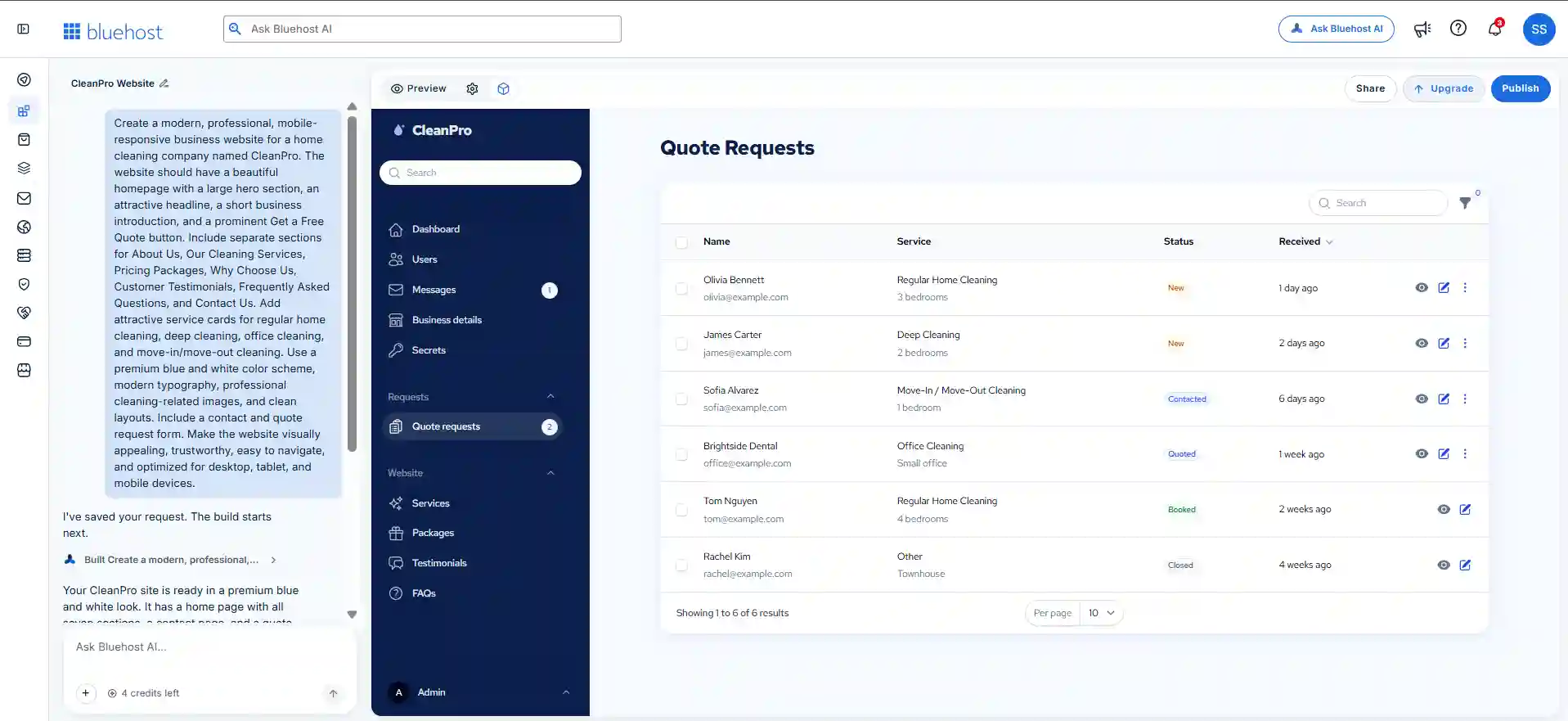
Each request displays important customer information, including:
- Customer name
- Email address
- Requested cleaning service
- Additional property information
- Current request status
- Date the enquiry was received
The dashboard also supports five request statuses: New, Contacted, Quoted, Booked, and Closed.
This makes it easier for business owners to monitor customer enquiries and understand which requests still require attention.
Other available features include search, filtering, sorting, selecting multiple requests, viewing individual enquiries, and editing request information.
Overall, the quote request management system provides a convenient way to handle incoming leads without requiring a separate customer relationship management platform for basic enquiry tracking.
Step 24: Viewing Individual Customer Quote Requests
To understand how Bluehost AI Builder handles customer enquiries, I opened an individual quote request by clicking the eye icon beside a customer entry.
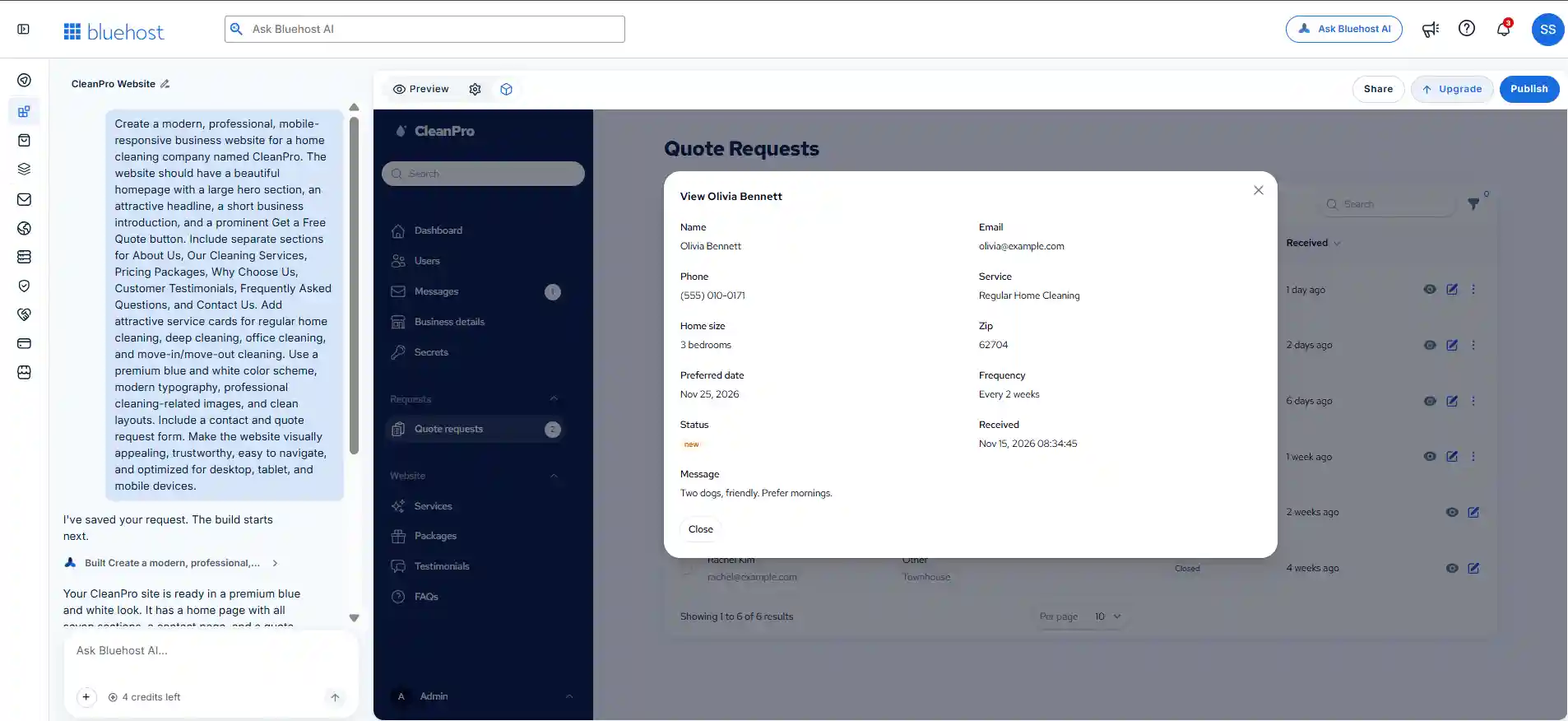
A popup appeared displaying the complete information submitted by the customer.
The information includes:
- Customer name
- Email address
- Phone number
- Requested cleaning service
- Home size
- ZIP code
- Preferred service date
- Cleaning frequency
- Current request status
- Submission date and time
- Additional customer message
For example, the sample request from Olivia Bennett included a request for regular home cleaning, a three-bedroom property, and cleaning every two weeks. The customer also mentioned having two friendly dogs and preferring morning appointments.
This is particularly useful because the business owner can understand the customer’s requirements before contacting them or preparing a quotation.
The individual request view is simple and clearly organized. It presents the submitted information in two columns, making it easy to review customer details.
Overall, this functionality provides useful visibility into customer enquiries and helps service businesses understand what potential customers need before responding.
Step 25: Editing Customer Quote Requests
Bluehost AI Builder also provides an editing interface for individual customer quote requests.
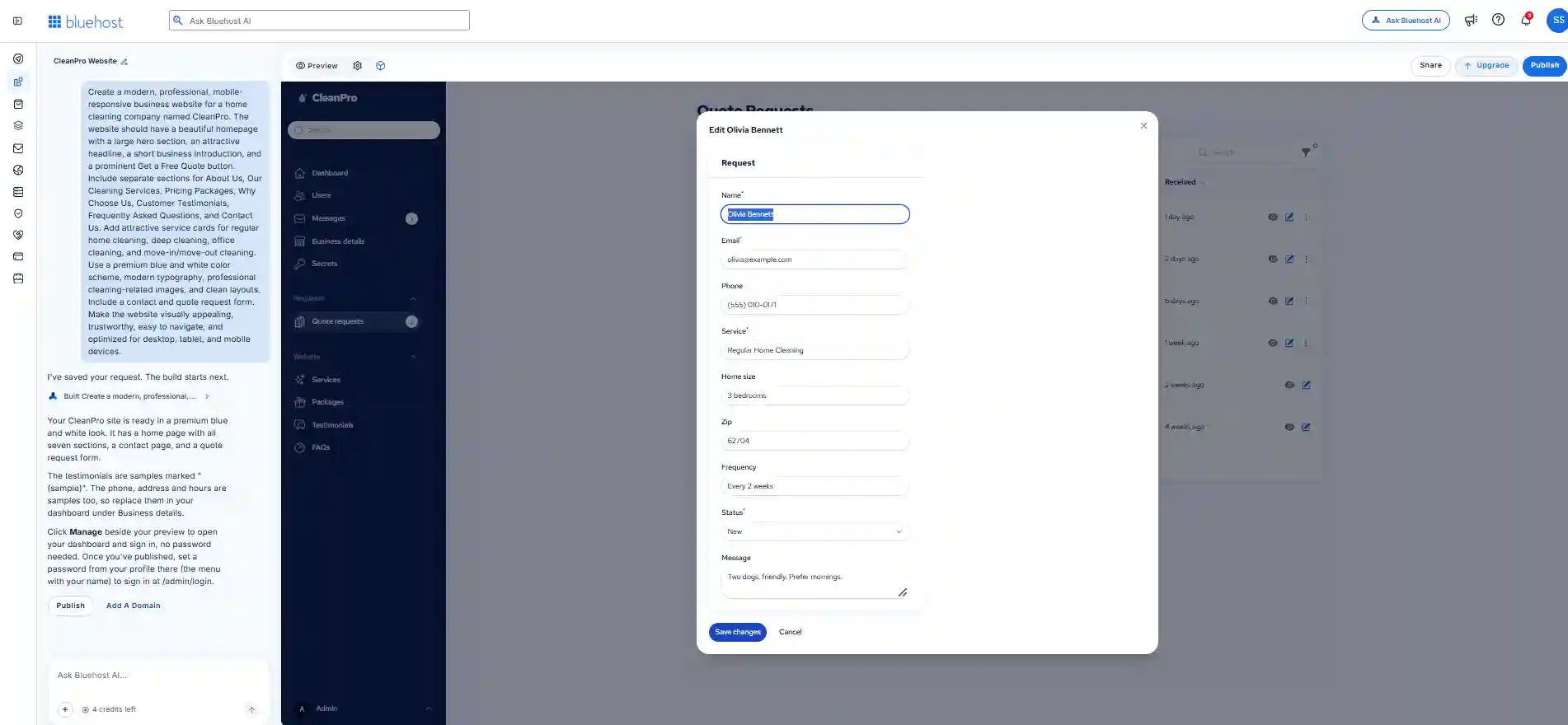
Clicking the blue edit icon beside a customer enquiry opens a form containing the information submitted by the customer.
The editable fields include:
- Customer name
- Email address
- Phone number
- Requested service
- Home size
- ZIP code
- Cleaning frequency
- Request status
- Additional customer message
One particularly useful feature is the status dropdown. Business owners can update the progress of an enquiry as they communicate with customers, prepare quotations, and confirm bookings.
The editing form also provides Save Changes and Cancel options, allowing users to update a request or discard their changes.
During my demonstration, I inspected the editing form and its available fields. I did not change or save the customer’s personal information during this test.
Overall, the editing interface provides useful controls for reviewing and managing customer enquiries through the Bluehost AI Builder dashboard.
Step 26: Review the Completed Website Before Publishing
After testing the available management sections, I returned to the website preview.
At this stage, I had explored:
- Website generation
- Pricing package management
- Testimonial management
- FAQ management
- Quote request management
The website already had a professional-looking homepage with its main navigation and call-to-action buttons.
I also reviewed the available publishing controls.
The website builder provided a Publish button in the upper-right corner.
Before publishing, it is important to review your business information, contact details, prices, images, and sample content.
For a real business, I would also recommend replacing all fictional customer records and demonstration testimonials with genuine information.
Step 27: Publish the Website Using Bluehost AI Builder
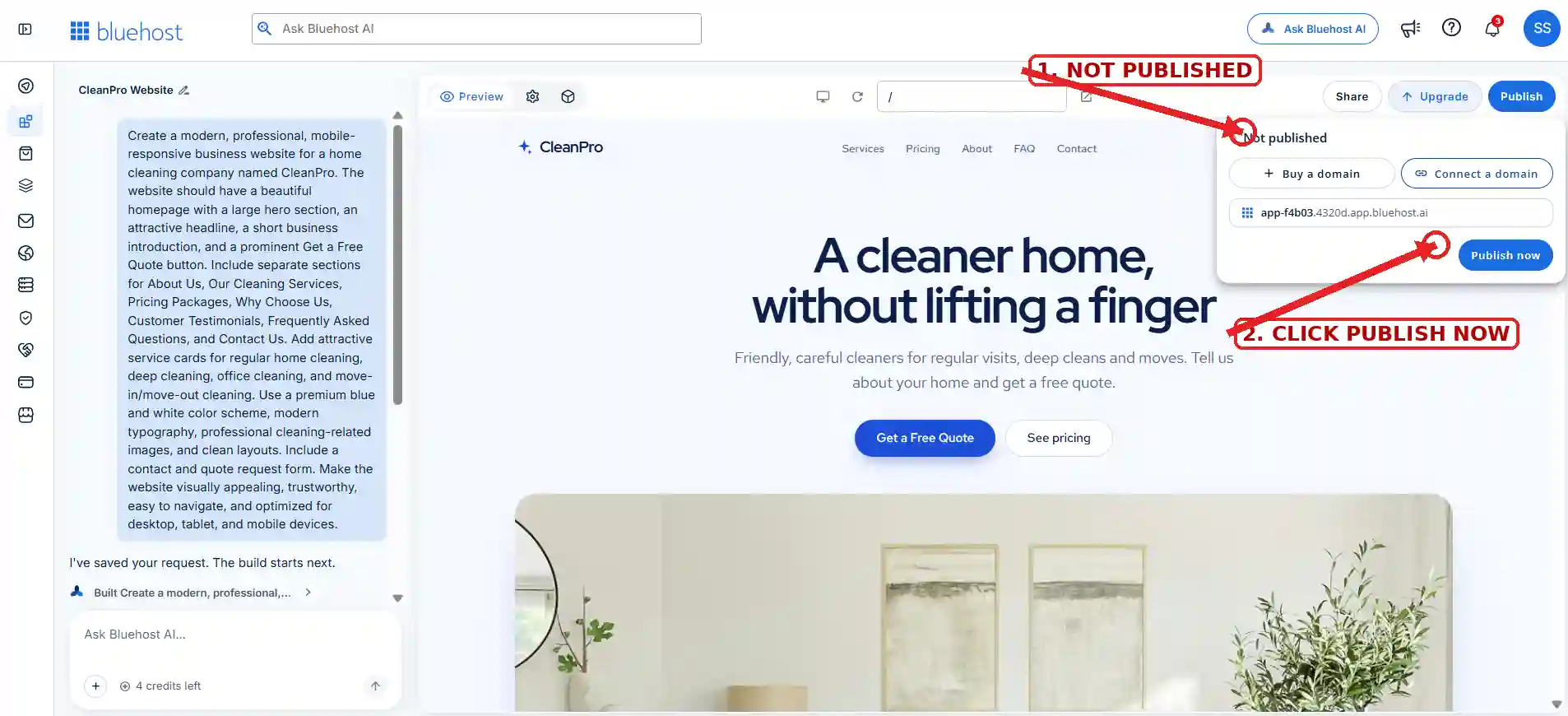
Once I was satisfied with the demonstration website, I clicked the Publish button.
A publishing panel appeared in the website builder.
The initial panel displayed the website’s publishing status as Not published.
It also provided options to:
- Buy a domain
- Connect a domain
- Use the assigned Bluehost website address
The assigned temporary website address was displayed in the publishing panel.
I selected Publish now.
27.1 Wait for the Publishing Process
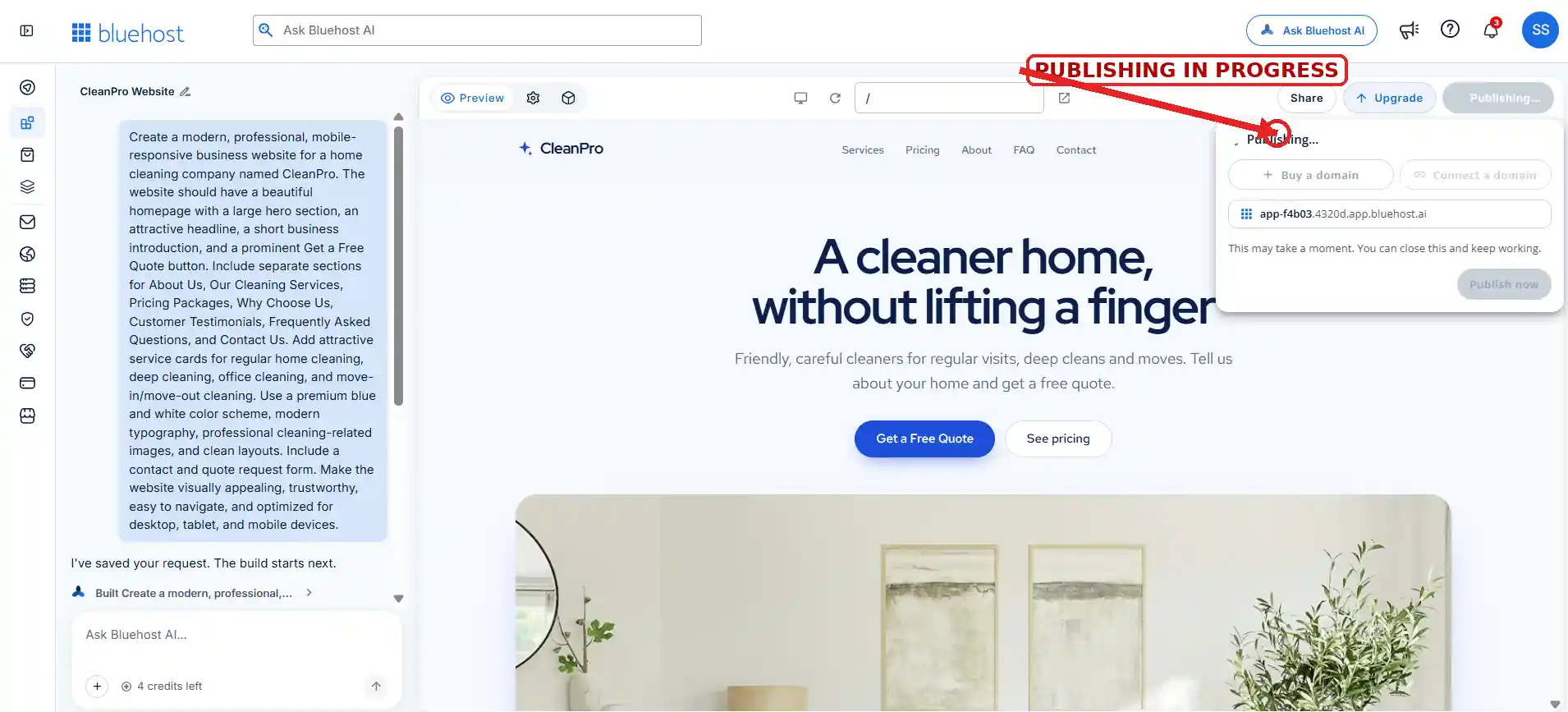
After clicking Publish now, the publishing process started.
The interface displayed a Publishing status.
The publishing panel also explained that the process might take a moment and that I could close the panel while continuing to work.
27.2 Website Successfully Published
After the publishing process was completed, the CleanPro website became accessible through its assigned Bluehost URL.
The final published address was:
https://app-f4b03.4320d.app.bluehost.ai
This was the final result of the experiment.
I had started with a written description of a home cleaning business and used Bluehost AI Builder to create and publish a demonstration website.
You can visit it here:
Visit the live CleanPro website
The website uses a Bluehost temporary subdomain. A business planning to use its website professionally should consider connecting its own custom domain.
Step 28: What Happens After Publishing?
Publishing the website is an important milestone, but it is not the end of website management.
A real business owner should continue maintaining the website.
Here are some important tasks to complete after publication.
Replace Demonstration Information
The CleanPro project contains sample testimonials and customer request records.
Replace these with genuine information before using the website for an actual business.
Update Business Details
Add the correct business name, address, phone number, email address, service area, and operating hours.
Review Service Pricing
Make sure all displayed prices accurately reflect the services you provide.
Connect a Custom Domain
The demonstration website uses a Bluehost temporary subdomain. You can explore the Connect a domain option to use a business-owned domain.
Test the Quote Request Form
Submit a test request and verify that the information is recorded correctly in the administration dashboard.
Review the Website on Mobile Devices
Check the website on smartphones and tablets to make sure that navigation, buttons, text, and forms work properly.
Work on SEO
Add appropriate page titles, meta descriptions, relevant content, descriptive image alt text, and a clear internal linking structure.
Remember that publishing a website does not automatically guarantee search engine rankings or visitors.
Bluehost AI Builder: Advantages and Limitations
After completing the CleanPro experiment, I found several useful aspects of the website creation and management experience.
Advantages
1. AI-assisted website creation
You can describe your website requirements rather than starting with an entirely blank design.
2. Business-focused website structure
The CleanPro experiment included services, pricing, testimonials, FAQs, and quote requests.
3. Separate management sections
The administration dashboard provided dedicated areas for managing different types of website information.
4. Pricing package management
You can create and edit packages and manage their visibility and featured status.
5. Testimonial management
You can manage customer names, locations, review text, ratings, and display settings.
6. FAQ management
You can add and edit questions and answers through a dedicated management screen.
7. Quote request management
You can review customer requests, edit their information, and update their statuses.
8. Publishing workflow
The website could be published through the website builder without manually uploading website files.
Limitations and Considerations
1. AI-generated content needs reviewing
Always check the accuracy of the generated content and business information.
2. Demonstration data must be replaced
Sample testimonials and customer requests should not be presented as real customer information.
3. Customization may require additional work
The initial AI-generated website may need further adjustments to match your exact business requirements.
4. Custom domain setup
The demonstration used a temporary Bluehost subdomain. A professional business website should generally use its own domain.
5. Marketing is still necessary
You need a separate marketing and SEO strategy to attract customers and build an online presence.
Bluehost AI Builder Pricing
According to the campaign information provided by Bluehost, you can get started with Bluehost AI Builder for $0 to start, no credit card. Paid plans are available from $20/mo. Check the official Bluehost website for the latest regional pricing, billing terms, included features, and plan limitations.
Explore Bluehost AI Builder: Visit Bluehost
Frequently Asked Questions
Can I create a complete business website using Bluehost AI Builder?
You can use Bluehost AI Builder to create a business website and explore features such as service listings, pricing packages, testimonials, FAQs, and quote requests. My CleanPro project demonstrates this process.
Do I need coding knowledge to use Bluehost AI Builder?
The AI-assisted creation process helps you get started without manually writing website code. You should still review and customize the generated website according to your needs.
Can I edit the website after generating it?
Yes. You can customize the website and manage information through the available editing and administration interfaces.
Can I create pricing packages?
The CleanPro experiment demonstrated package creation and editing, including package names, taglines, prices, features, sorting, and display settings.
Can I add customer testimonials?
Yes. The testimonial management screen provides fields for customer names, locations, review quotations, ratings, and website visibility.
Can I create FAQs?
Yes. You can create questions and answers, edit existing FAQs, change their sorting order, and manage their visibility.
Does Bluehost AI Builder support quote request management?
The CleanPro demonstration included a quote request management dashboard with customer information, requested services, and status management.
Can I change a customer request to Booked?
In my experiment, the quote request dashboard provided a Mark booked action through its additional actions menu.
Can I publish my website using a Bluehost temporary domain?
The CleanPro website was published using the temporary Bluehost address assigned during the publishing process.
Can I connect my own domain?
The publishing panel displayed a Connect a domain option. You can explore this option when you are ready to use your own domain.
Is Bluehost AI Builder suitable for beginners?
It is worth exploring if you are new to website creation and want to use AI to generate an initial website rather than starting from scratch.
Does Bluehost AI Builder guarantee website traffic?
No. Website creation and publication do not guarantee visitors or search rankings. You need to work on SEO, content, and marketing separately.
Final Verdict: My Experience Creating a Website with Bluehost AI Builder
After exploring Bluehost AI Builder, I found that it offers more than just an AI-powered website design generator. My hands-on experience allowed me to explore the complete process, from providing an initial website description to generating, customizing, managing, and publishing a business website.
For this experiment, I created a fictional home cleaning business called CleanPro. I started by providing a detailed prompt describing the website’s structure, design, services, pricing packages, and quote request functionality.
Bluehost AI Builder generated the initial website with a homepage, navigation menu, service sections, pricing information, calls to action, FAQs, and contact-related features.
However, I wanted to explore what happens after the initial website generation. Therefore, I also spent time examining the administration dashboard and its available management features.
During My Testing, I Was Able to:
- Edit the existing cleaning services and create a new service.
- Create and customize pricing packages, including package names, prices, features, and display settings.
- Explore the testimonial management interface and review the available fields for customer names, locations, reviews, and ratings.
- Create a demonstration FAQ entry and explore the FAQ management controls.
- View individual customer quote requests and review their details.
- Review customer request information in the dashboard.
- Change a sample quote request’s status from New to Contacted and then to Booked.
- Publish the CleanPro demonstration website using the temporary Bluehost domain.
These tests gave me a practical look at both the website creation process and the business management features available in the Bluehost AI Builder dashboard. However, CleanPro is a fictional demonstration project, and the sample customer information and content should not be treated as real business data.
One feature I particularly appreciated was the dedicated management dashboard. Instead of manually editing every section of the website, I could manage services, pricing packages, testimonials, FAQs, and quote requests through separate administration sections.
Of course, AI-generated websites still need human attention. You should review the generated text, replace sample business information, add genuine customer testimonials, upload suitable images, and customize the website according to your actual business requirements.
It is also important to remember that creating and publishing a website does not automatically generate visitors or customers. You will still need a suitable domain, useful content, SEO, and a marketing strategy to build your online presence.
My demonstration website is available here:
Please note that CleanPro is a fictional demonstration project created specifically for this review. Its sample customer records, testimonials, and business information are illustrative and do not represent a real cleaning company or verified customers.
Overall, Bluehost AI Builder is worth exploring if you want to use AI to get an initial business website online and then manage its content through an administrative dashboard. My experience showed that it can help simplify the initial website creation process while providing useful tools for managing business-related website content.
If you are planning to create a website for a small business, freelancer profile, or local service company, you can explore Bluehost AI Builder and see whether its features fit your requirements.
Ready to create your own website?