SaveLoot Coupons · Documentation
Everything you need to run your coupon site
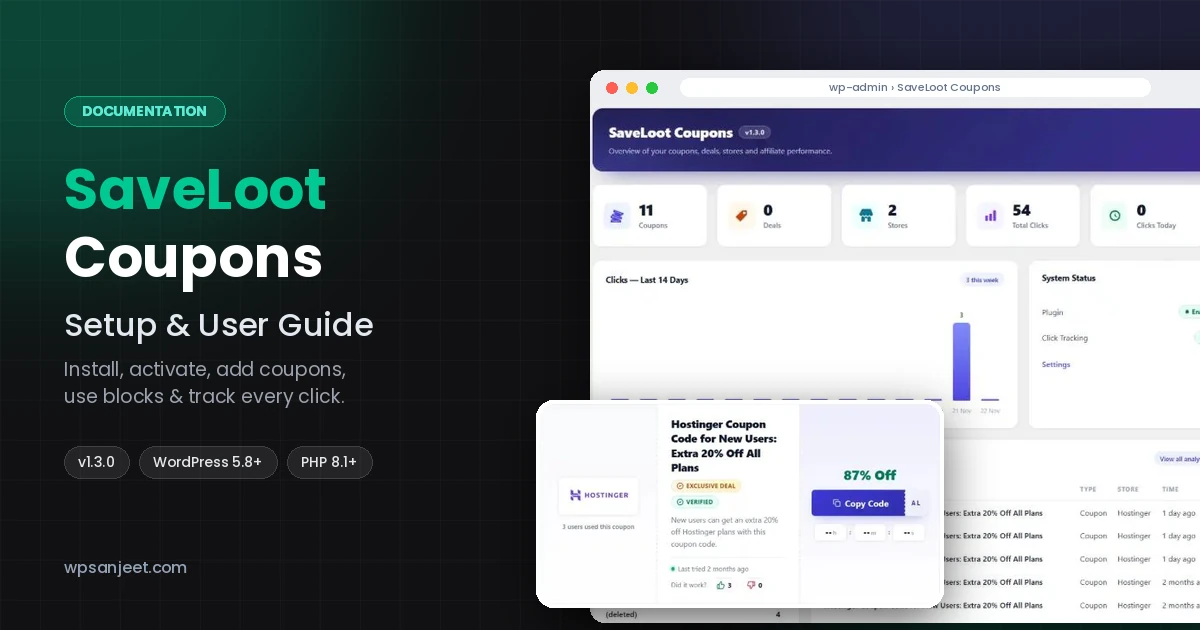
Install the plugin, add your stores and coupons, show them anywhere with blocks, and track every click. This guide walks you through each step.
Quick start
On this page
Installation & licence activation
After your purchase you receive a download link and a licence key by email. Both are also in My Account on wpsanjeet.com.
Install the plugin
- Download the SaveLoot Coupons .zip file. Do not unzip it.
- In WordPress, go to Plugins → Add New Plugin → Upload Plugin.
- Choose the .zip file and click Install Now.
- Click Activate Plugin. A SaveLoot Coupons menu appears in your WordPress admin.
Activate your licence
- Go to SaveLoot Coupons → Settings and open the License tab.
- Paste your licence key and activate it.
- When it works, you see License is valid with your plan, activations used and the date your support ends.
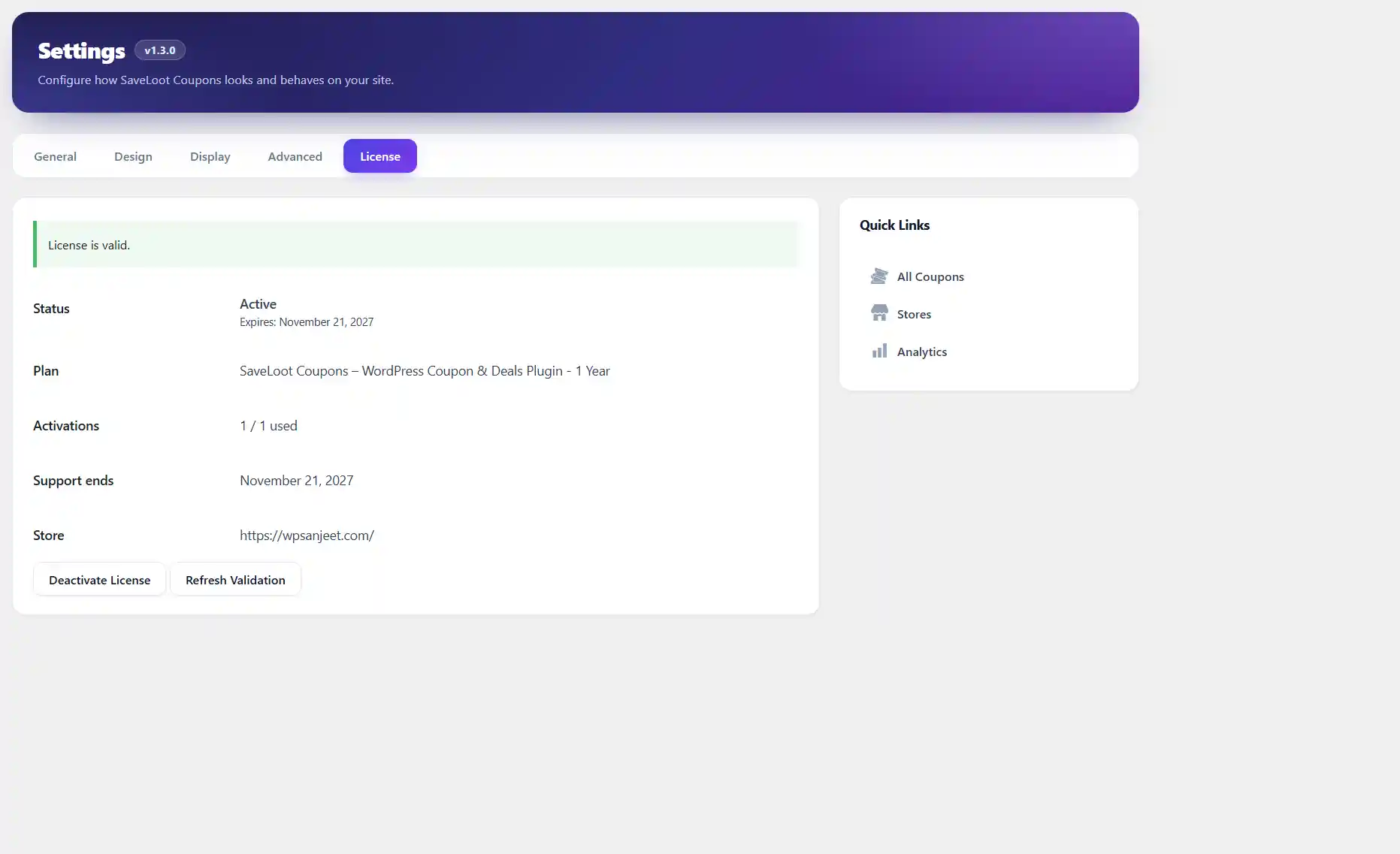
Good to know: each licence works on the number of websites in your plan: 1 for 1 Year and Lifetime, 5 for Lifetime – 5 Sites. To move the plugin to another site, deactivate the licence on the old site first.
The SaveLoot dashboard
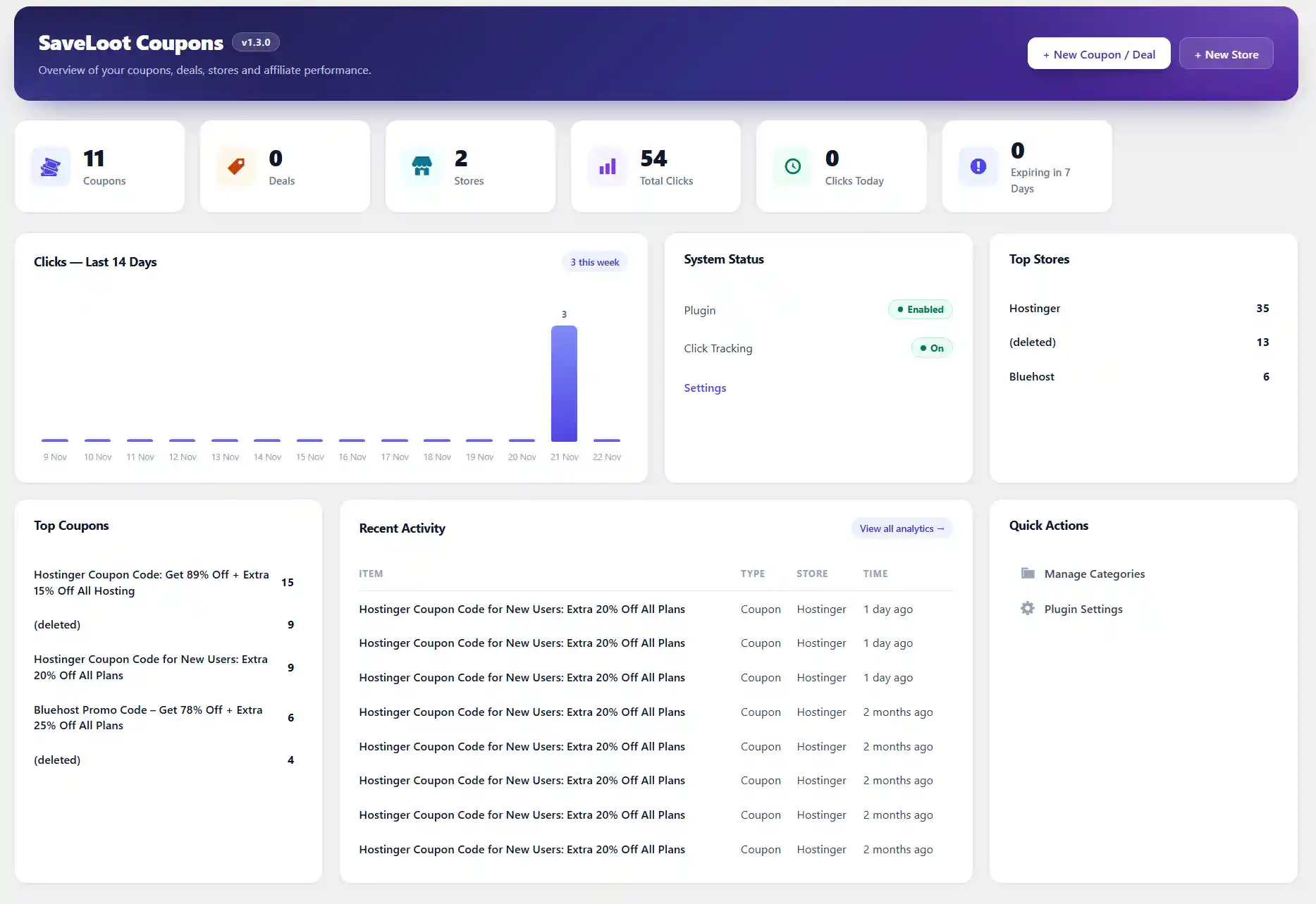
Open SaveLoot Coupons in your admin menu to see the dashboard. It gives you a quick overview of your coupon site:
- Totals – coupons, deals, stores, total clicks, clicks today and offers expiring in the next 7 days.
- Clicks – last 14 days – a daily chart of clicks.
- System status – whether the plugin and click tracking are switched on.
- Top stores and top coupons – your best performers by clicks.
- Recent activity – the latest clicks with the offer, type, store and time.
- Quick actions – shortcuts to add a coupon or deal, add a store, manage categories and open the settings.
Adding stores
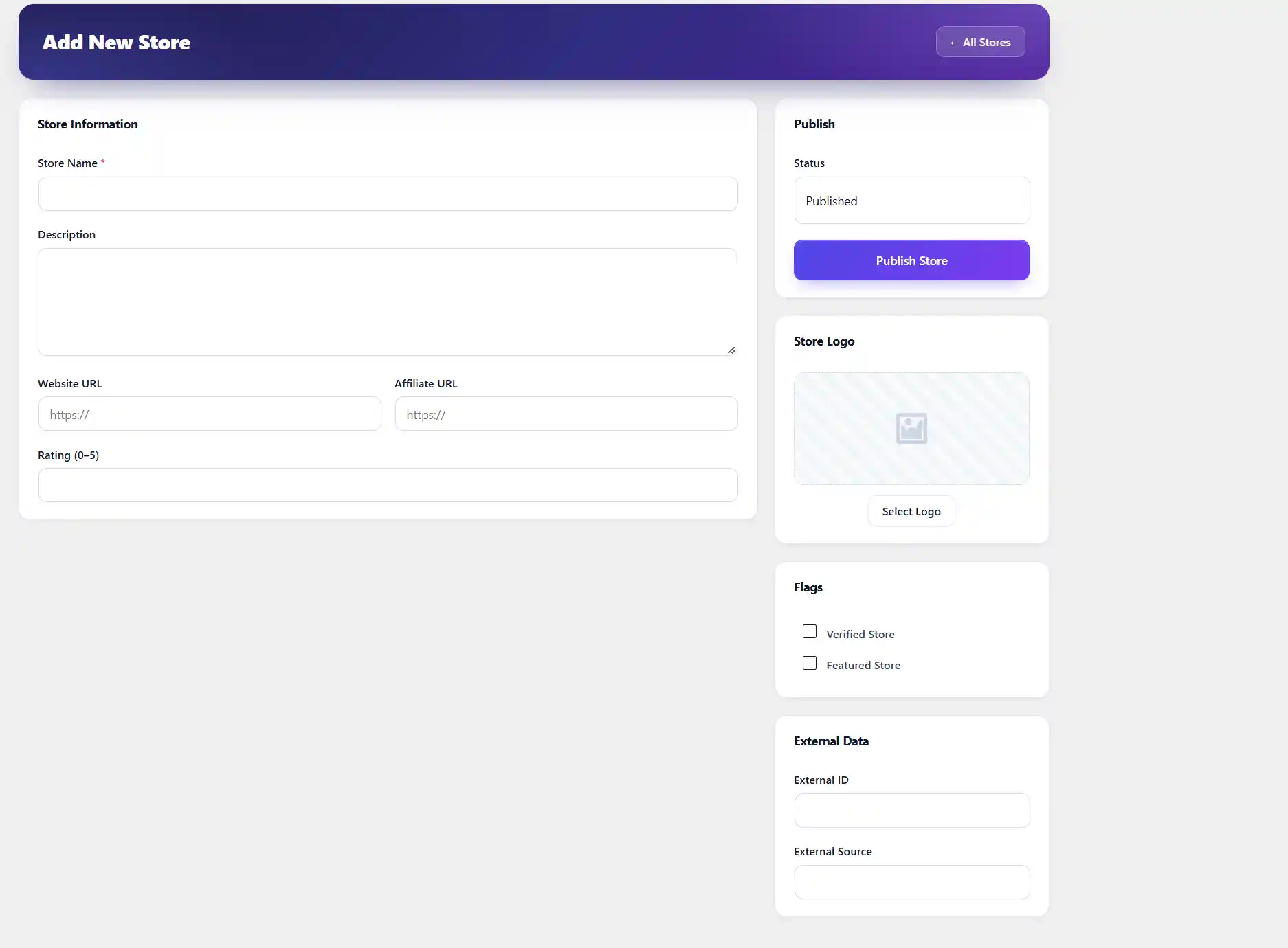
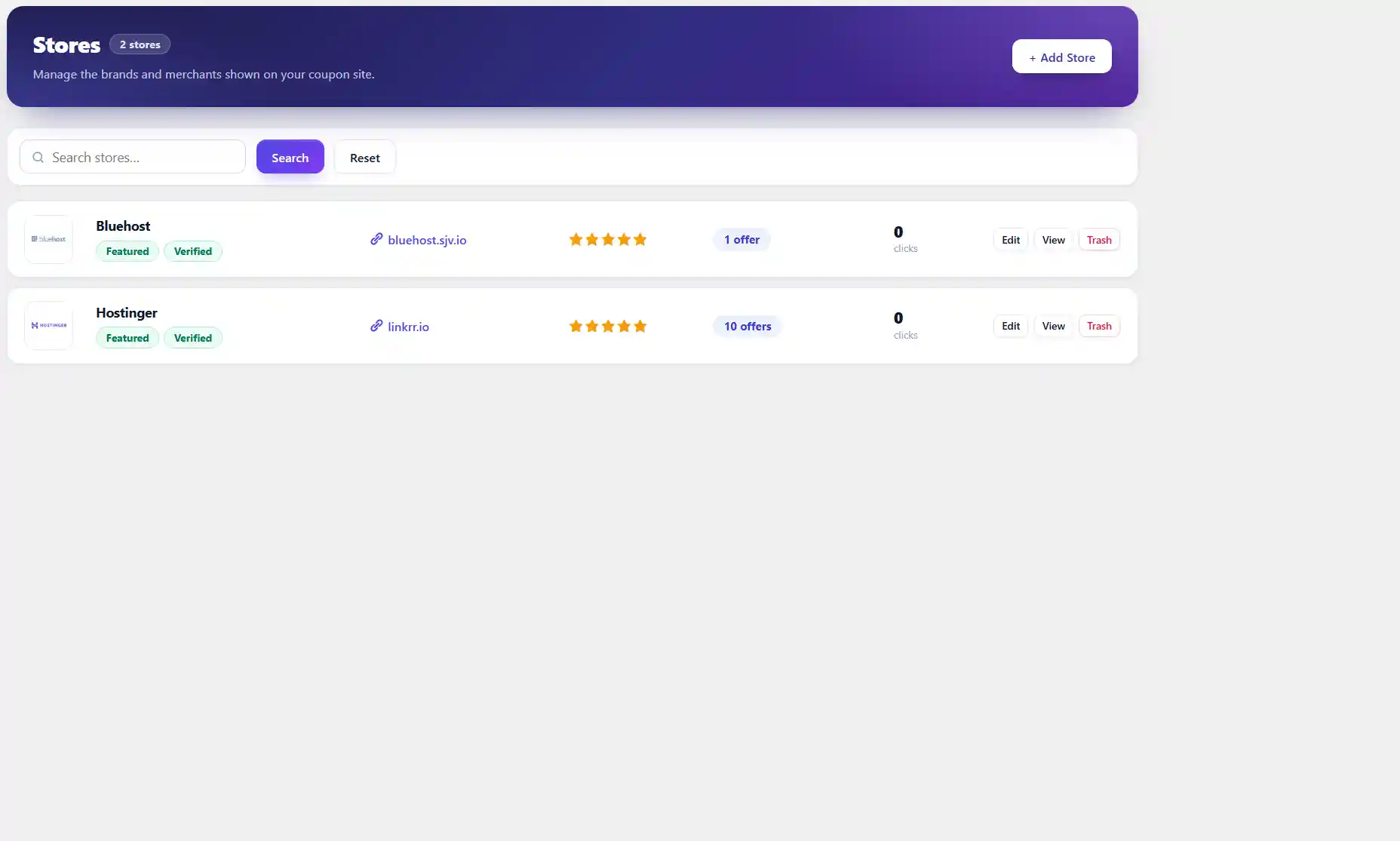
A store is the brand an offer belongs to, for example Hostinger or Bluehost. Add your stores first, so you can pick them when you add coupons. Each store gets its own page on your site that lists all of its offers.
Go to SaveLoot Coupons → Stores and click + New Store.
| Field | What it does |
|---|---|
| Store Name | The brand name. Required. |
| Description | A short introduction shown on the store page. |
| Website URL | The store’s normal website address. |
| Affiliate URL | Your affiliate link for this store. Coupons of this store use it when they have no affiliate link of their own. |
| Rating (0–5) | A rating shown for the store. |
| Store Logo | The logo shown on coupon cards and the store page. |
| Verified Store / Featured Store | Flags you can use to highlight and filter stores. |
| External ID / External Source | Optional. Lets you keep a reference to the store in another system, such as an affiliate network. |
Choose Published as the status and click Publish Store.
Coupon categories
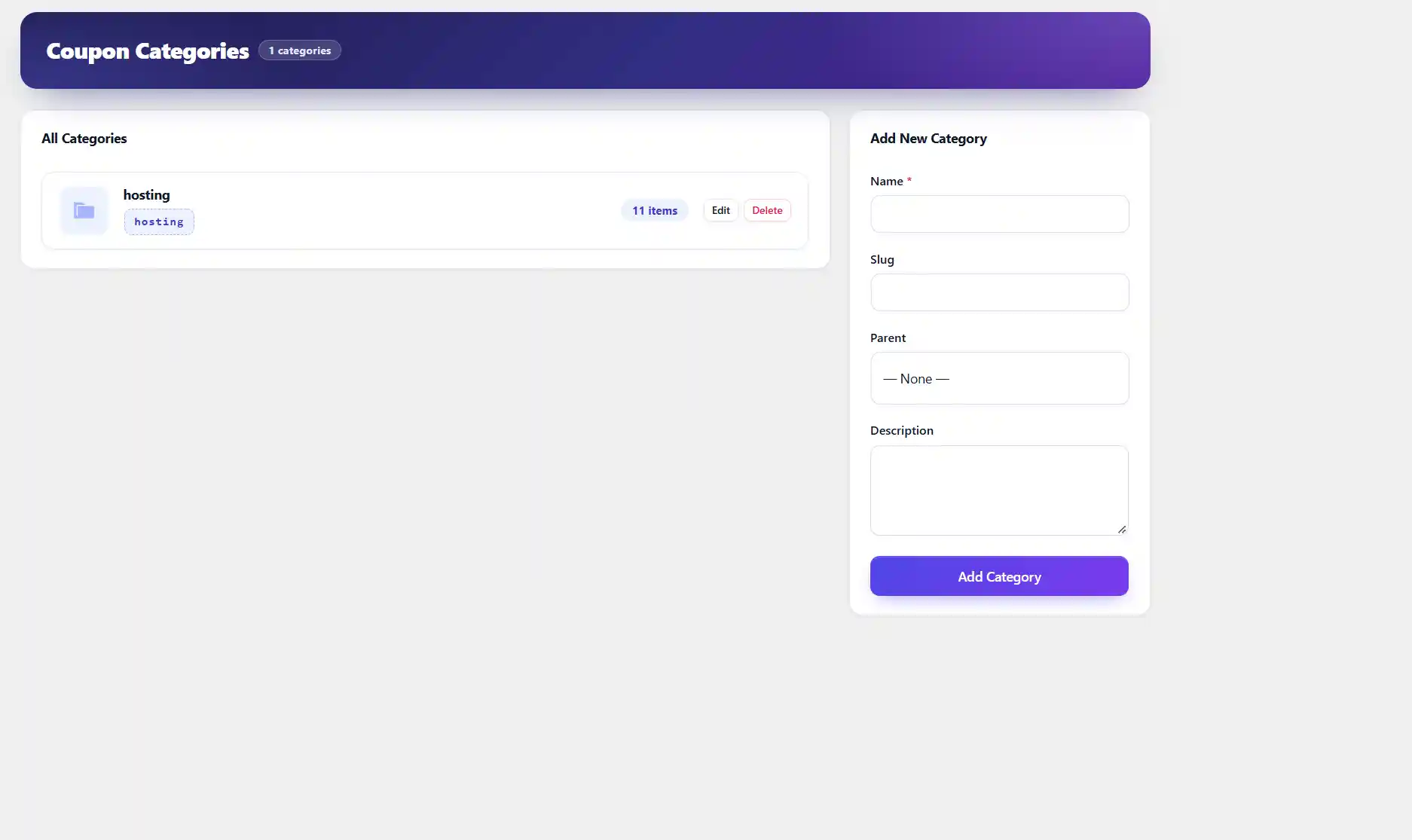
Categories group your offers by topic, such as Hosting, Fashion or Travel, so visitors find the right deal faster.
- Go to SaveLoot Coupons → Categories.
- Under Add New Category, enter a Name. The Slug (the URL part) is optional.
- To make a sub-category, choose a Parent.
- Add a Description if you like, then click Add Category.
Each category shows how many items it contains, with Edit and Delete buttons. You can also tag coupons with coupon tags.
Adding coupons & deals
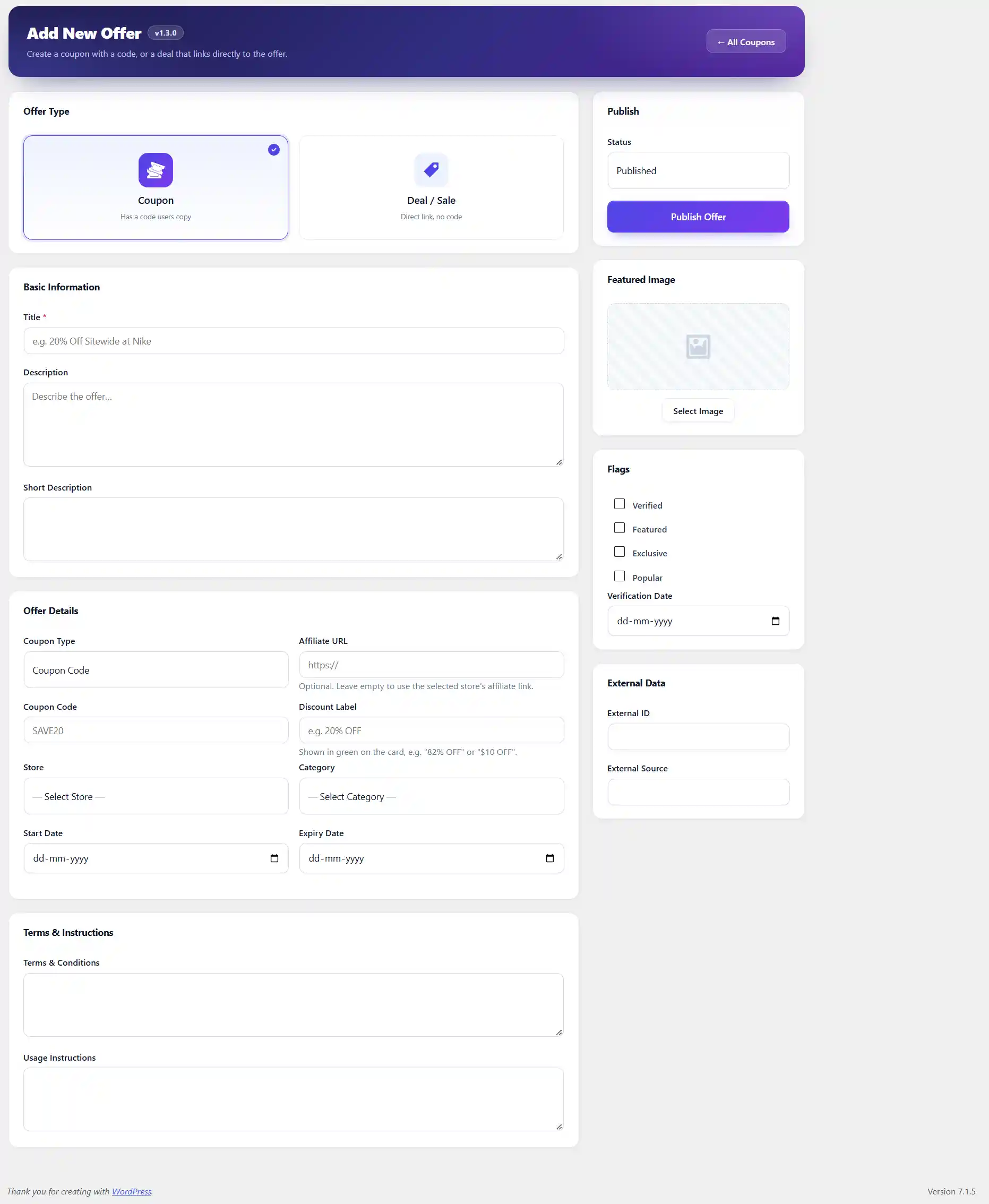
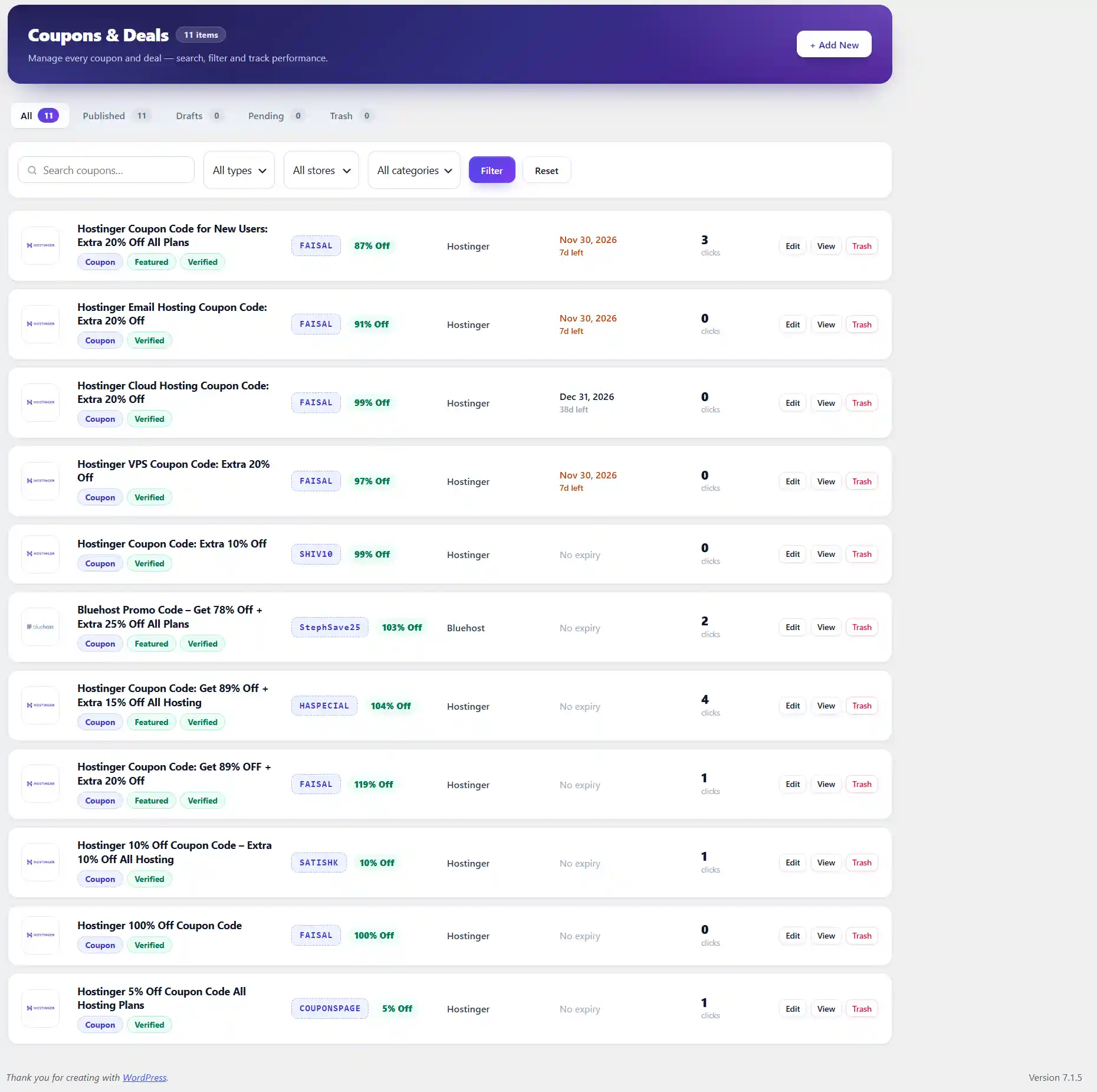
Go to SaveLoot Coupons → All Coupons and click + New Coupon / Deal.
1. Choose the offer type
- Coupon – the offer has a code that visitors copy.
- Deal / Sale – the offer needs no code and links straight to the store.
2. Fill in the details
| Field | What it does |
|---|---|
| Title | The offer headline, e.g. “20% Off Sitewide at Nike”. Required. |
| Description | The main text about the offer. |
| Short Description | A short summary of the offer. |
| Coupon Type | The kind of offer, e.g. Coupon Code. |
| Coupon Code | The code visitors copy, e.g. SAVE20. |
| Affiliate URL | Where the visitor goes after clicking. Optional: leave it empty to use the selected store’s affiliate link. |
| Discount Label | The highlight shown in green on the card, e.g. “82% OFF” or “$10 OFF”. |
| Store | The store the offer belongs to. |
| Category | The category the offer belongs to. |
| Start Date / Expiry Date | When the offer starts and ends. The expiry date drives the countdown timer and the “expiring soon” lists. |
| Terms & Conditions | Any rules of the offer, e.g. “New customers only”. |
| Usage Instructions | How to use the code at the store’s checkout. |
| Featured Image | An optional image for the offer. |
3. Set the flags
| Flag | What it does |
|---|---|
| Verified | Shows a Verified badge, so visitors know you checked the offer. Add the Verification Date to show when. |
| Featured | Marks the offer as featured. Featured offers can be shown on their own with the Featured Coupons block. |
| Exclusive | Shows an Exclusive Deal badge. |
| Popular | Marks the offer as popular. |
External ID and External Source are optional fields to keep a reference to the offer in another system.
4. Publish
Choose Published as the status and click Publish Offer. The offer gets its own page on your site and can be shown anywhere with the SaveLoot blocks.
Showing coupons on your site
SaveLoot creates pages for every coupon and store automatically. To show offers inside your own posts and pages, use the SaveLoot blocks in the block editor: click + (Add block) and search for SaveLoot or coupon.
| Block | What it shows |
|---|---|
| Coupon Grid | A grid of coupons you can filter (see options below). |
| Deal Grid | A grid of deals, with the same options as the Coupon Grid. |
| Store Grid | A grid of your stores. |
| Coupon | One specific coupon. |
| Deal | One specific deal. |
| Store | One specific store. |
| Featured Coupons | Your featured coupons. |
| Latest Coupons | Your newest coupons. |
| Expiring Coupons | Coupons that are ending soon, a good way to create urgency. |
Grid block options
The Coupon Grid, Deal Grid and Store Grid blocks have these options:
| Option | What it does | Default |
|---|---|---|
| Number of items | How many offers to show. | 12 |
| Columns | How many offers per row. | 3 |
| Category | Show only offers from one category. | All |
| Store | Show only offers from one store. | All |
| Order by / Order | Sort the offers, newest first by default. | Date, descending |
| Featured only | Show only featured offers. | Off |
| Verified only | Show only verified offers. | Off |
| Show expired | Include offers that have expired. | Off |
| Layout | The card design for this block. Overrides the default card style from the settings. | Card |
Featured Coupons, Latest Coupons and Expiring Coupons have the number of items and columns options. The single Coupon, Deal and Store blocks let you pick the item to show.
Example: on a “Hostinger coupon codes” blog post, add a Coupon Grid block, set Store to Hostinger and Columns to 1. The post then always shows your current Hostinger offers. Update a coupon once and every post that shows it updates too.
What visitors see
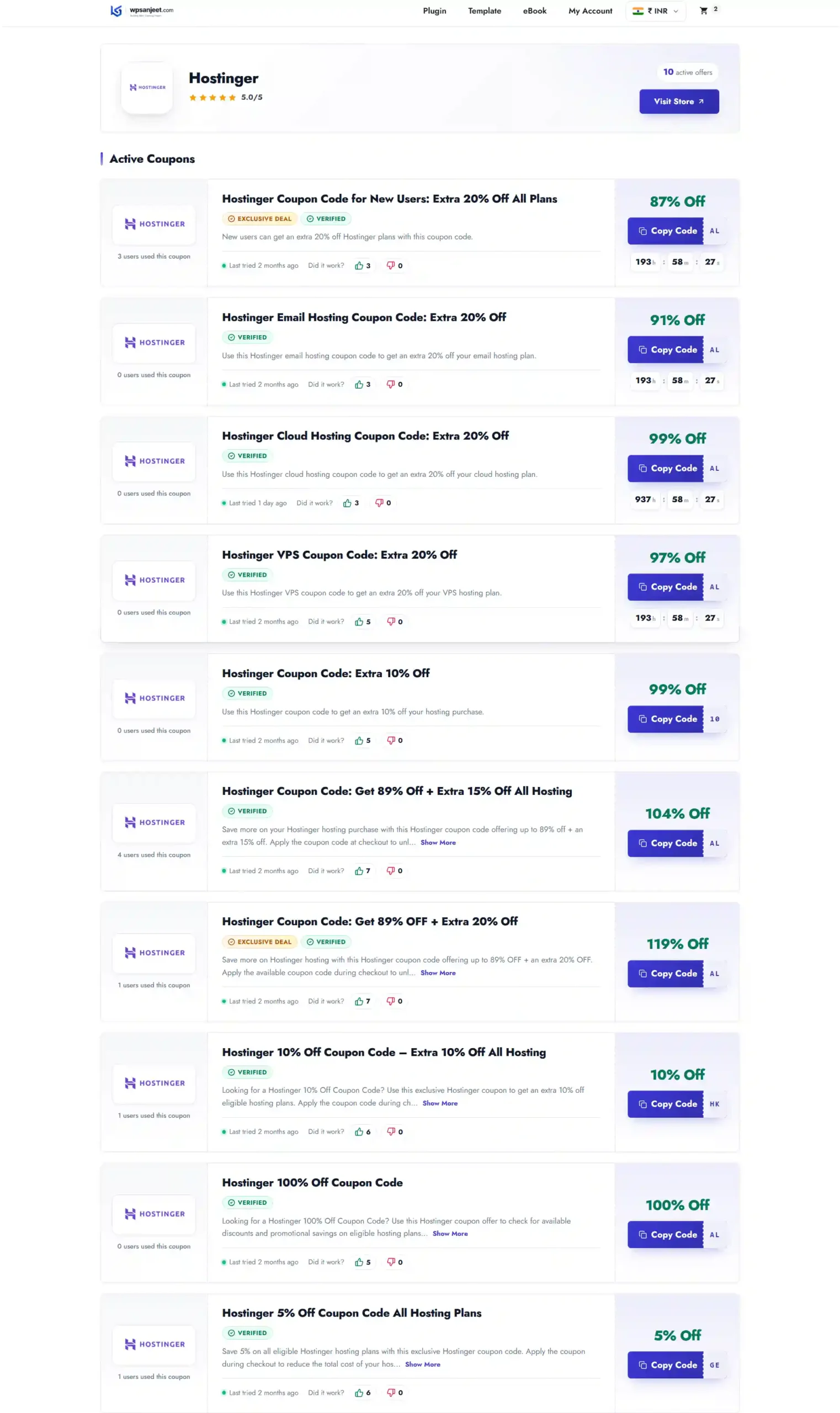
Every coupon card on your site includes:
- A Copy Code button that reveals the code and copies it.
- Exclusive Deal and Verified badges.
- The discount label and the store logo.
- A countdown timer until the offer ends.
- “Did it work?” voting with thumbs up and down.
- How many people used the coupon and when it was last tried.
- A layout that works on mobile, tablet and desktop.
Settings
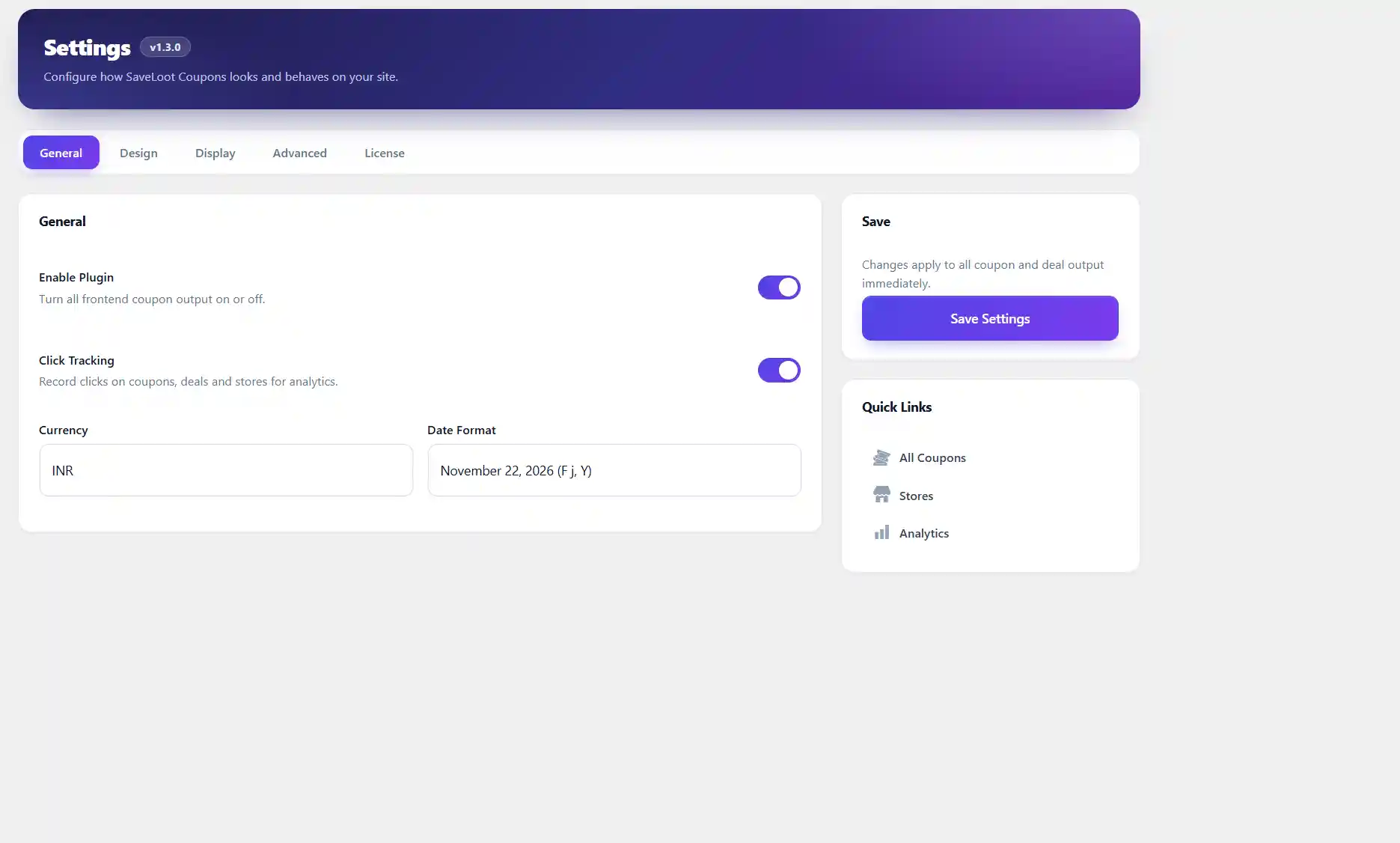
Go to SaveLoot Coupons → Settings. Changes apply to all coupon and deal output as soon as you click Save Settings.
General
| Setting | What it does |
|---|---|
| Enable Plugin | Turns all front-end coupon output on or off. |
| Click Tracking | Records clicks on coupons, deals and stores for analytics. |
| Currency | The currency used for your offers. |
| Date Format | How dates appear on your site. |
Design
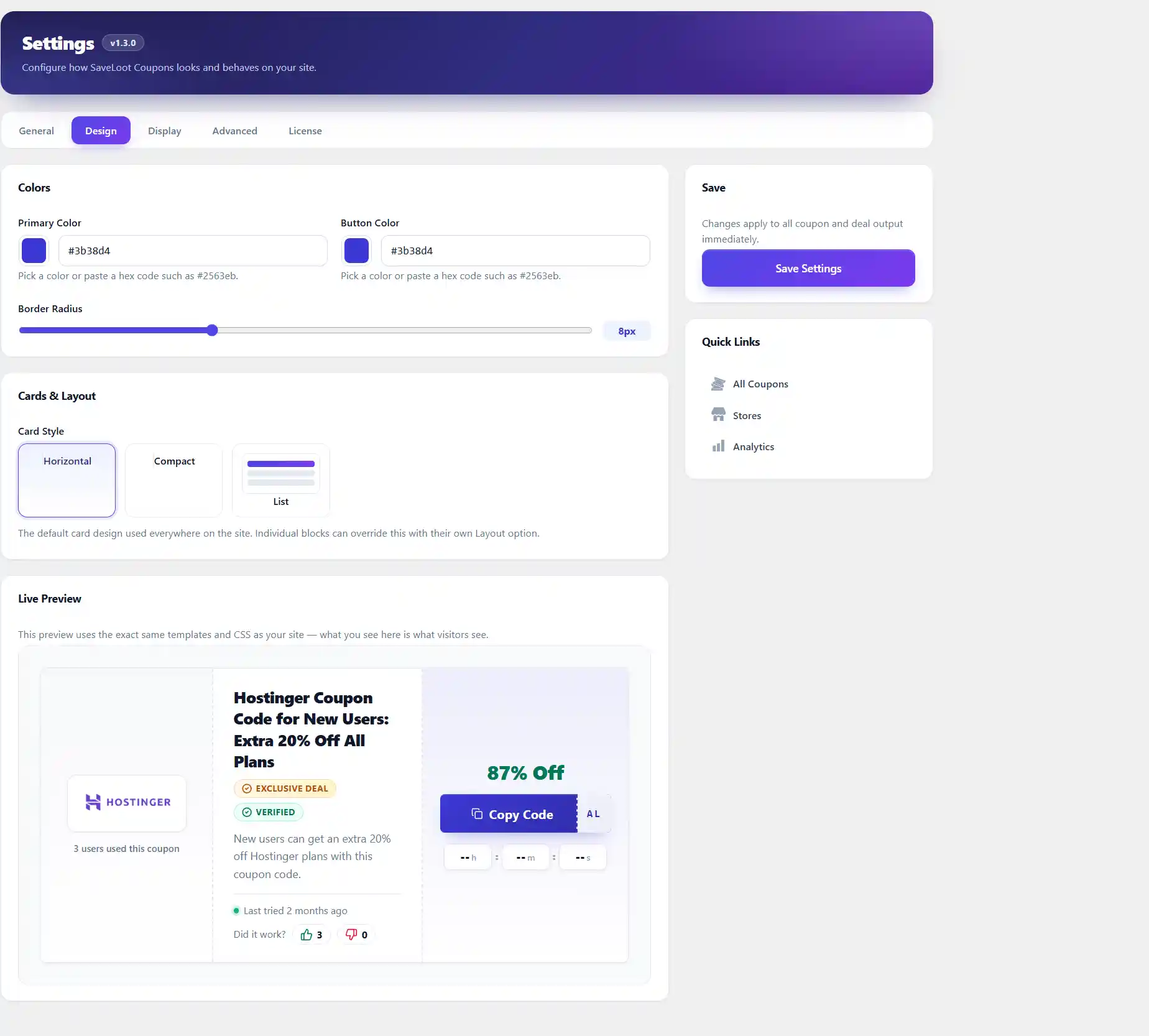
| Setting | What it does |
|---|---|
| Primary Color | The main color of your coupon cards. Pick a color or paste a hex code. |
| Button Color | The color of the Copy Code and offer buttons. |
| Border Radius | How rounded the card corners are. |
| Card Style | The default card design used everywhere on the site: Horizontal, Compact or List. Individual blocks can override it with their Layout option. |
The Live Preview under the design settings uses the same templates and CSS as your site, so what you see there is what visitors see.
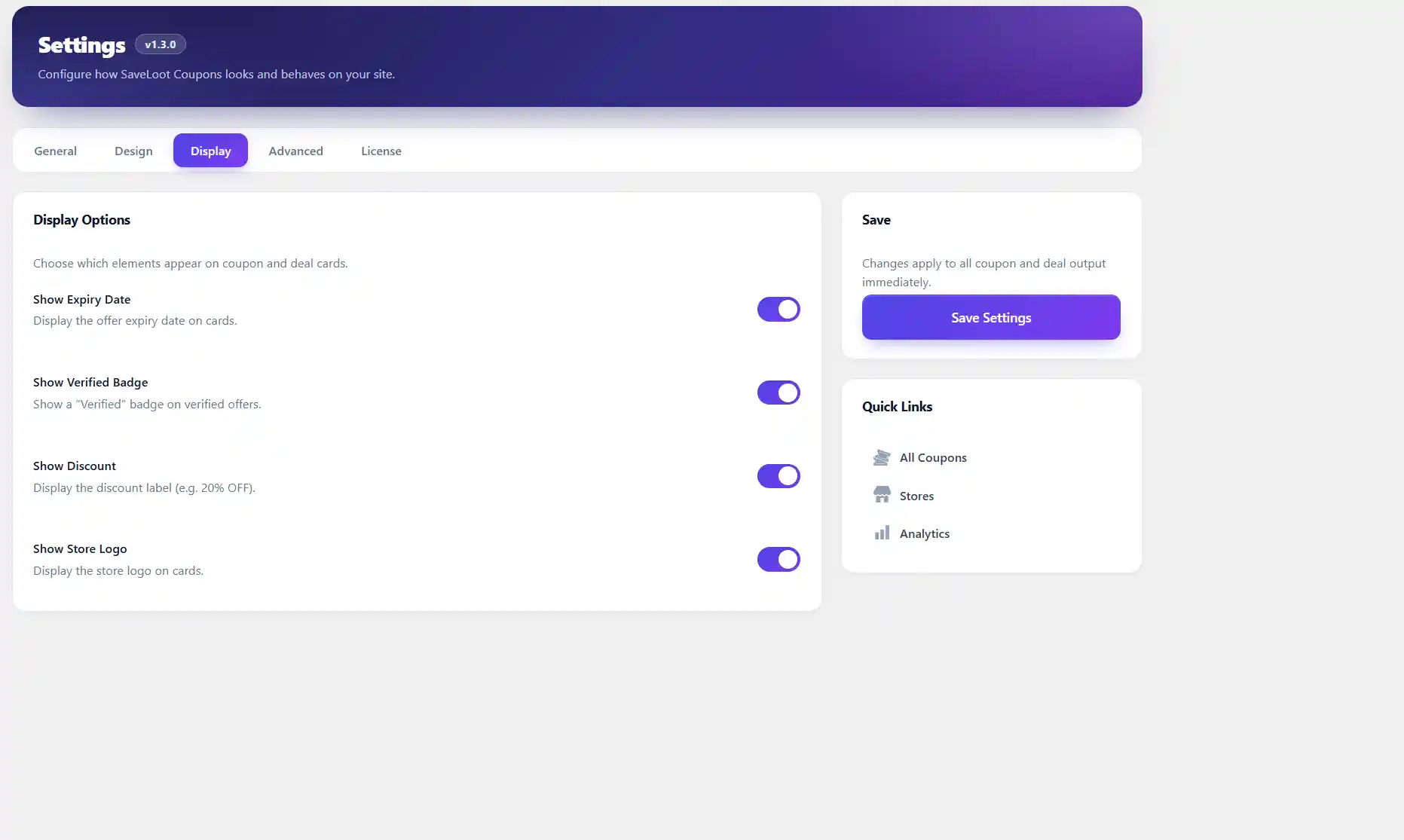
Display
Choose which elements appear on coupon and deal cards:
| Setting | What it does |
|---|---|
| Show Expiry Date | Shows the offer’s expiry date on cards. |
| Show Verified Badge | Shows the Verified badge on verified offers. |
| Show Discount | Shows the discount label, e.g. 20% OFF. |
| Show Store Logo | Shows the store logo on cards. |
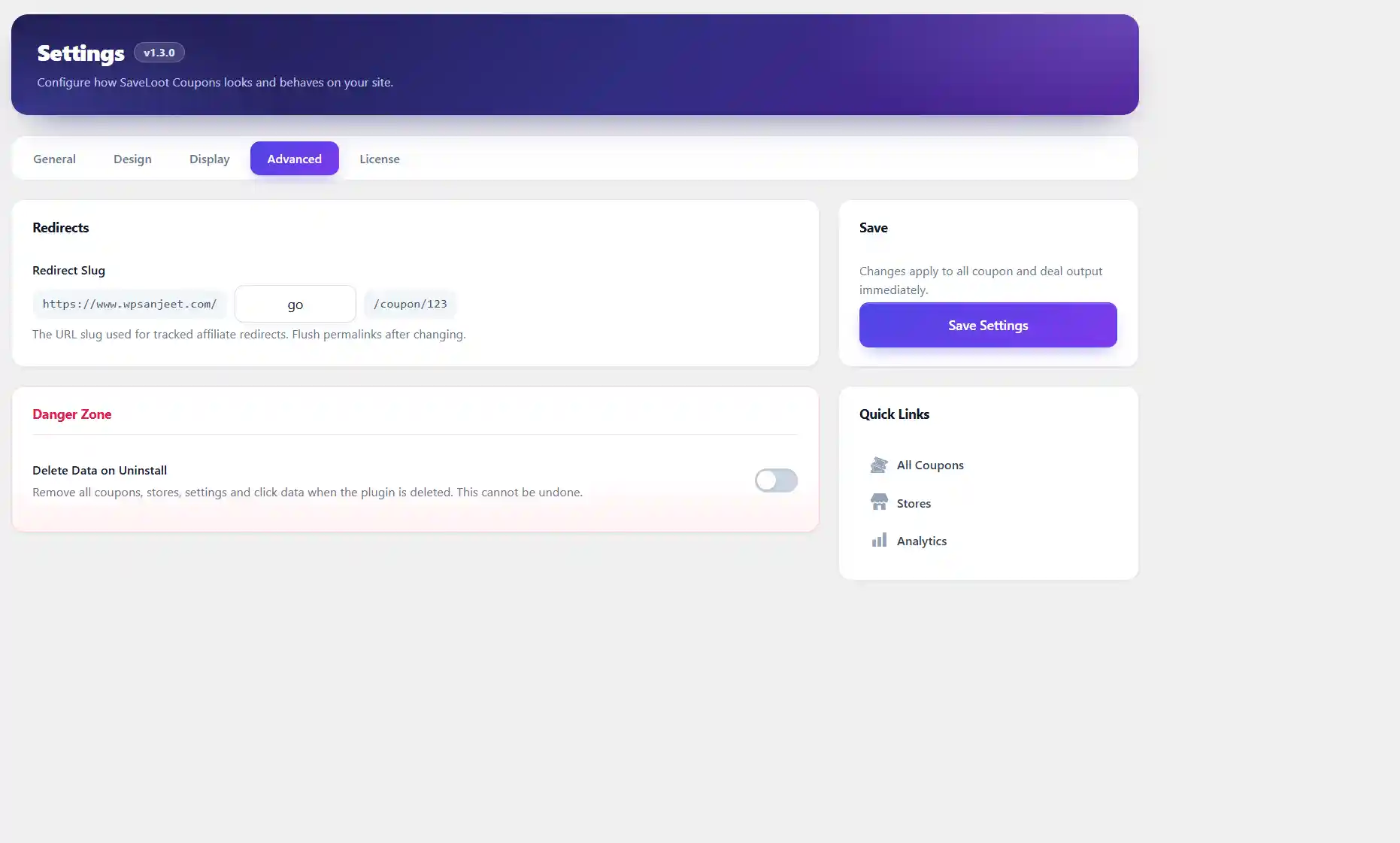
Advanced
| Setting | What it does |
|---|---|
| Redirect Slug | The URL part used for tracked affiliate links. With the default go, an offer link looks like yoursite.com/go/coupon/123. After changing it, go to Settings → Permalinks in WordPress and click Save Changes. |
| Delete Data on Uninstall | When on, deleting the plugin also removes all coupons, stores, settings and click data. |
Careful: leave Delete Data on Uninstall off unless you really want to remove everything. Deleted coupons, stores and click data cannot be recovered.
Analytics & click tracking
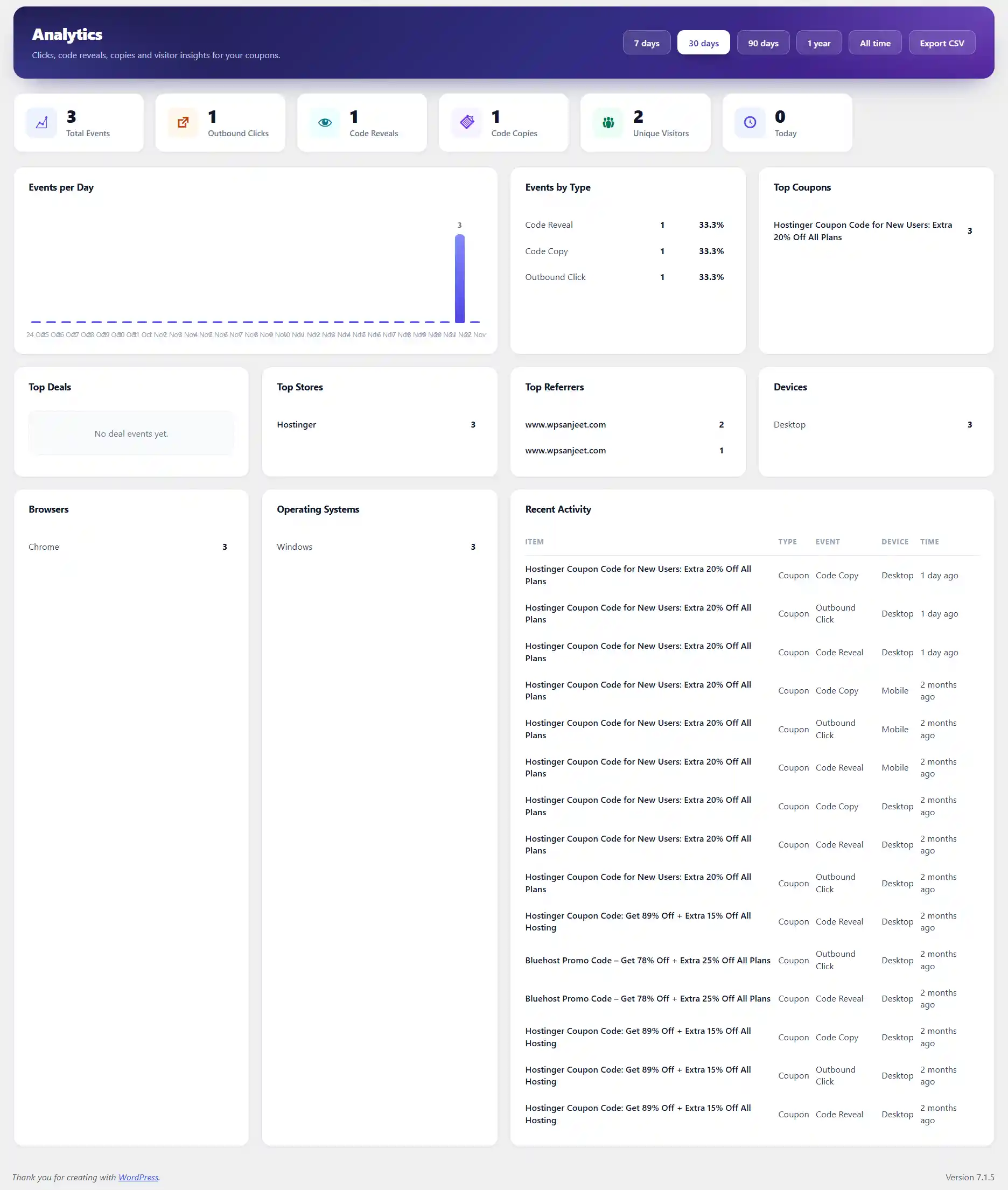
With Click Tracking switched on, SaveLoot records what visitors do with your offers. Open SaveLoot Coupons → Analytics to see:
- Totals – total events, outbound clicks, code reveals, code copies, unique visitors and today’s activity.
- Events per day and events by type.
- Top coupons, top deals, top stores and top referrers.
- Devices, browsers and operating systems of your visitors.
- Recent activity – each event with the offer, store, device and time.
Use the buttons at the top to switch between 7 days, 30 days, 90 days, 1 year and all time. Click Export CSV to download the data for a spreadsheet.
REST API
SaveLoot includes read-only REST API endpoints, so you can use your offers in apps or other sites:
| Endpoint | Returns |
|---|---|
/wp-json/saveloot-coupons/v1/coupons | All coupons |
/wp-json/saveloot-coupons/v1/coupons/{id} | One coupon |
/wp-json/saveloot-coupons/v1/deals | All deals |
/wp-json/saveloot-coupons/v1/deals/{id} | One deal |
/wp-json/saveloot-coupons/v1/stores | All stores |
/wp-json/saveloot-coupons/v1/stores/{id} | One store |
/wp-json/saveloot-coupons/v1/categories | All categories |
/wp-json/saveloot-coupons/v1/stats | Totals for coupons, deals, stores and clicks |
Lists are paginated. Add per_page and page to the URL, for example:
https://yoursite.com/wp-json/saveloot-coupons/v1/coupons?per_page=10&page=2Each coupon includes its title, description, code, discount, coupon type, affiliate URL, store, expiry date, verified/exclusive/featured flags and click count.
Managing your licence
Go to SaveLoot Coupons → Settings → License. There you see:
| Item | What it shows |
|---|---|
| Status | Active, with the expiry date for yearly licences. |
| Plan | Which licence you bought. |
| Activations | How many of your allowed sites are in use, e.g. 1 / 1. |
| Support ends | Until when you get updates and support. |
Common tasks
- Move to another website: click Deactivate License on the old site, then activate the same key on the new site.
- Status looks wrong after a renewal or upgrade: click Refresh Validation.
- Renewing: the 1 Year licence gives 12 months of updates and support. Renew it to keep receiving updates. Lifetime licences never need renewing.
Troubleshooting
| Problem | Solution |
|---|---|
| Coupon or affiliate links show “Page not found” | Go to Settings → Permalinks in WordPress and click Save Changes. This is always needed after changing the Redirect Slug. |
| No coupons show on the site | Check that Enable Plugin is on under Settings → General, and that your offers are Published. |
| A block shows no offers | Check the block’s filters. A store or category with no published offers, or “Featured only” / “Verified only” switched on, can leave the grid empty. |
| Expired coupons disappeared | Expired offers are hidden by default. Turn on Show expired in the block options to include them. |
| Analytics show no clicks | Check that Click Tracking is on under Settings → General. |
| Changes don’t appear on the site | Clear your caching plugin’s cache (for example LiteSpeed Cache or WP Rocket) and reload the page. |
| Licence won’t activate: activation limit reached | Your key is already used on the maximum number of sites. Deactivate it on a site you no longer use, or choose a licence with more sites. |
Still need help?
Email us and we’ll reply within 2–16 hours. Support is included while your licence is valid. Please include your website address, your SaveLoot version and a screenshot of the problem.