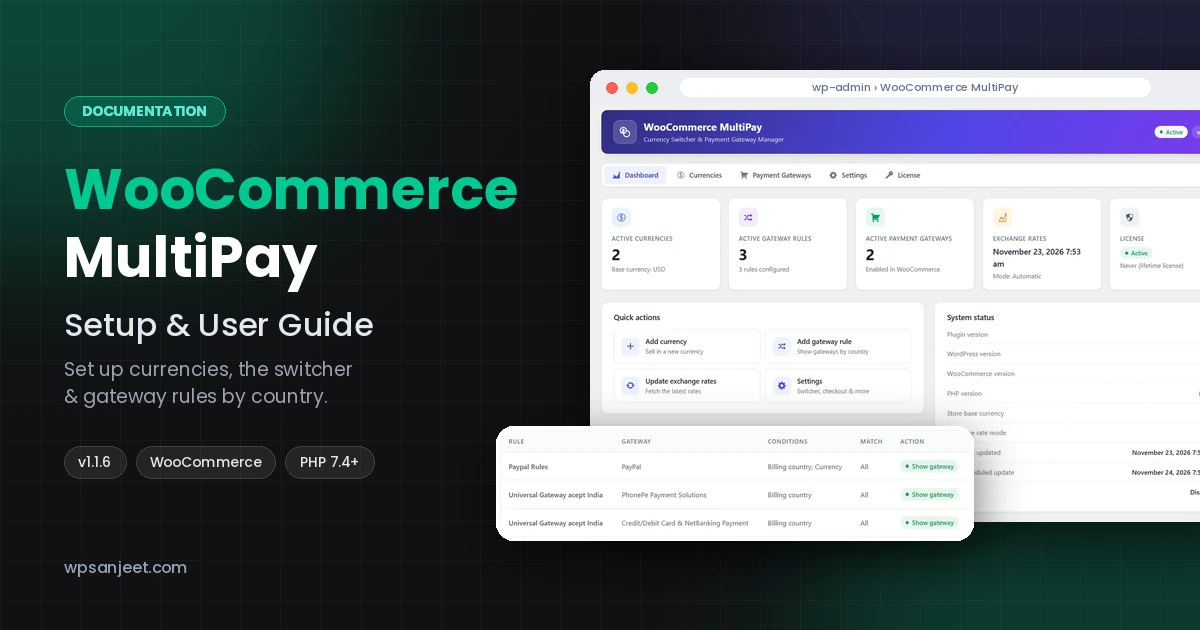
WooCommerce MultiPay · Documentation
Sell in every currency, accept the right payment method
This guide shows you how to activate MultiPay, add currencies, control which payment gateways each customer sees, and set up the currency switcher and checkout.
Quick start
On this page
Installation & licence
After your purchase you receive a download link and a licence key. Both are also in My Account on wpsanjeet.com.
- In WordPress, go to Plugins → Add New Plugin → Upload Plugin, choose the MultiPay .zip file and click Install Now.
- Click Activate Plugin. WooCommerce must be installed and active.
- Open WooCommerce MultiPay → License, enter your licence key and activate it.
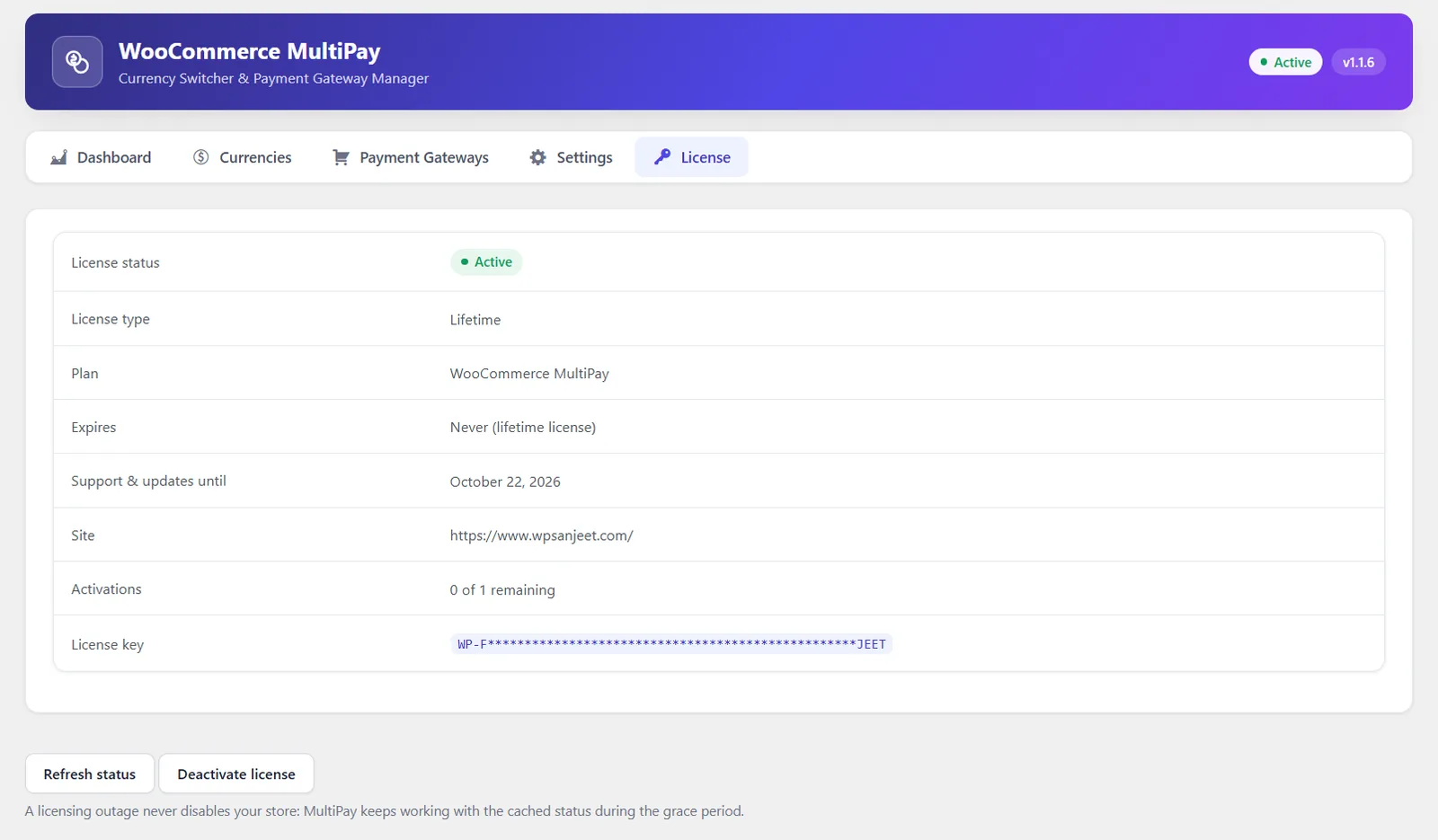
Once active, the License tab shows:
| Item | What it shows |
|---|---|
| License status | Active when the key is valid. |
| License type | For example Lifetime or 1 Year. |
| Expires | The expiry date, or Never for a lifetime licence. |
| Support & updates until | The date your updates and support run to. |
| Site | The website this key is activated on. |
| Activations | How many activations you have left. |
| License key | Your key, partly hidden for safety. |
Refresh status checks your licence again, for example after a renewal. Deactivate license frees the activation so you can move MultiPay to another site.
Good to know: MultiPay needs an active licence to run. If a 1 Year licence expires, MultiPay stops working and your checkout goes back to normal WooCommerce until you renew. A short outage of our licensing server doesn’t affect you: MultiPay keeps working with the cached licence status during a grace period.
The dashboard
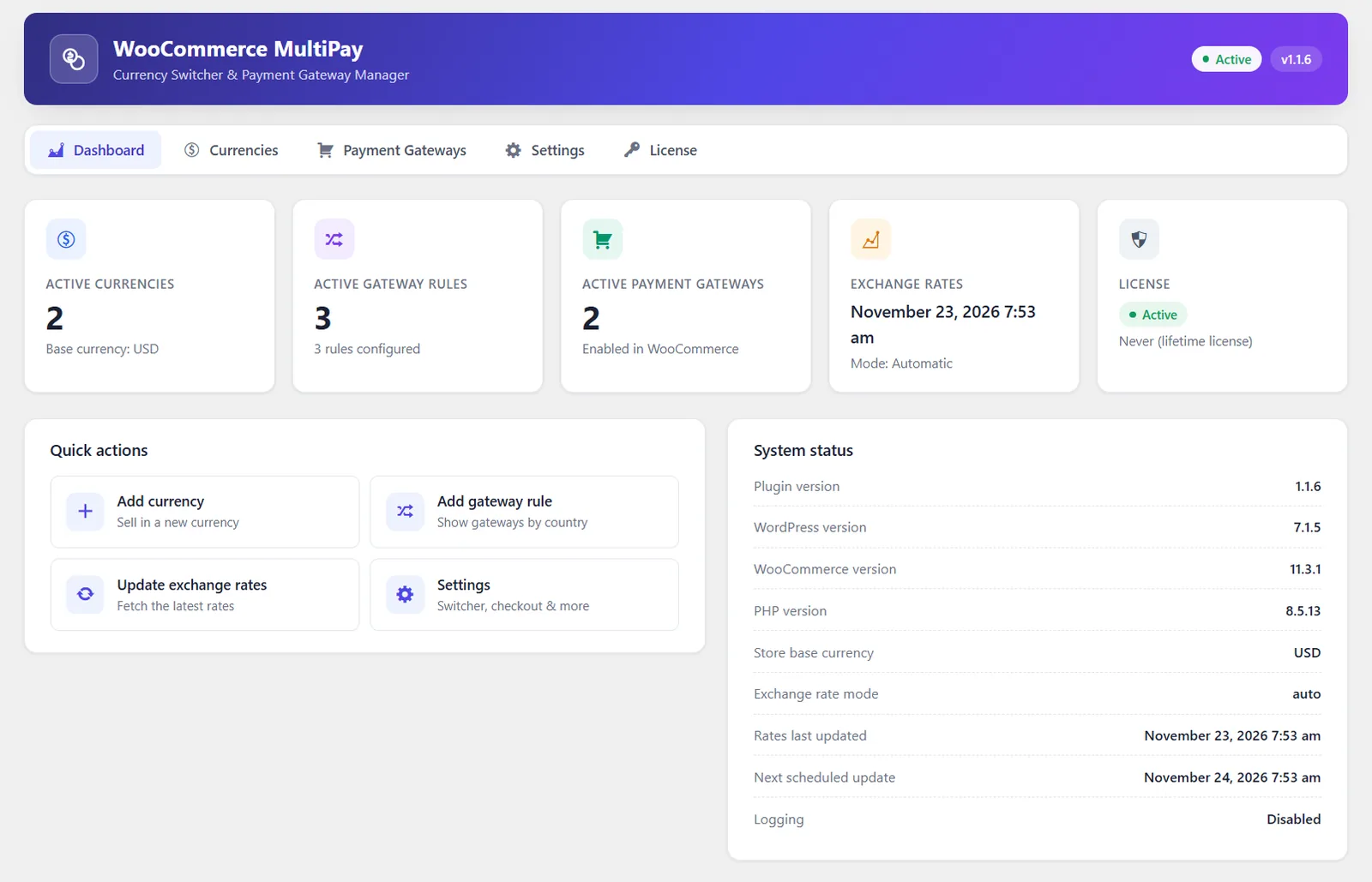
Open WooCommerce MultiPay → Dashboard for an overview:
- Active currencies, with your base currency.
- Active gateway rules and how many are configured.
- Active payment gateways enabled in WooCommerce.
- Exchange rates: when they were last updated and the rate mode.
- License status.
- Quick actions: Add currency, Add gateway rule, Update exchange rates and Settings.
- System status: plugin, WordPress, WooCommerce and PHP versions, base currency, rate mode, last and next rate update, and whether logging is on.
Currencies & exchange rates
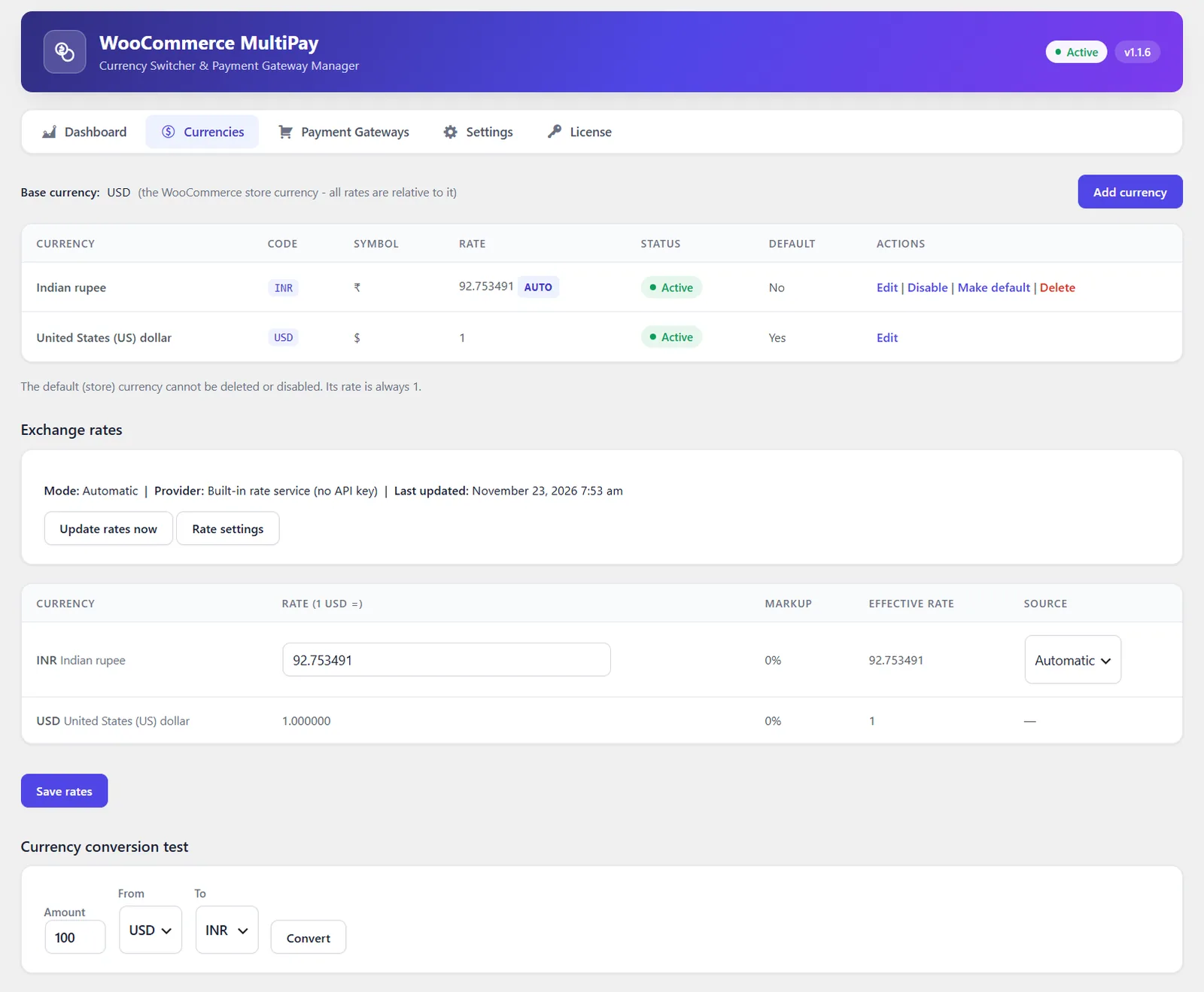
Go to Currencies. Your base currency is the WooCommerce store currency, and all exchange rates are relative to it. The default (store) currency cannot be deleted or disabled, and its rate is always 1.
The currency list shows each currency’s name, code, symbol, rate (marked AUTO when updated automatically), status and whether it’s the default. Use Edit, Disable, Make default or Delete to manage it.
Exchange rates
This panel shows the rate mode, provider and when rates were last updated. Click Update rates now to fetch the latest rates, or Rate settings to change how rates work. For each currency you can see the rate, the markup, the effective rate (rate plus markup) and the source: Automatic or a manual rate you type in. Click Save rates after changes.
Currency conversion test
Enter an amount, pick the From and To currencies and click Convert to check a price before your customers see it.
Adding a currency
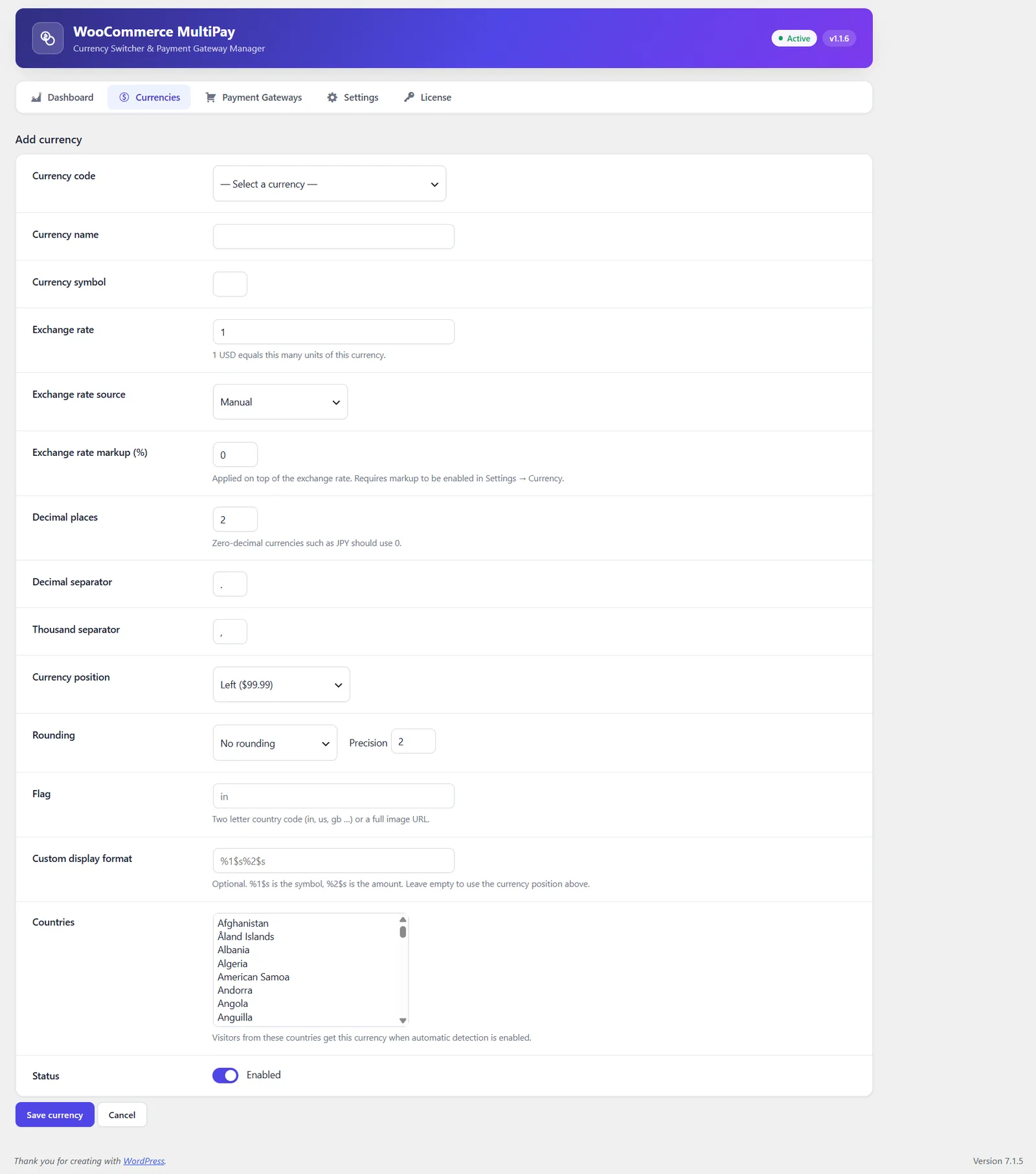
Click Add currency and fill in the fields:
| Field | What it does |
|---|---|
| Currency code | Pick the currency, for example INR or EUR. |
| Currency name / symbol | How the currency is named and shown, for example Indian rupee and ₹. |
| Exchange rate | How many units of this currency equal 1 unit of your base currency. |
| Exchange rate source | Manual (you set the rate) or automatic updates. |
| Exchange rate markup (%) | Added on top of the rate. Requires markup to be enabled in Settings → Currency. |
| Decimal places | Usually 2. Zero-decimal currencies such as JPY should use 0. |
| Decimal / thousand separator | For example . and , or the other way round. |
| Currency position | Where the symbol appears, for example Left ($99.99). |
| Rounding & precision | Round converted prices, for example to whole numbers, so they look clean. |
| Flag | A two-letter country code (in, us, gb) or a full image URL. |
| Custom display format | Optional. %1$s is the symbol and %2$s the amount. Leave empty to use the currency position. |
| Countries | Visitors from these countries get this currency when automatic detection is on. |
| Status | Enable or disable the currency. |
Click Save currency.
Tip: long converted prices like ₹3,622.67 look auto-generated. Set rounding with a precision of 0 to show ₹3,623 instead.
Payment gateways
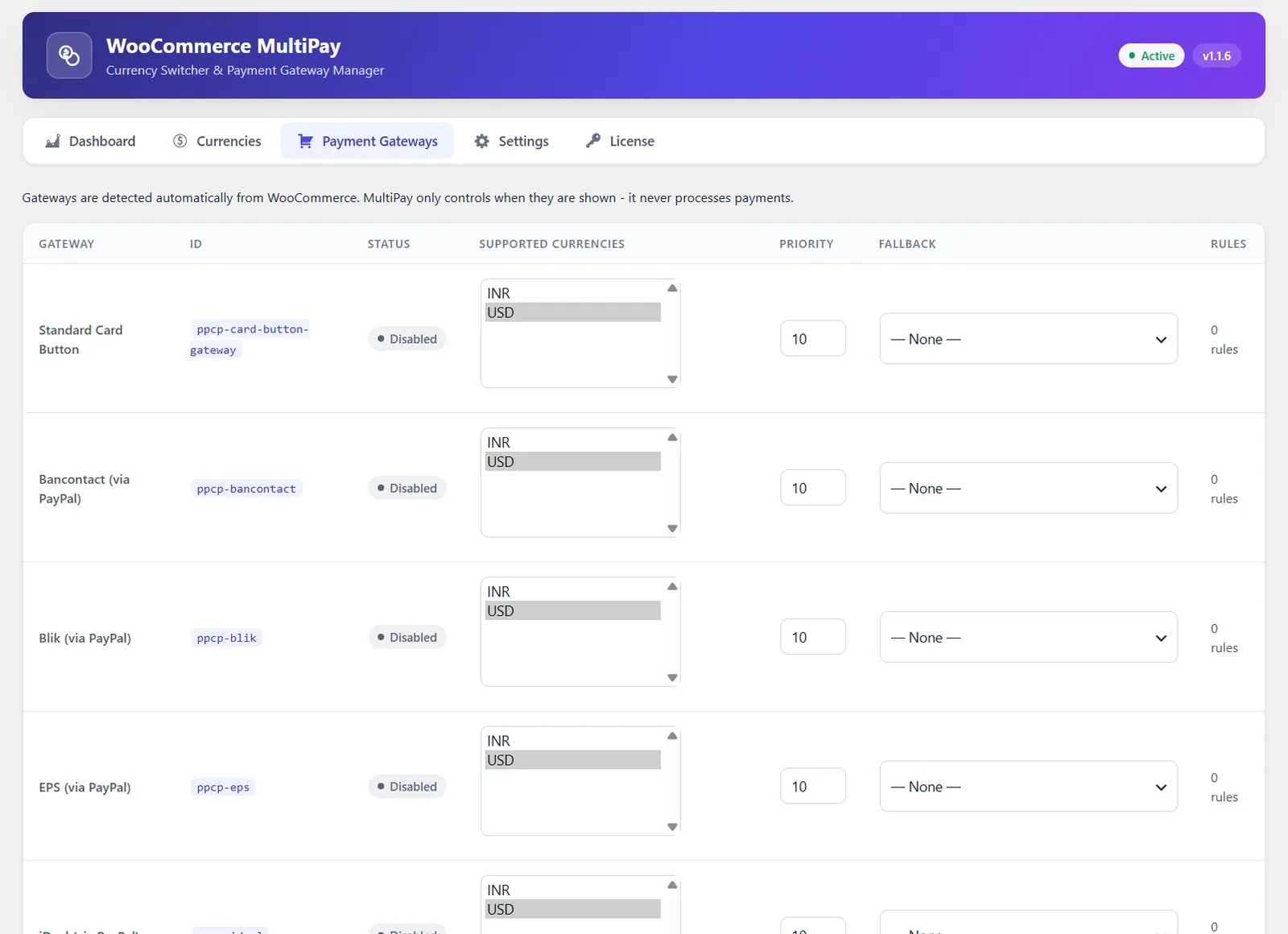
Go to Payment Gateways. MultiPay detects your gateways automatically from WooCommerce. It only controls when they are shown; it never processes payments itself.
| Column | What it does |
|---|---|
| Gateway / ID | The gateway name and its WooCommerce ID. |
| Status | Whether the gateway is enabled in WooCommerce. |
| Supported currencies | The currencies the gateway can accept. If no restriction is detected, select currencies to override. |
| Priority | Lower numbers appear first at checkout. |
| Fallback | A backup gateway, used only when Gateway fallback is enabled in Settings → Checkout. |
| Rules | How many gateway rules apply to it. |
Click Save gateway settings after changes.
Gateway rules
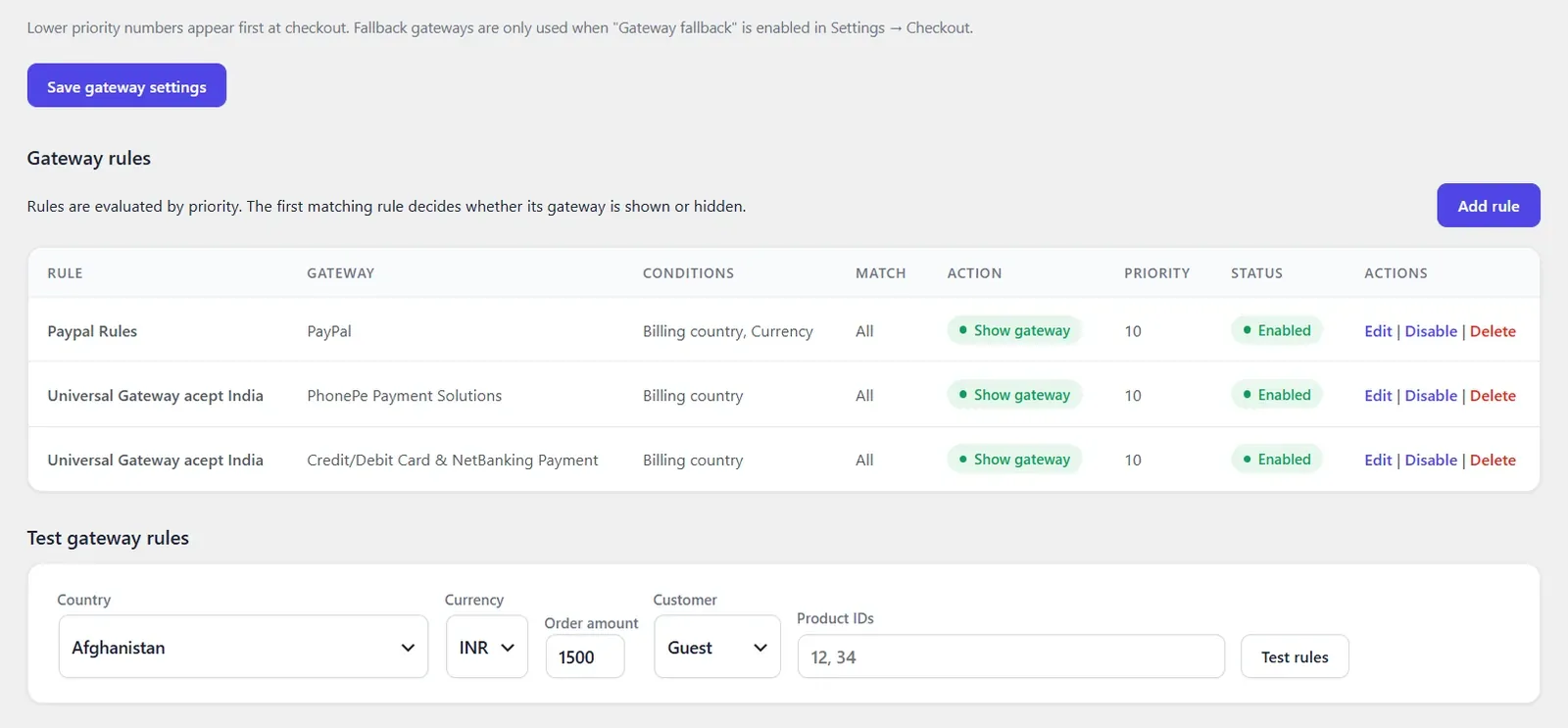
Rules decide which customers see a gateway. Rules are evaluated by priority, and the first matching rule decides whether its gateway is shown or hidden.
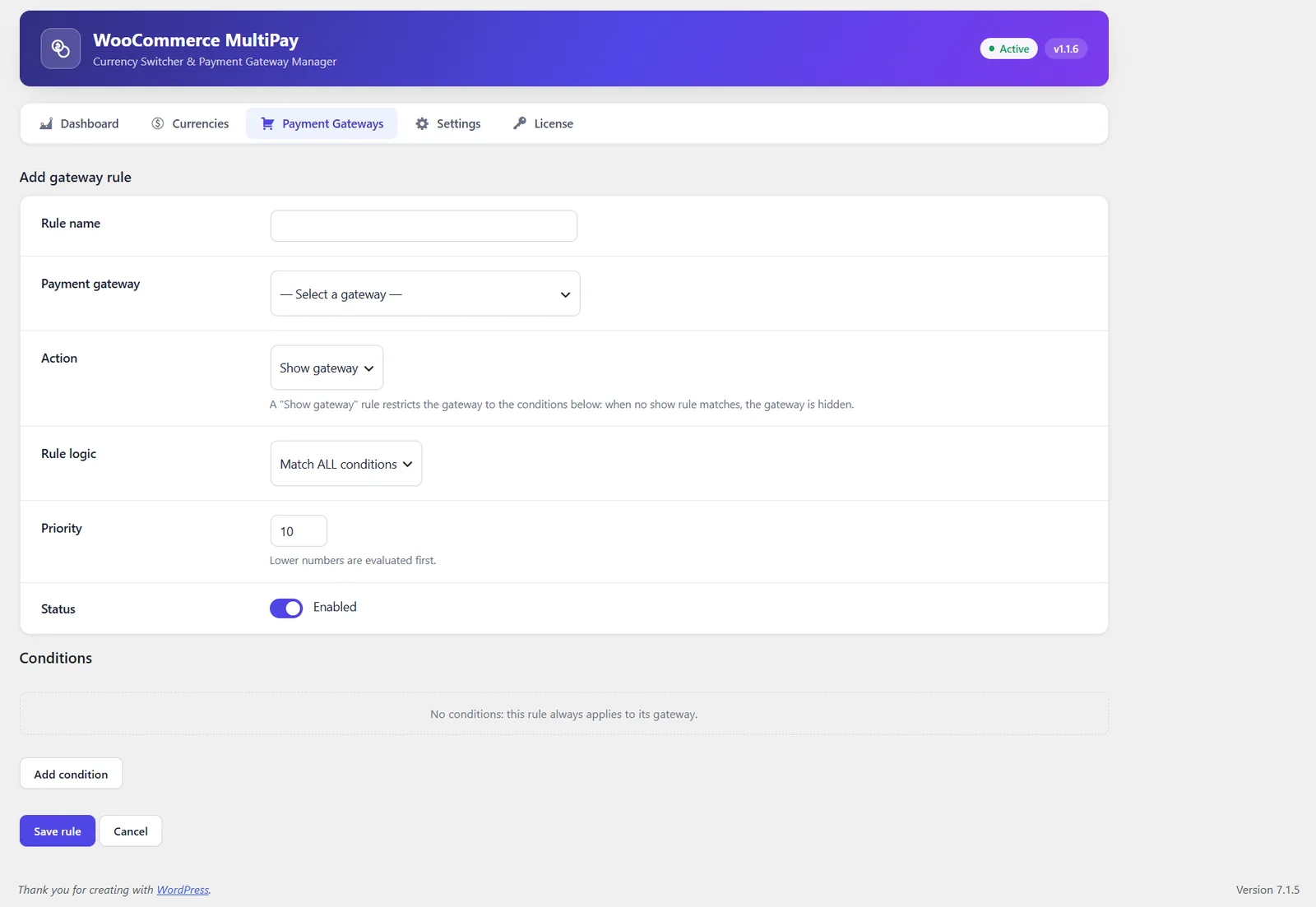
Click Add rule and fill in:
| Field | What it does |
|---|---|
| Rule name | A name you recognise, for example “PayU for India”. |
| Payment gateway | The gateway this rule controls. |
| Action | Show gateway restricts the gateway to the conditions below: when no show rule matches, the gateway is hidden. |
| Rule logic | For example Match ALL conditions. |
| Priority | Lower numbers are evaluated first. |
| Status | Enable or disable the rule. |
| Conditions | Click Add condition, for example billing country or currency. A rule with no conditions always applies to its gateway. |
Test your rules
Under Test gateway rules, choose a country, currency, order amount, customer type and product IDs, then click Test rules. You see which gateways that customer would get, without placing an order.
General settings
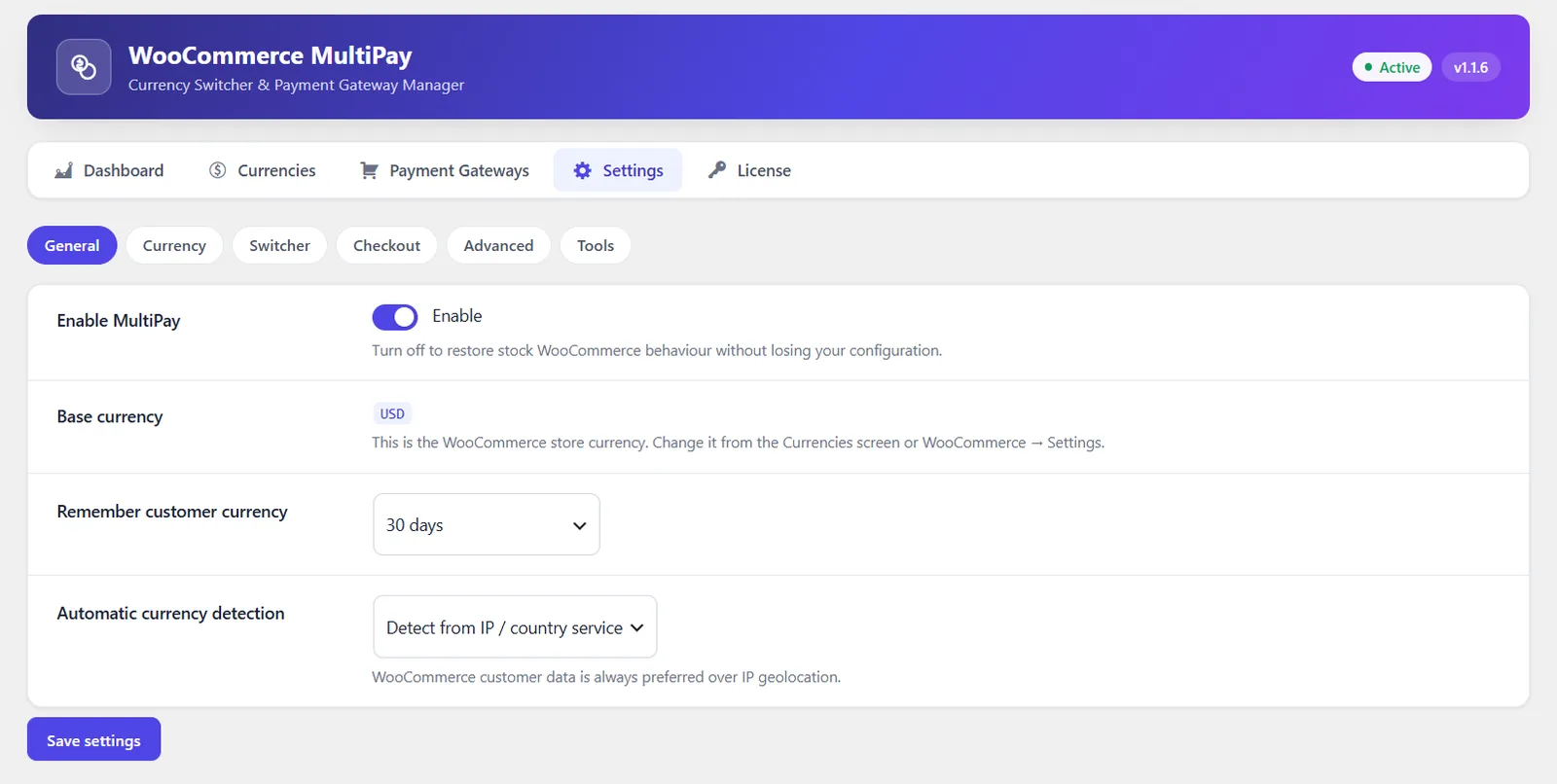
Go to Settings → General.
| Setting | What it does |
|---|---|
| Enable MultiPay | Turn off to restore stock WooCommerce behaviour without losing your configuration. |
| Base currency | Your WooCommerce store currency. Change it from the Currencies screen or WooCommerce → Settings. |
| Remember customer currency | How long a customer’s chosen currency is remembered, for example 30 days. |
| Automatic currency detection | For example Detect from IP / country service. WooCommerce customer data is always preferred over IP geolocation. |
Currency settings
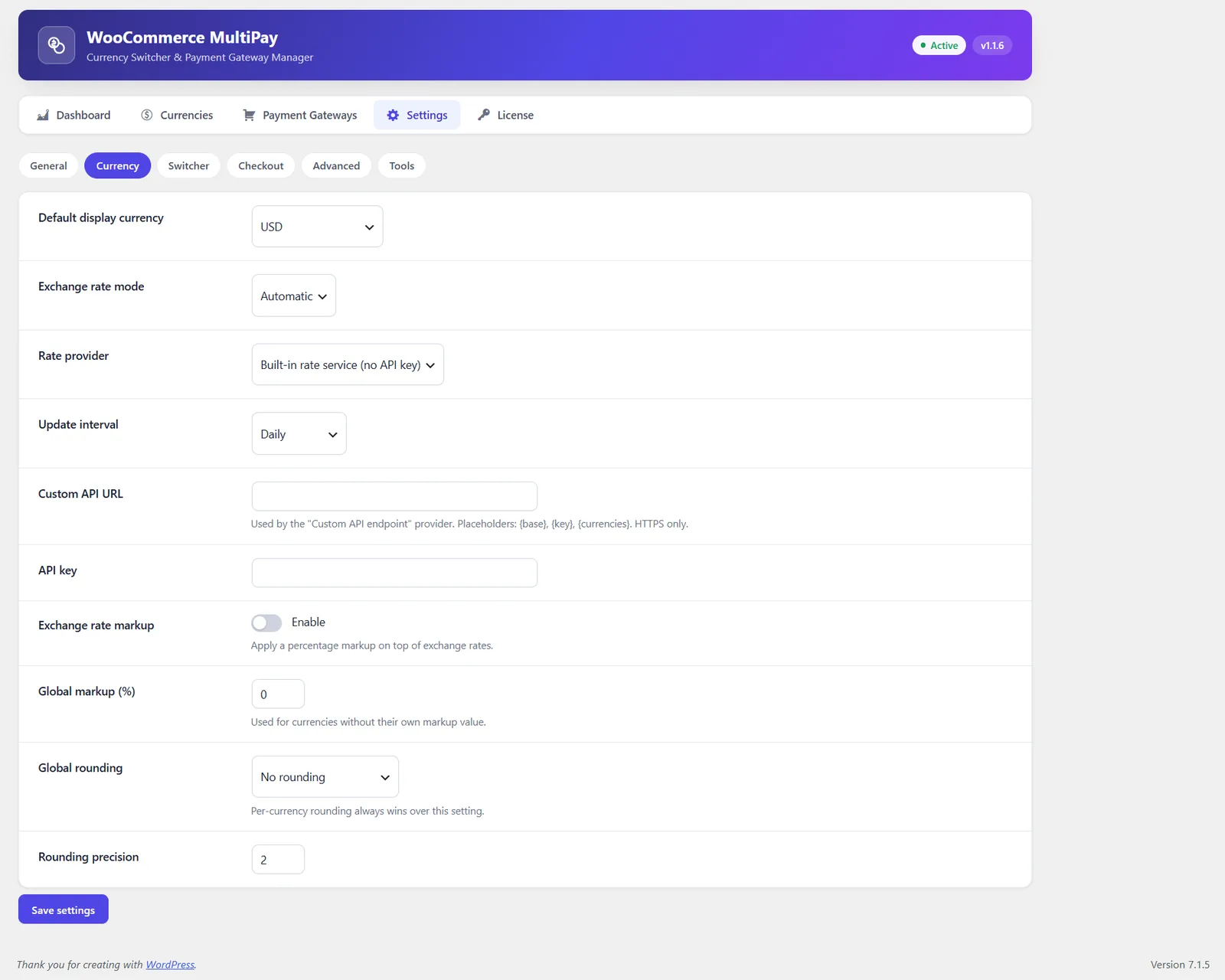
Go to Settings → Currency.
| Setting | What it does |
|---|---|
| Default display currency | The currency new visitors see first. |
| Exchange rate mode | Automatic or manual rates. |
| Rate provider | For example the Built-in rate service (no API key), or a custom API endpoint. |
| Update interval | How often automatic rates refresh, for example Daily. |
| Custom API URL / API key | For the custom endpoint provider. Placeholders: {base}, {key}, {currencies}. HTTPS only. |
| Exchange rate markup | Apply a percentage markup on top of exchange rates. |
| Global markup (%) | Used for currencies without their own markup value. |
| Global rounding / precision | Rounding for all currencies. Per-currency rounding always wins over this setting. |
Currency switcher
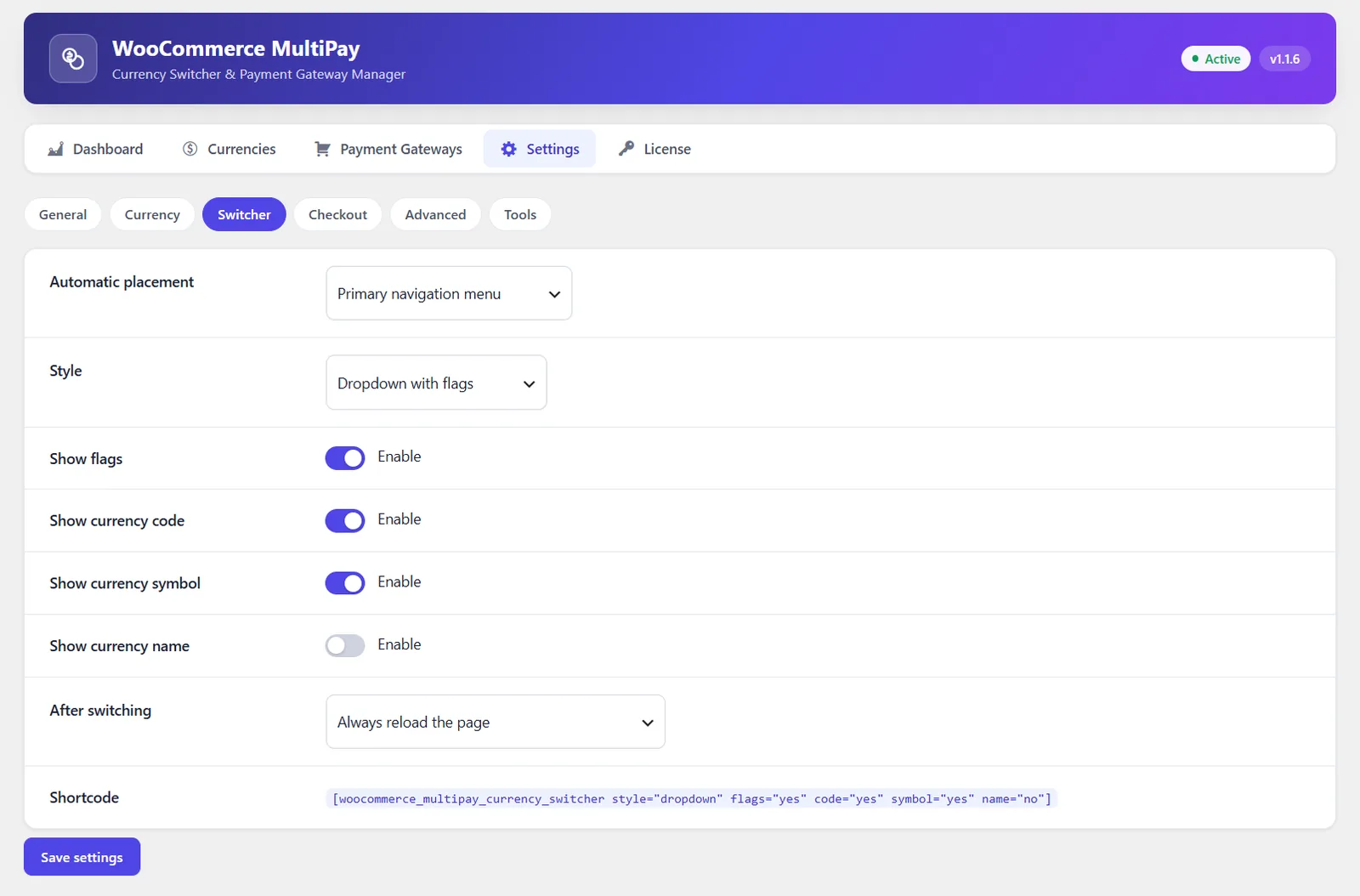
Go to Settings → Switcher to control how shoppers change currency.
| Setting | What it does |
|---|---|
| Automatic placement | Where the switcher appears automatically, for example the Primary navigation menu. |
| Style | For example Dropdown with flags. |
| Show flags / code / symbol / name | Choose what each option in the switcher shows. |
| After switching | What happens after a shopper picks a currency, for example Always reload the page. |
Shortcode
To place the switcher anywhere else, for example in a widget, page or footer, use the shortcode:
[[woocommerce_multipay_currency_switcher style="dropdown" flags="yes" code="yes" symbol="yes" name="no"]]Change yes / no to show or hide flags, codes, symbols and names.
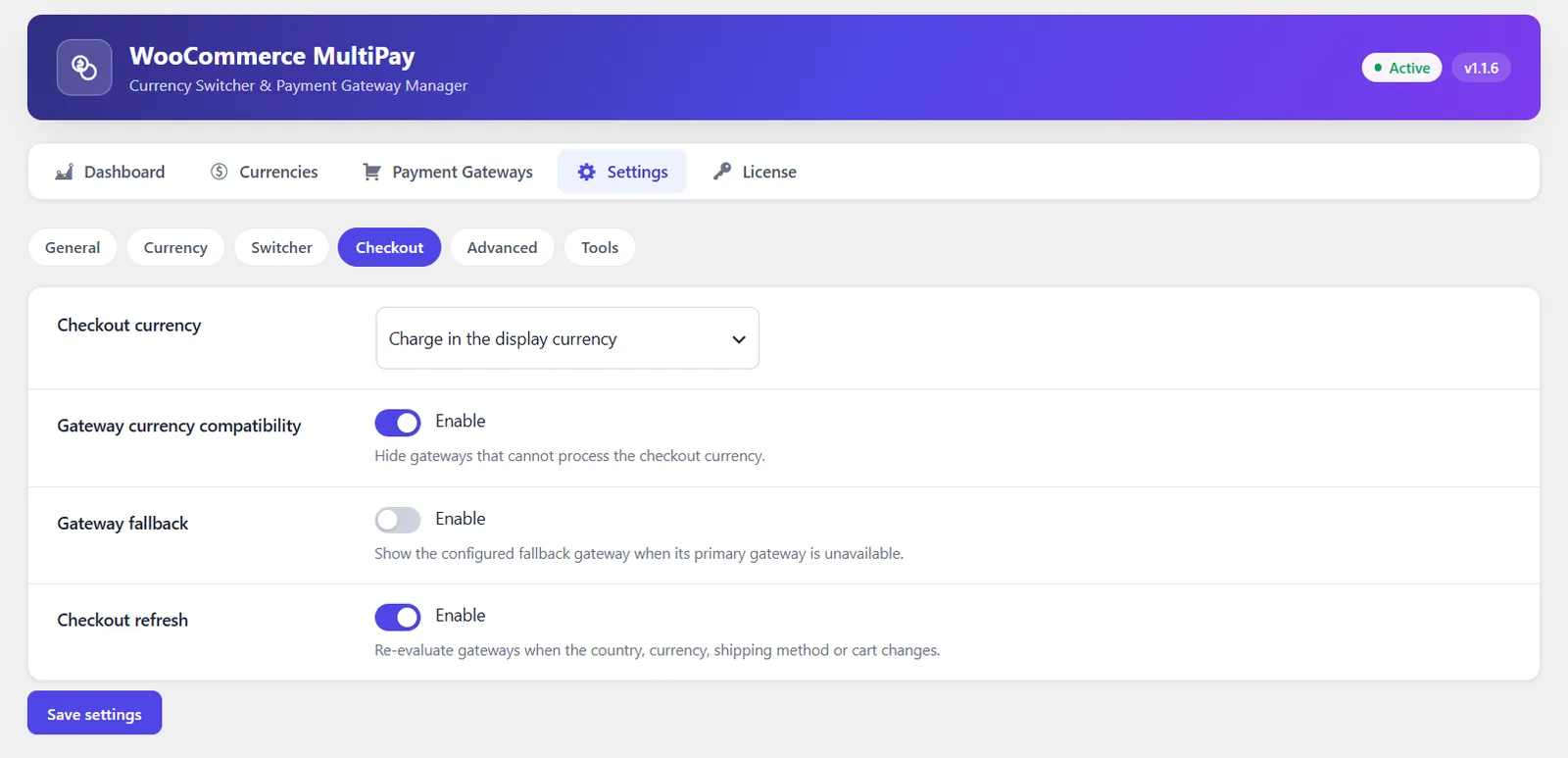
Checkout settings
Go to Settings → Checkout.
| Setting | What it does |
|---|---|
| Checkout currency | For example Charge in the display currency, so customers pay in the currency they see. |
| Gateway currency compatibility | Hide gateways that cannot process the checkout currency. |
| Gateway fallback | Show the configured fallback gateway when its primary gateway is unavailable. |
| Checkout refresh | Re-check gateways when the country, currency, shipping method or cart changes. |
Advanced & tools
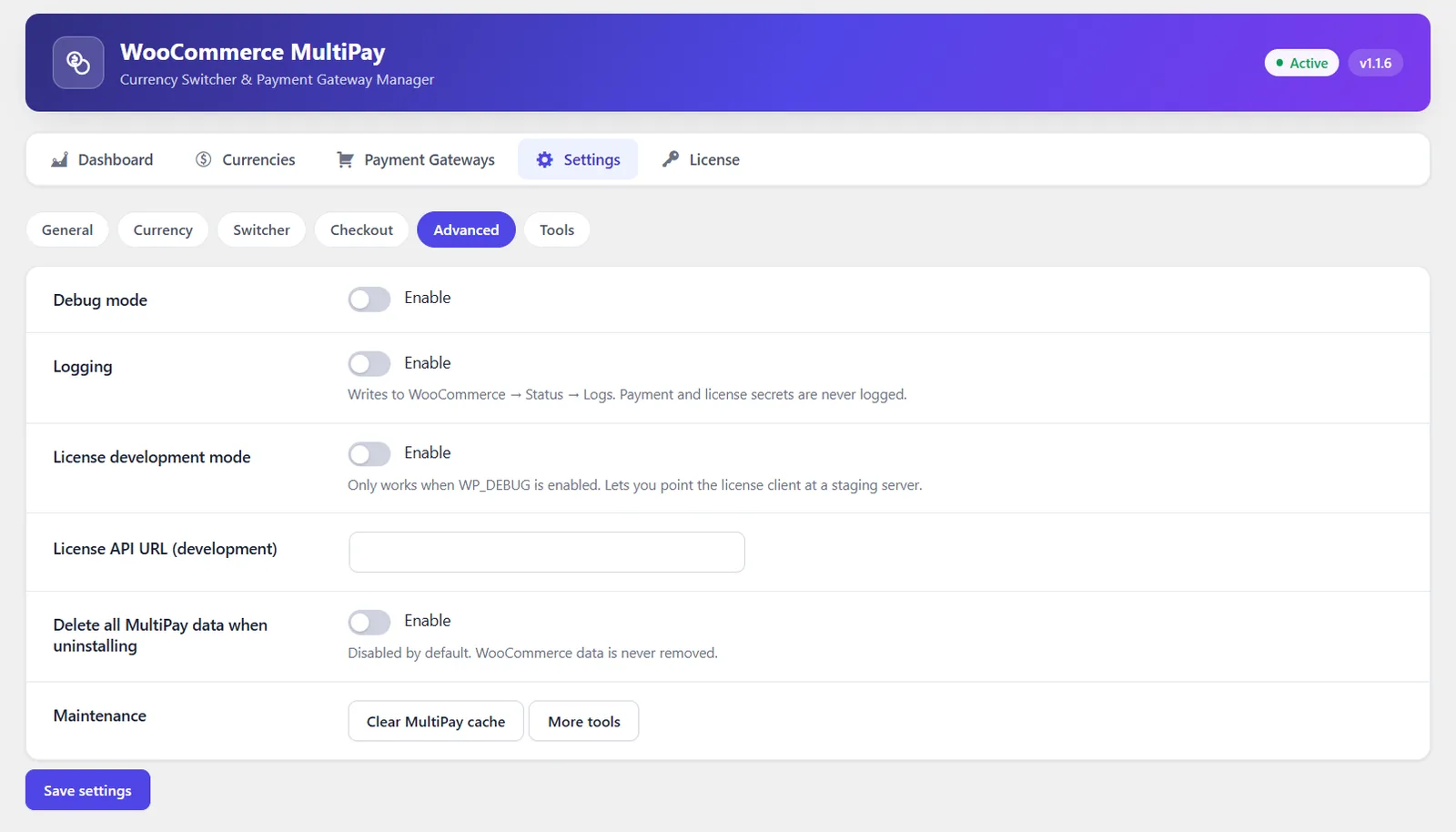
Advanced
| Setting | What it does |
|---|---|
| Debug mode | Turn on only while troubleshooting. |
| Logging | Writes to WooCommerce → Status → Logs. Payment and license secrets are never logged. |
| License development mode / API URL | For developers only. Works only when WP_DEBUG is enabled. |
| Delete all MultiPay data when uninstalling | Disabled by default. WooCommerce data is never removed. |
| Maintenance | Clear MultiPay cache, or open More tools. |
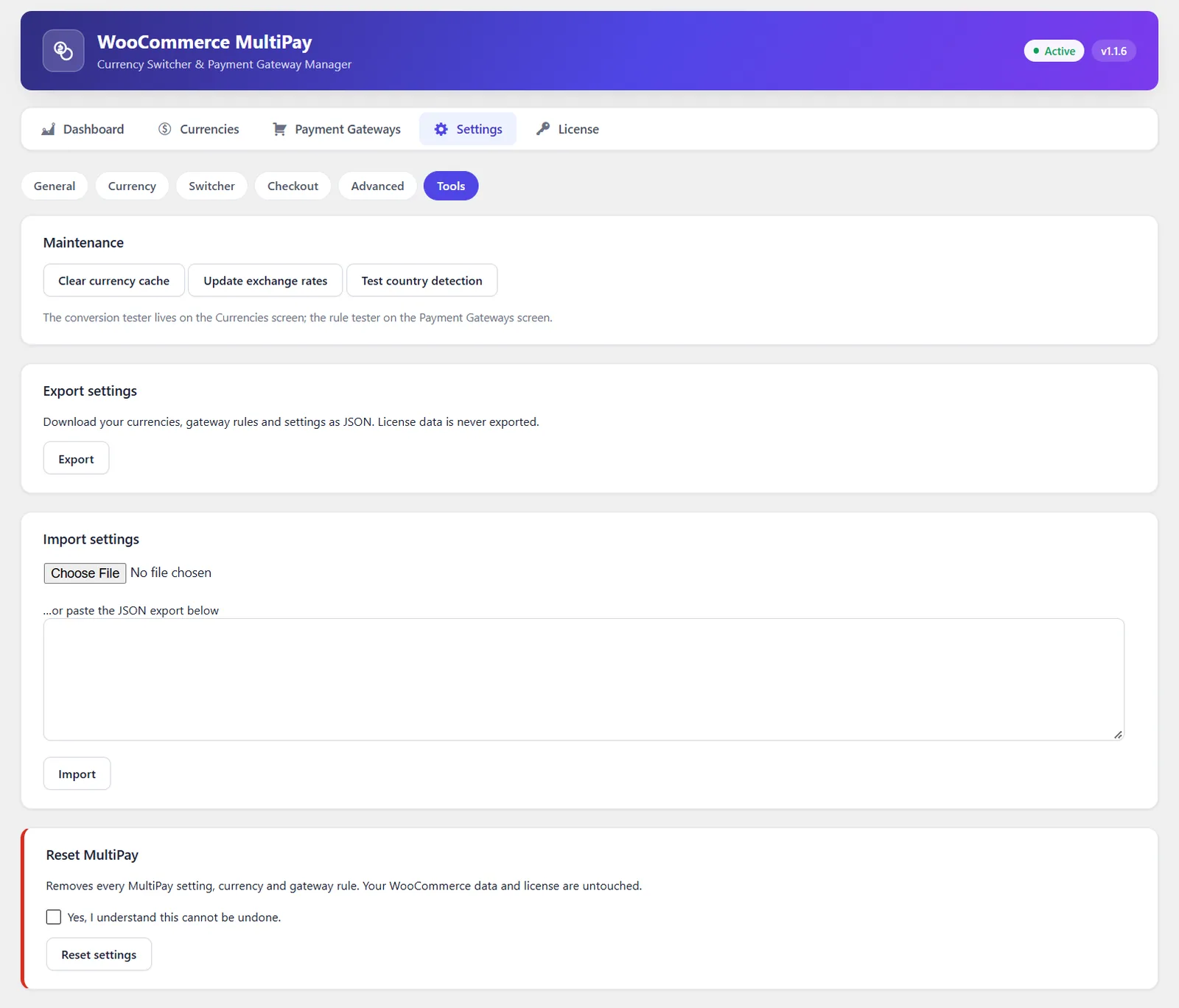
Tools
- Maintenance: Clear currency cache, Update exchange rates and Test country detection.
- Export settings: download your currencies, gateway rules and settings as JSON. Licence data is never exported.
- Import settings: upload a JSON file or paste the export, then click Import. Handy for copying your setup to another site.
- Reset MultiPay: removes every MultiPay setting, currency and gateway rule. Your WooCommerce data and licence are untouched.
Careful: Reset cannot be undone. Export your settings first so you can import them again if needed.
Example: an Indian store selling worldwide
A common setup: Indian customers pay in ₹ with Indian gateways, everyone else pays in $ with PayPal.
- Currencies: keep your base currency, add INR and set its Countries to India, with automatic rates and rounding.
- Supported currencies: in Payment Gateways, mark your Indian gateway for INR and PayPal for USD.
- Rule 1: Show your Indian gateway (for example PayU or PhonePe) when billing country is India.
- Rule 2: Show PayPal when the currency is USD.
- Checkout: keep Gateway currency compatibility and Checkout refresh on.
- Test: use Test gateway rules with India + INR, then United States + USD.
Troubleshooting
| Problem | Solution |
|---|---|
| A gateway doesn’t show at checkout | Check that it’s enabled in WooCommerce, that its supported currencies include the checkout currency, and that a Show rule matches. Use Test gateway rules to see why. |
| A visitor sees the wrong currency | Their chosen currency is remembered (for example 30 days). Test in a private window, and use Test country detection in Tools. |
| Prices didn’t update after a rate change | Click Update rates now, then Clear currency cache, and clear your page cache (for example LiteSpeed Cache). |
| Prices show long decimals | Set Rounding and Decimal places for that currency. |
| Switcher doesn’t appear | Check Automatic placement in Settings → Switcher, or add the shortcode where you want it. |
| Everything looks wrong | Turn Enable MultiPay off to restore stock WooCommerce behaviour; your configuration is kept. |
Still need help?
Email us and we’ll reply within 2–16 hours. Support is included while your licence is valid. Please include your website address, your MultiPay version and a screenshot of the problem.